Site Types
Branch sites
CIB Branch
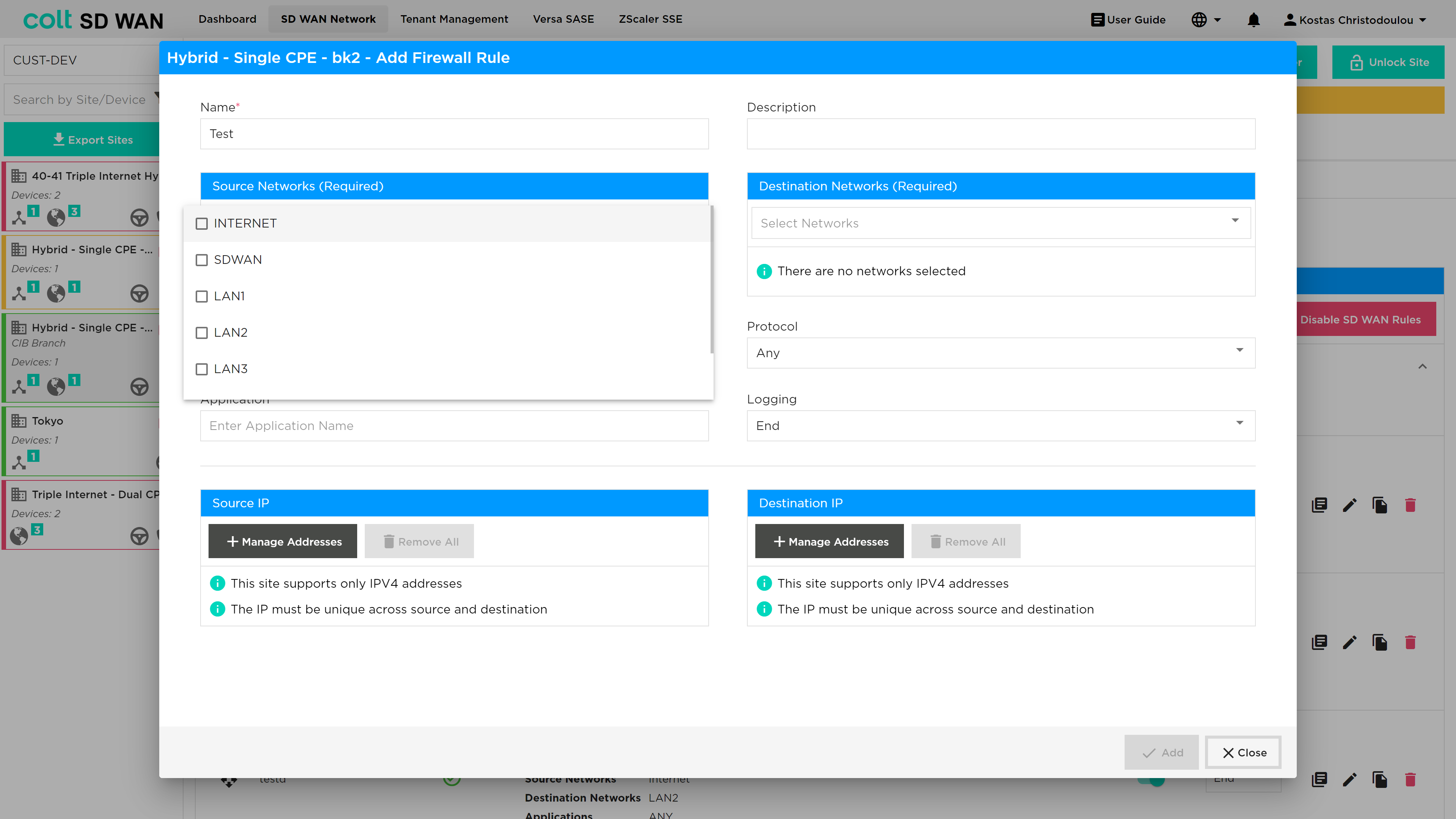
This feature/site enables your main site to serve as a CIB hub with SD WAN Local Internet Breakout (LIB), allowing other branches in your network to efficiently access the internet through this central point. To activate CIB on your main site and ensure seamless traffic flow from other branches, it is crucial to update firewall rules. Specifically, we’ve streamlined the process on the portal to add/modify firewall rules for traffic originating from a source zone, heading towards the destination zone.
Gateway
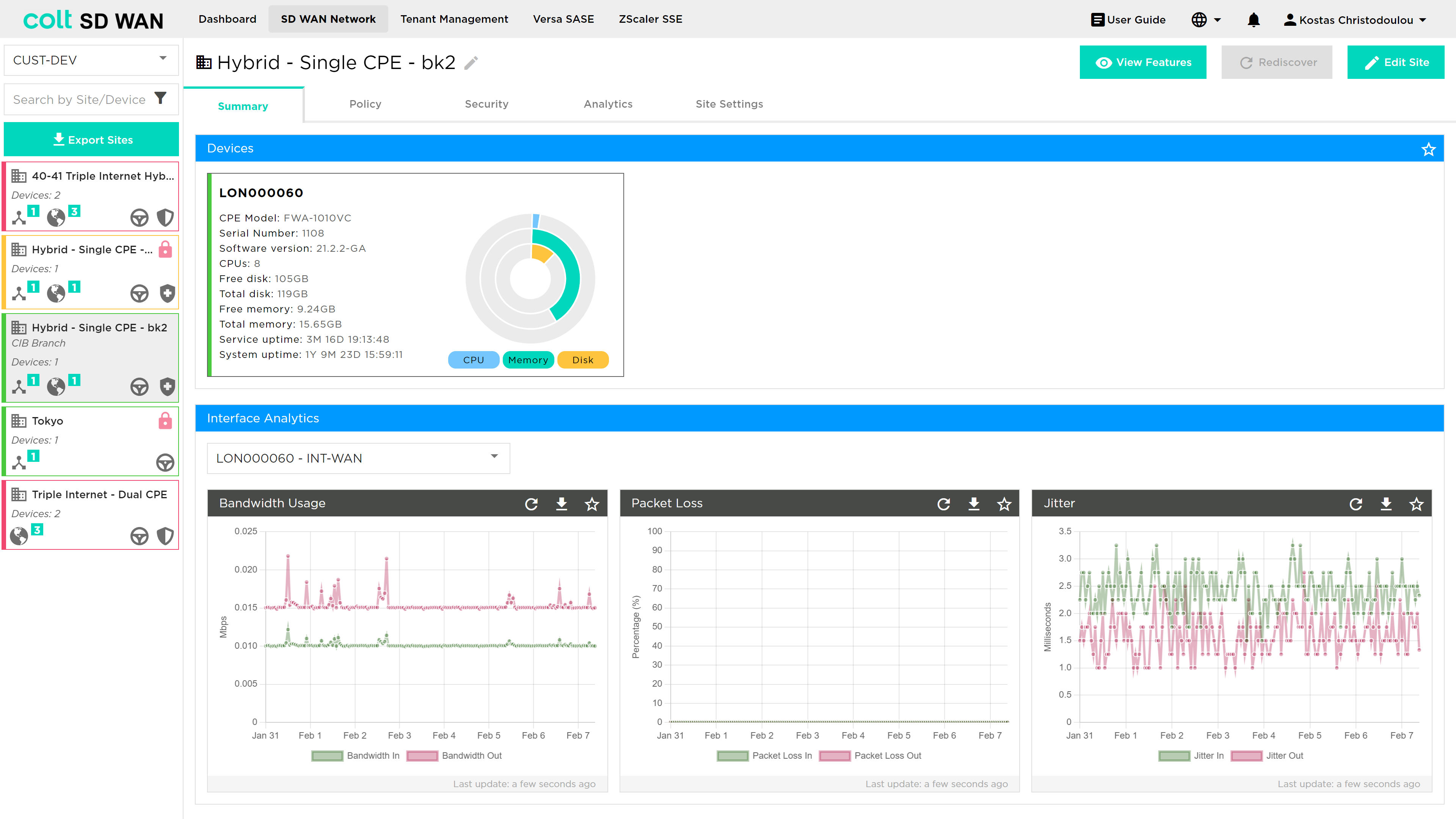
This feature enables branch sites to function as SD WAN Gateways (GWs) within the SD WAN portal, allowing users to leverage advanced traffic management capabilities similar to shared or dedicated GWs.
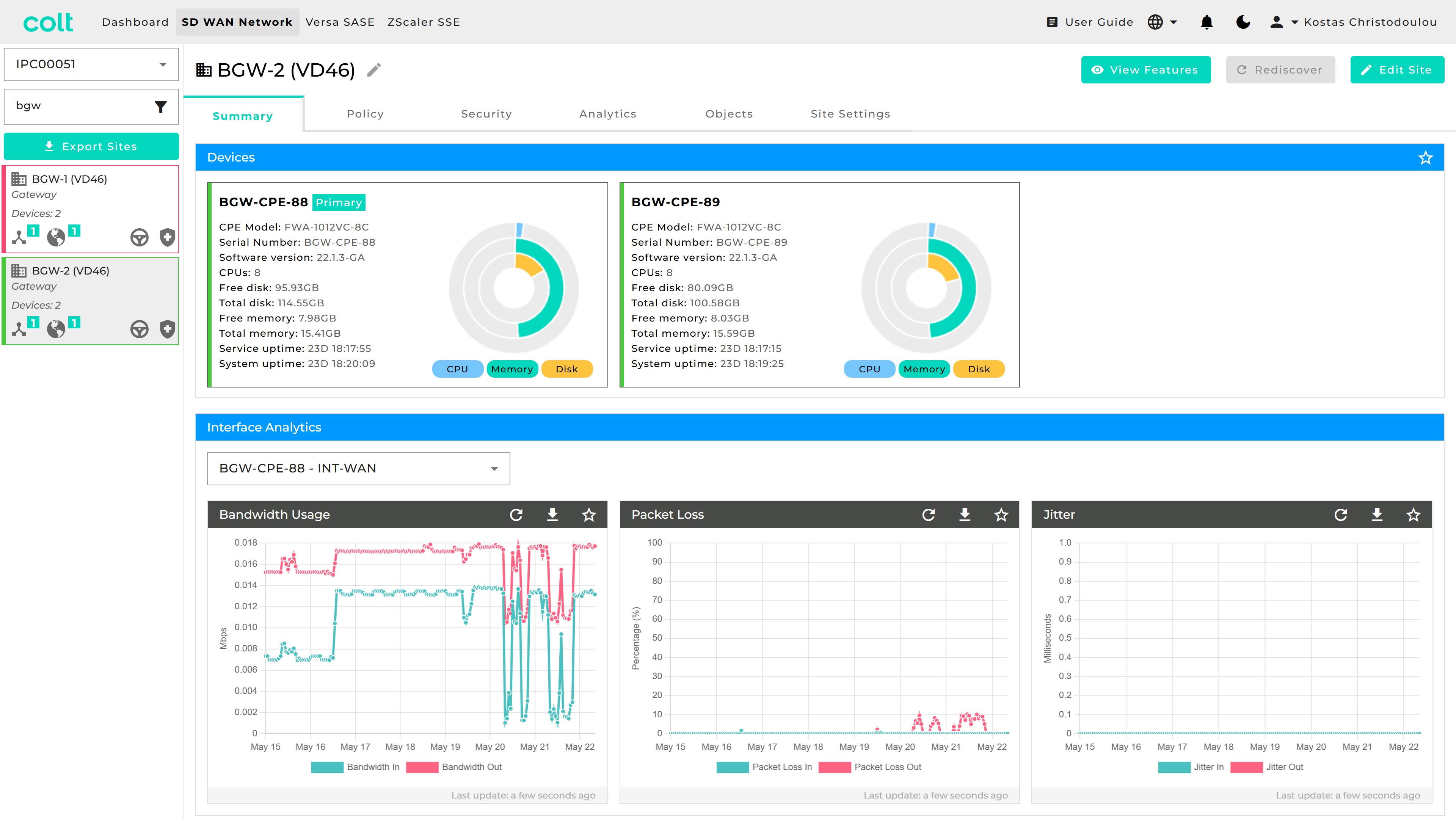
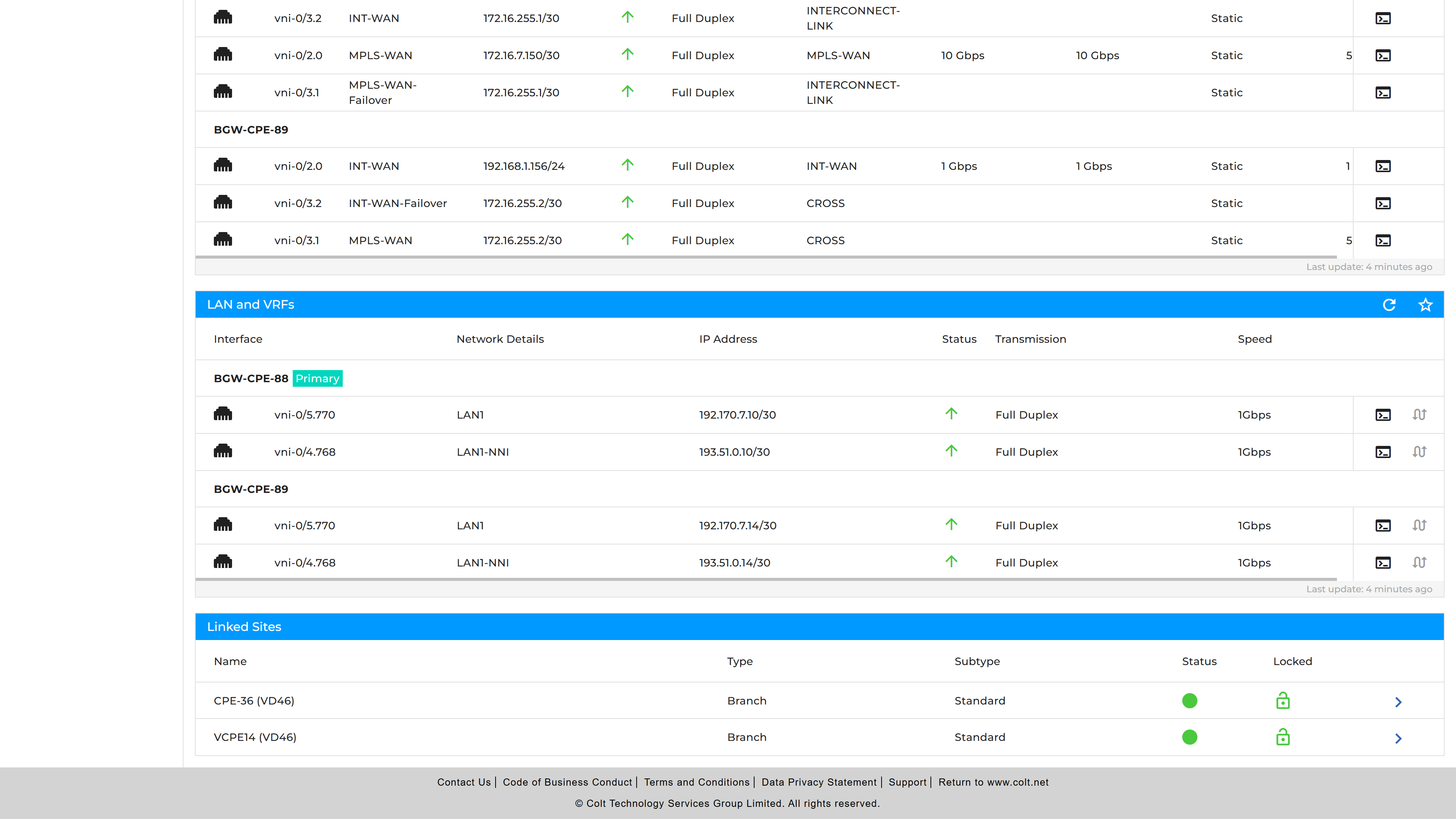
A separate Interface associated with LANx-NNI is also introduced. This is used to enable the SD WAN to Non-SD WAN (Legacy IPVPN) communication.
| LANx-NNI traffic is restricted to consume LIB or CIB if configured on a Branch GW site. |
The linked sites table shows the standard SD WAN sites that are associated with this Branch GW site. Clicking on them will redirect you to the particular branch site - see photo below.
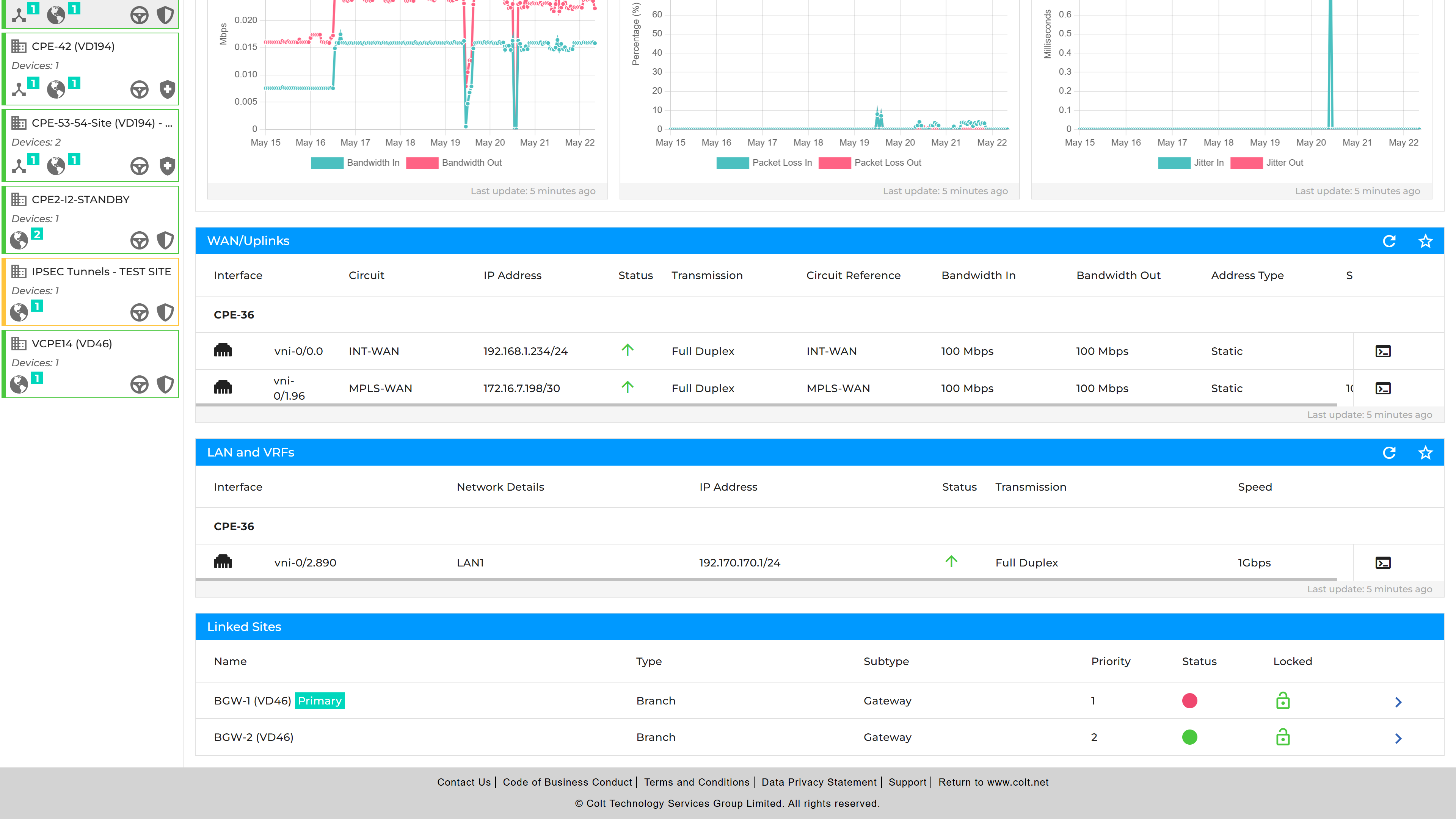
This table shows the list of Branch GW sites associated with the specific Branch site. It allows visibility of priority and status. Clicking on a them will redirect you to the associated Branch GW.
This feature is only available to new customers or existing customers deploying in a new region. This feature needs to be ordered by the customer via the AE and requested to the AE and our team will then configure it. This feature allows to set Traffic Policies as needed, enable or restrict features based on traffic source, including options like: Internet Traffic Steering, SaaS Optimization, Next-hop Routing and to set up Firewall rules for the internet traffic.
Cloud Gateway (SD WAN Multi-Cloud Gateway)
| Cloud gateways are shared infrastructure devices and therefore WAN usage reporting is not available for these devices. |
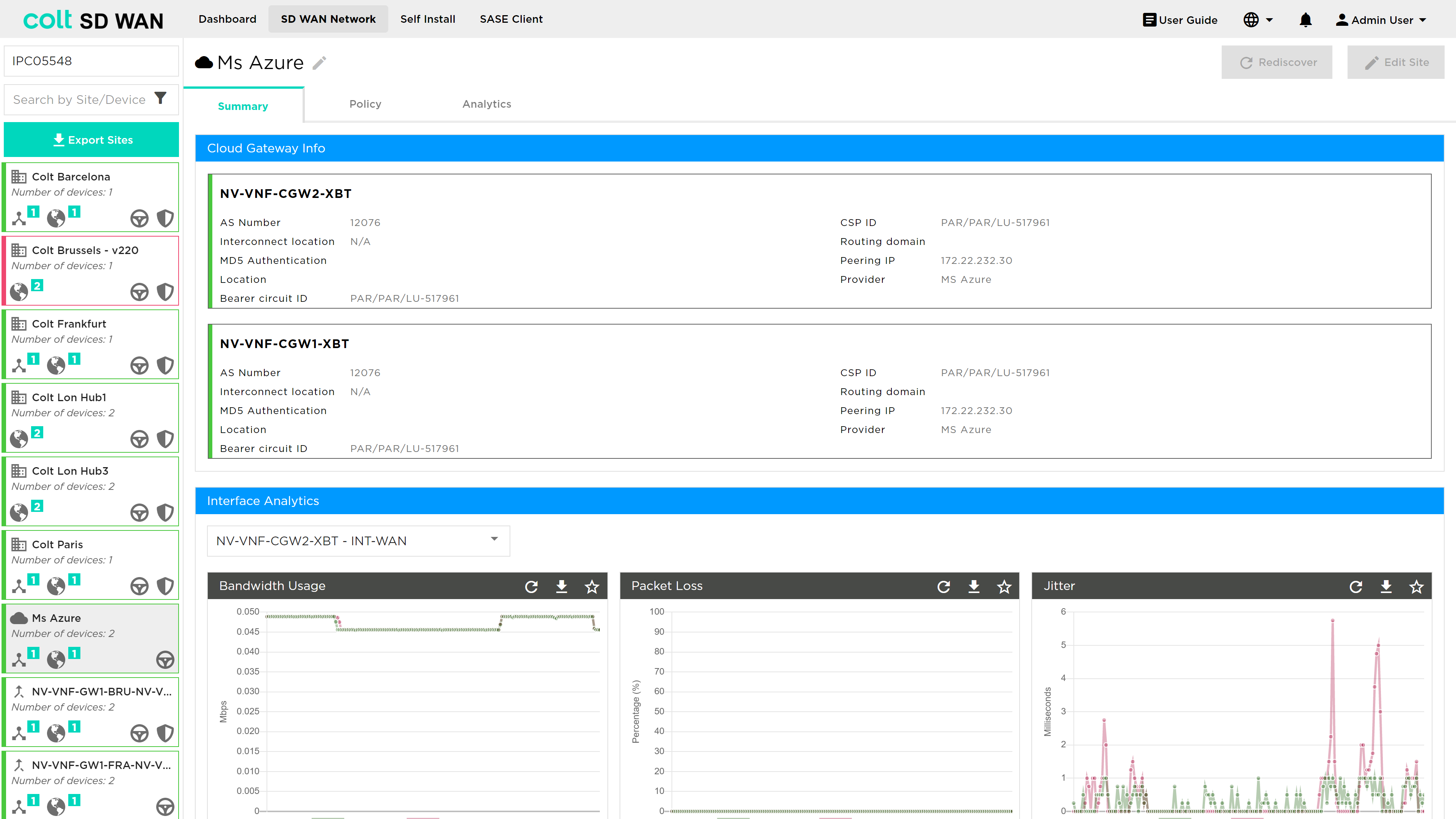
The SD WAN Multi-Cloud Gateway provides the ability for SD WAN users to route traffic to multiple cloud service providers. The Cloud Gateway is the Colt network device that provides peering with multiple cloud service providers for each customer. Each customer will see an instance of the Cloud Gateway as a separate gateway for each Cloud Service Provider (CSP) they require access to. See screenshot below. Each gateway connection to a CSP may have Firewall and Traffic Management options depending on what network and peering connections are provided.
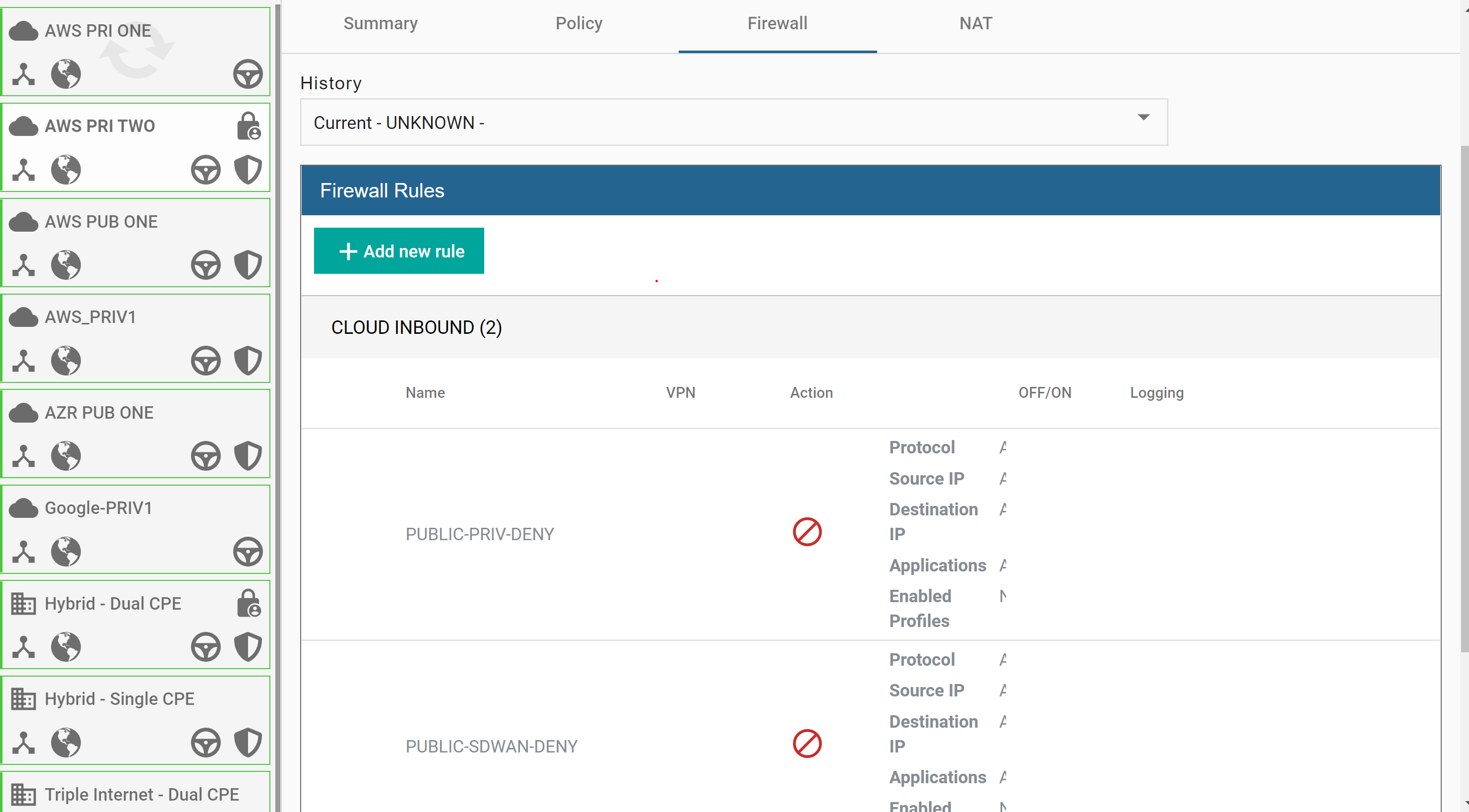
Cloud gateways can be Public or Private peered. Public peered gateways allow Firewall policies to be set on both inbound and outbound between the Cloud Gateway and the Internet connection to the CSP (see screen shot below). Adding and editing rules can be done in the same way as branch site Firewall rules, this includes DNAT for inbound traffic. Firewall rule enablement, logging, and ordering are done in a similar way to Firewall Management above.
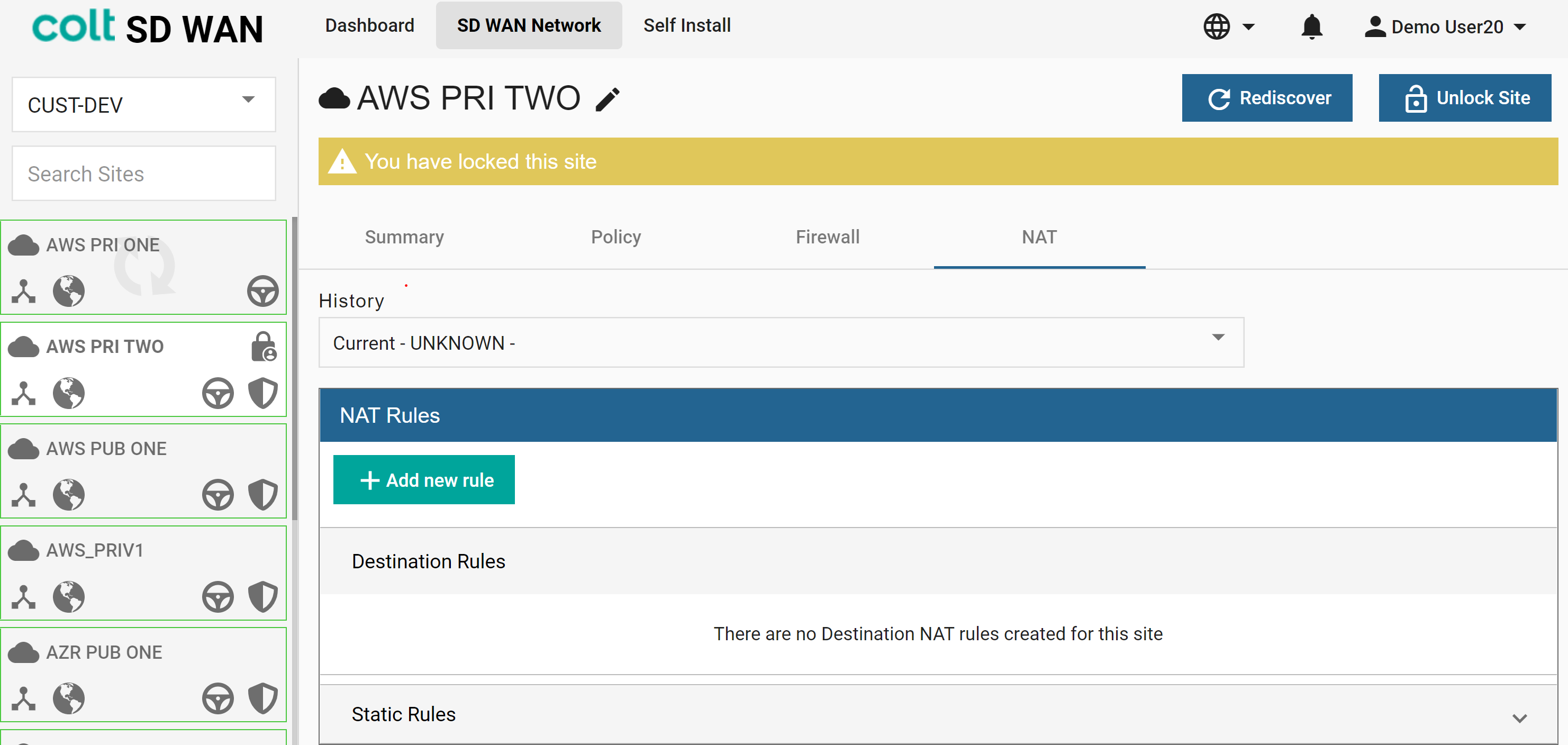
In addition, FW rules, NAT is available on the Cloud Gateway, however, only destination (DNAT) is available as illustrated in the screenshot below. NAT policies can be added, edited or deleted in the same way as SD WAN Branch sites.
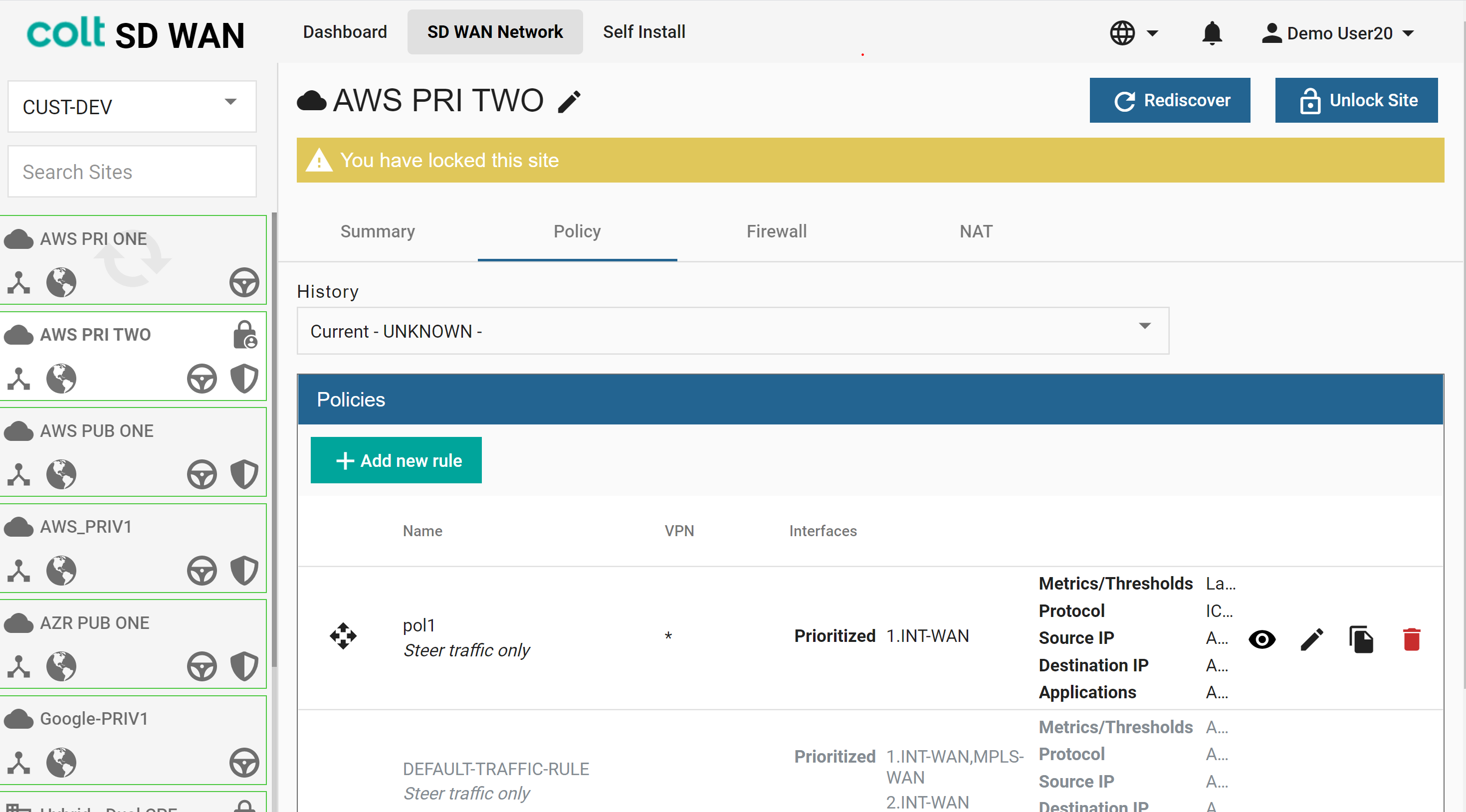
The Cloud Gateway may be connected by MPLS or Internet connectivity and traffic management policies can be added across these links.
Routing changes, even static route entries, are not available on the Cloud Gateway. BGP route information can be viewed using the Console and Add static route buttons as shown above for the SD WAN Branch sites
Standard Gateway (Central Internet Breakout Gateway)
The central internet breakout feature allows customers to purchase a shared infrastructure gateway that enables diverse paths for applications to breakout to the internet under policy control (See Internet Traffic Steering). These gateways are traffic shaped to limit available bandwidth per customer, for details of the rate options please contact Colt Sales or an assigned Colt Service Manager.
The Gateway are shown as devices in the inventory list as follows:
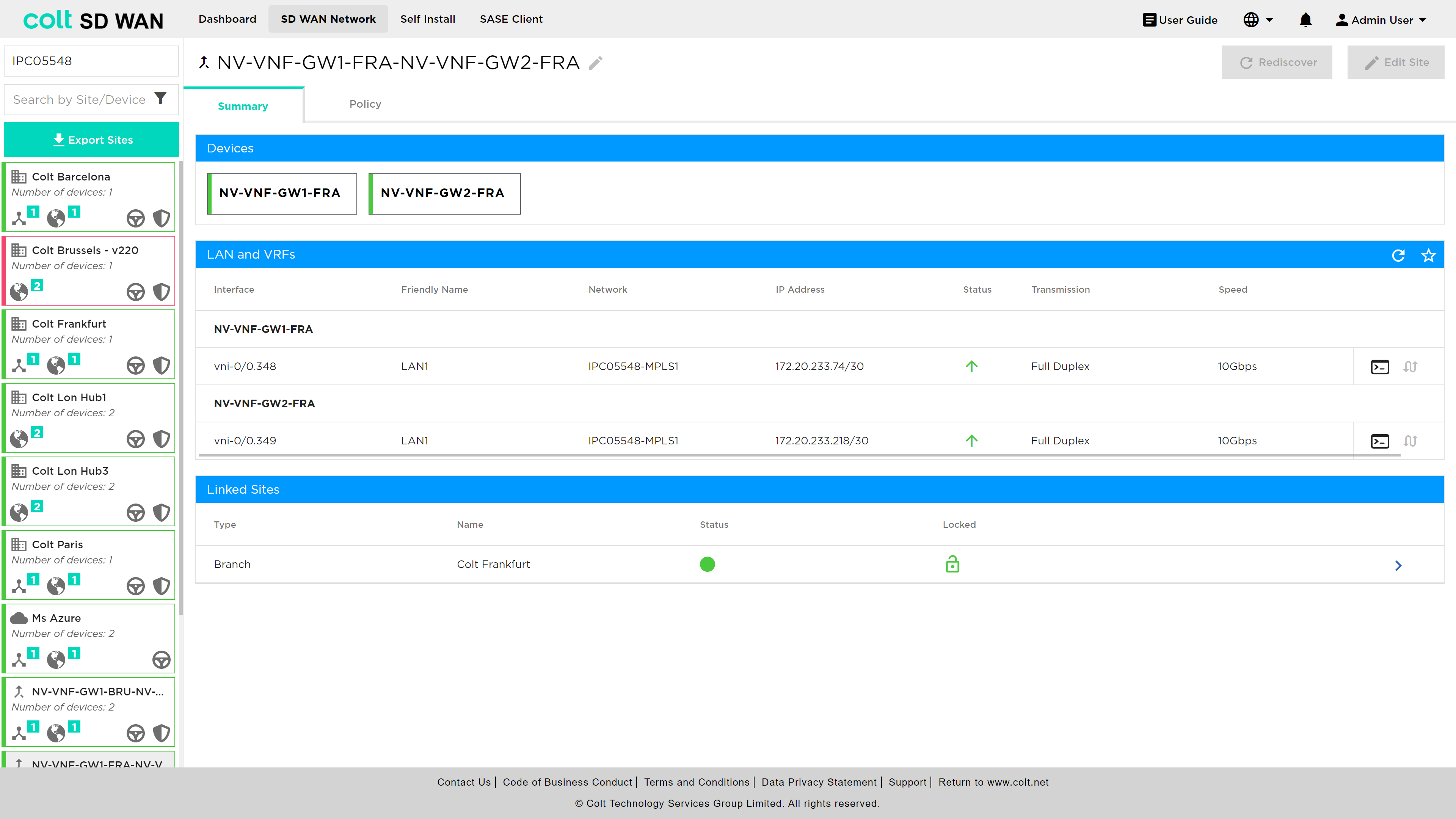
The gateway view shows the devices and the following features:
-
Device health status via colour code
-
Device command line console
-
LAN Command console: Ping, Tracert, Arp, Show TX/RX and IP routes
-
Static Route console to add static routes per VRF
-
List of links branch sites or those sites which have selected the gateway as alternative path for Internet Breakout.
Dedicated Gateway (Next Hop Priority)
Next Hop steering rules can be used to override the network routing decision and select the �Next-hop� as the intermediate site for the relevant traffic type selected by the customer. This can be illustrated by the diagram below.
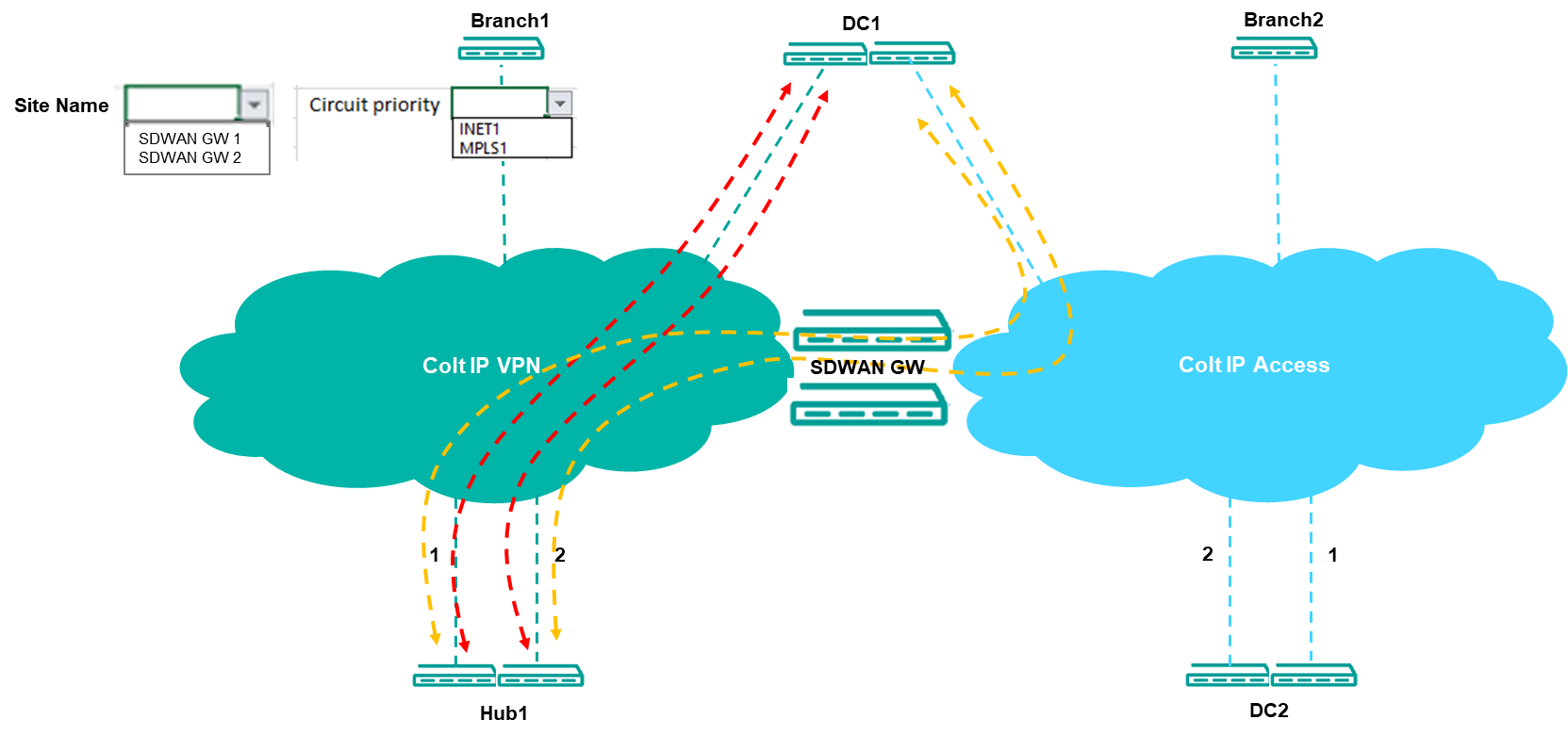
So sites with this feature activated will be available to configure this policy to send traffic across any Dedicated Gateways for any destination site if the selected VPN was deployed in all devices involved. For the destination sites is not necessary to have the feature enabled.
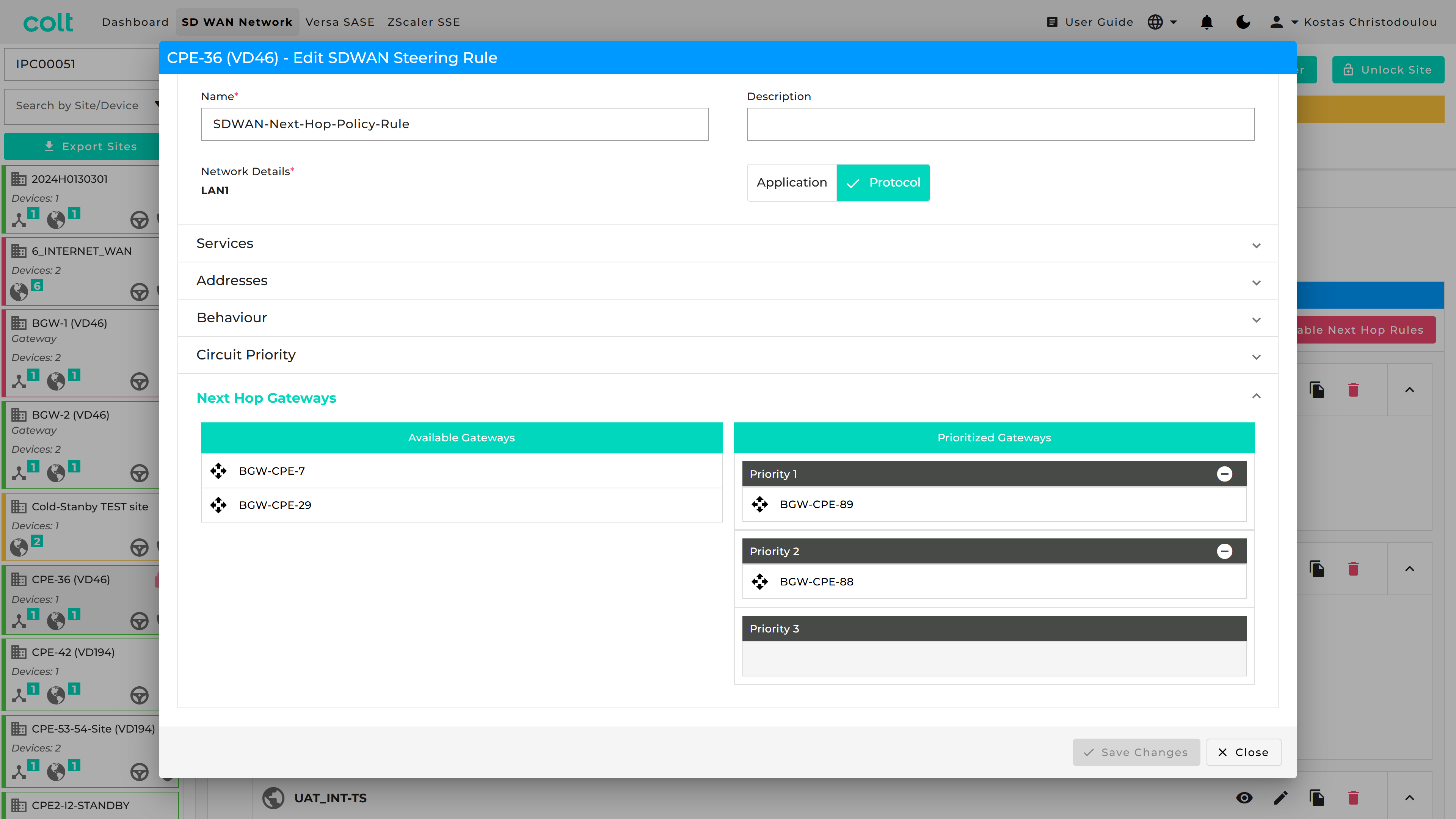
| Next hop priority steering rules can only be enabled once the customer has ordered a dedicated gateway. Without this the option will not appear in the portal. The dedicated gateway needs to be linked to the source site. This is shown in the portal as below: |

Once this feature in unlocked, then Next Hop rules will appear at the top of the list of SDWAN steering rules seen below and the customer is then able to add a Next Hop steering rule.

First the customer enables next hop rules by pressing on the �Enable Next Hop Rules� button the right hand side of the screen.
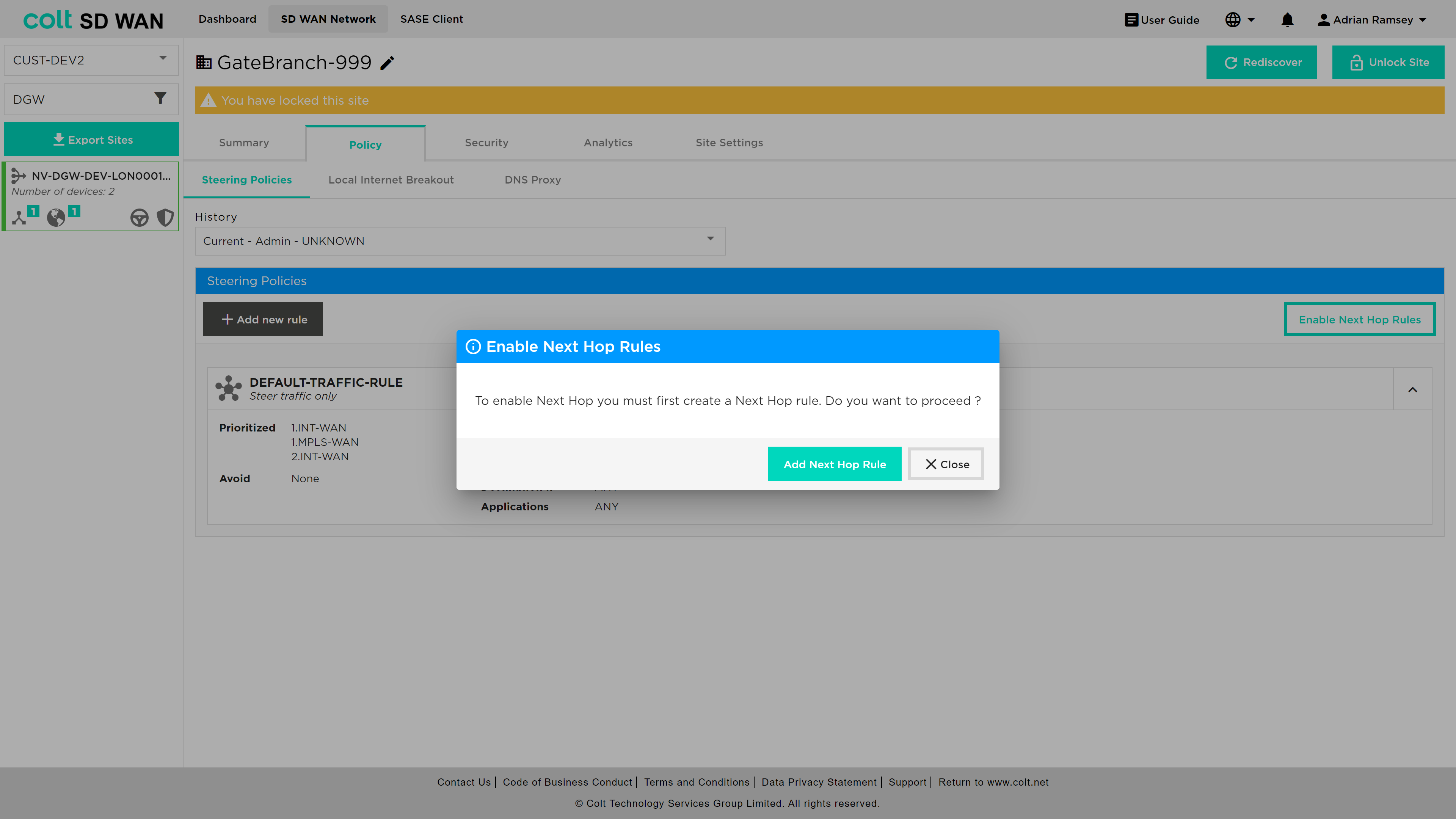
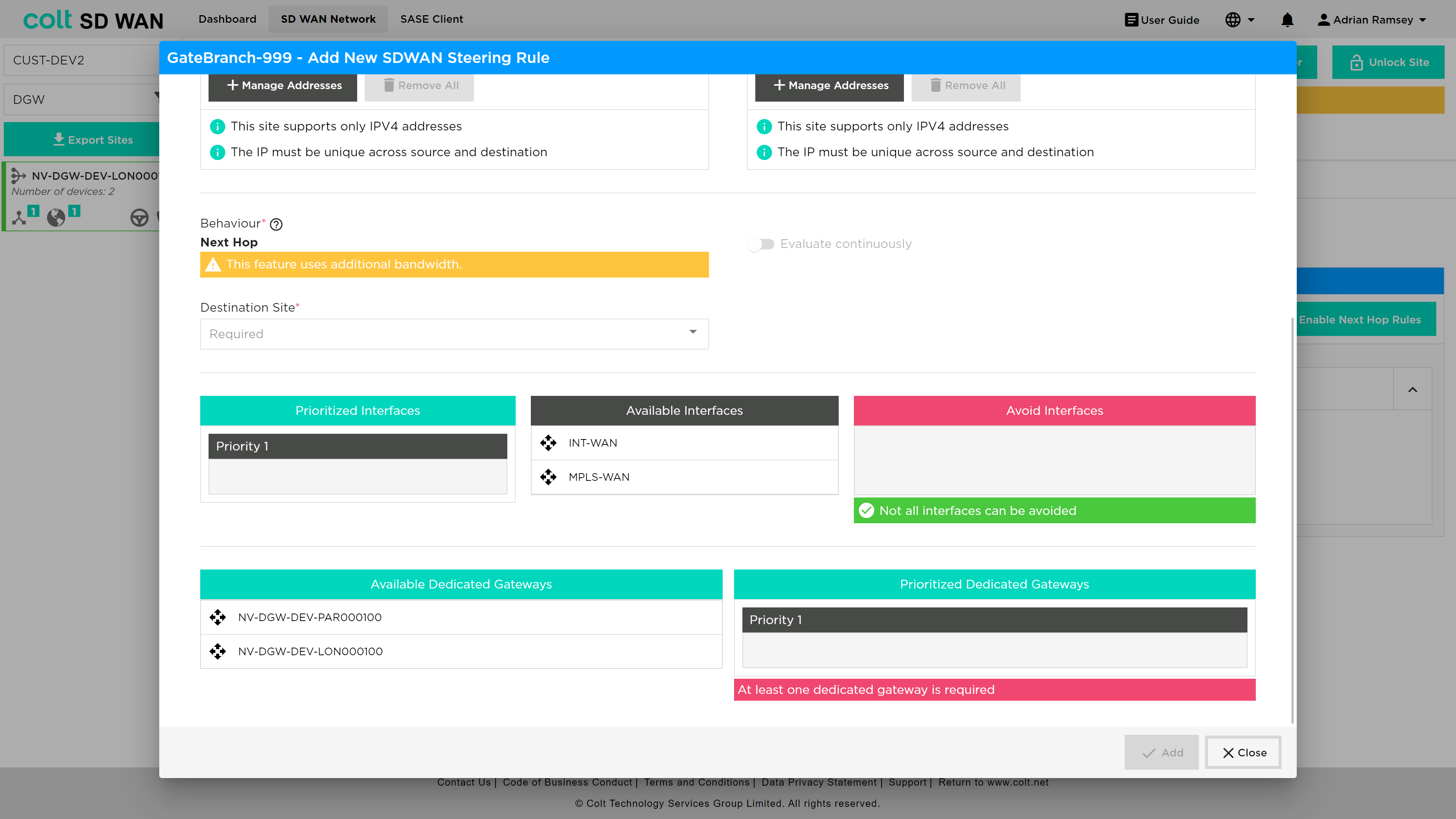
The following dialogue box opens which then prompts the customer to create a Next Hop rule.
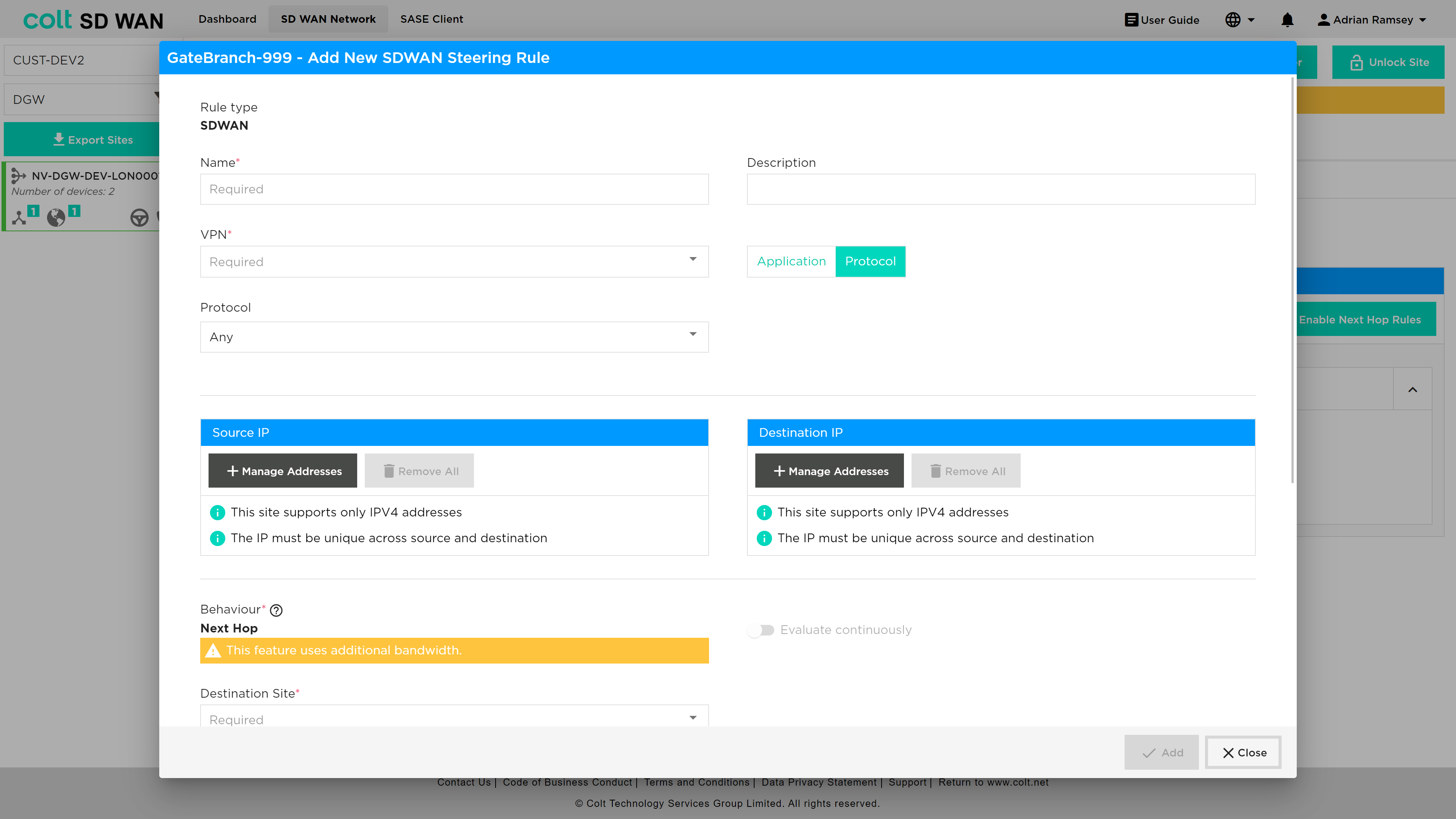
Once the add rule button is pressed the information below can be found at the bottom of the add rule dialogue box as shown below. Once the behaviour is selected as next hop, then the customer can select & prioritise from the available set of dedicated gateways that have been pre-ordered.
| Next hop rules will be applied before any other steering rules. |