Site Settings
The Site Settings tab provides three submenus that each cover a different topic:
-
General Settings
-
Netflow/IPfix
-
SNMP
General Settings
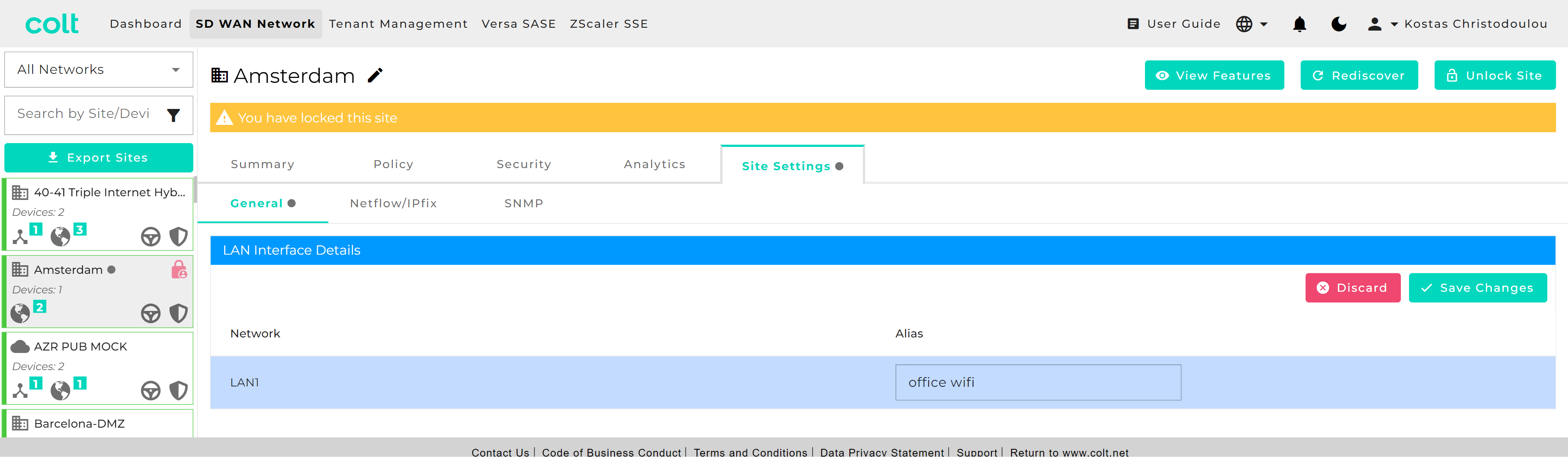
This newly introduced tab is designed to host future developments that are site affecting. For the moment it hosts the activation/deactivation button for Versa SASE and Zscaler SSE (if contracted) and allows for the option to rename VRF interfaces in a personalised way with an alias that makes them easy to recognise. The alias change is then visible in the Summary page.
Netflow/IPFix
This features provides the ability to provision an IP address for a TCP/UDP connection for a flow log collector. The service allows Netflow log files using the IPFix protocol to be transferred to a type approved server that can be hosted on an the Colt SD WAN or any reachable IP network.
Note that if a customer’s NetFlow server requires SNMP Read Only access to the CPE, then SNMP Read Only access must be enabled using the SD WAN portal for the respective NetFlow collector. Please see section 16.
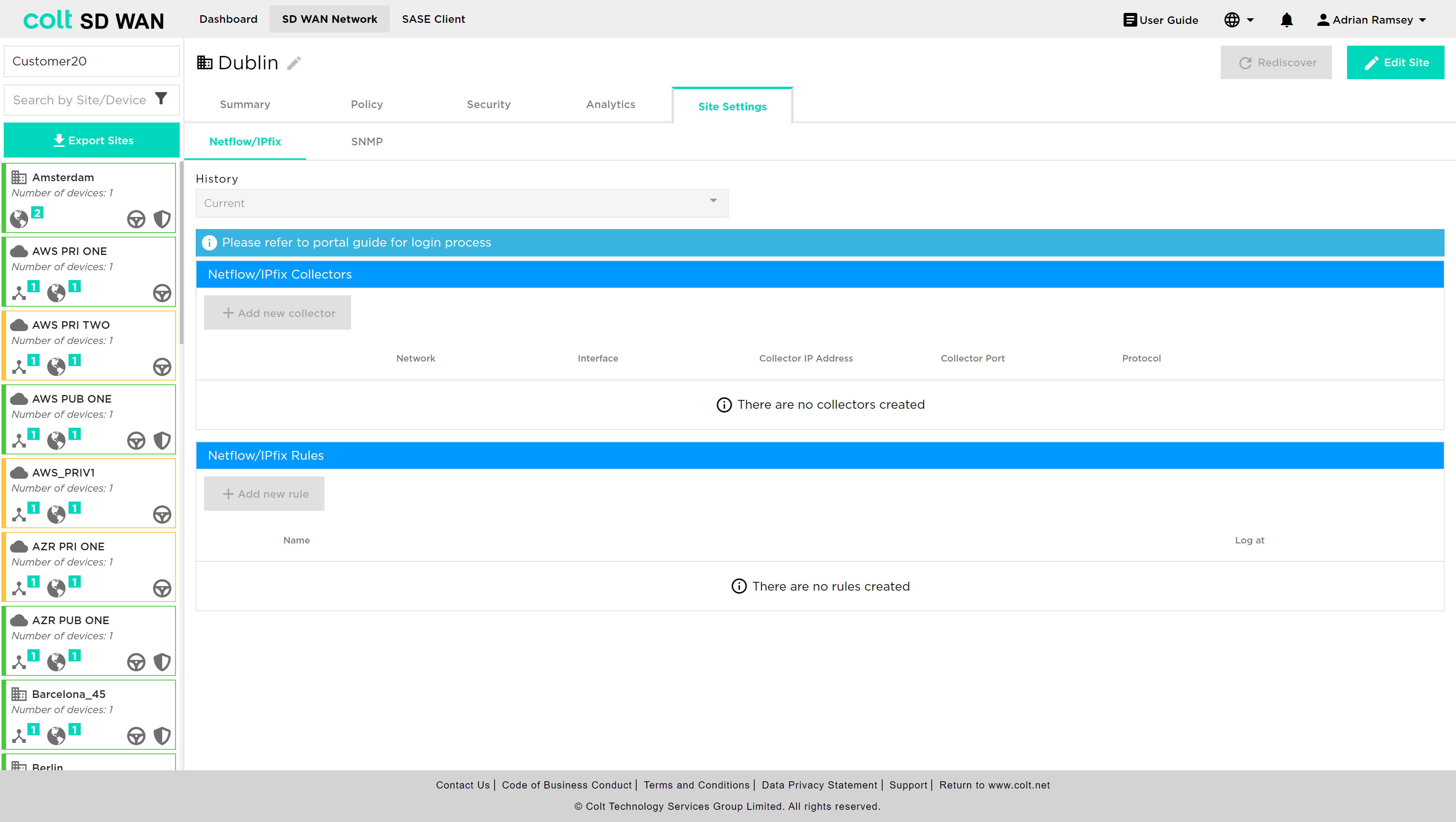
The Netflow/IPfix configuration is a site level main menu option as shown below. Multiple TCP log collectors can be created per site or VPN up to a maximum of 4, but only one UDP collector. The order of precedence is based on the order the rules are created.
| When configuring collectors for Secure Log Forwarding (SLF) and NetFlow on the same server, please make sure that the combination of Destination Address and Destination Port is unique for each collector. This means you cannot use the same IP address and port combination for both SLF and NetFlow collectors. |
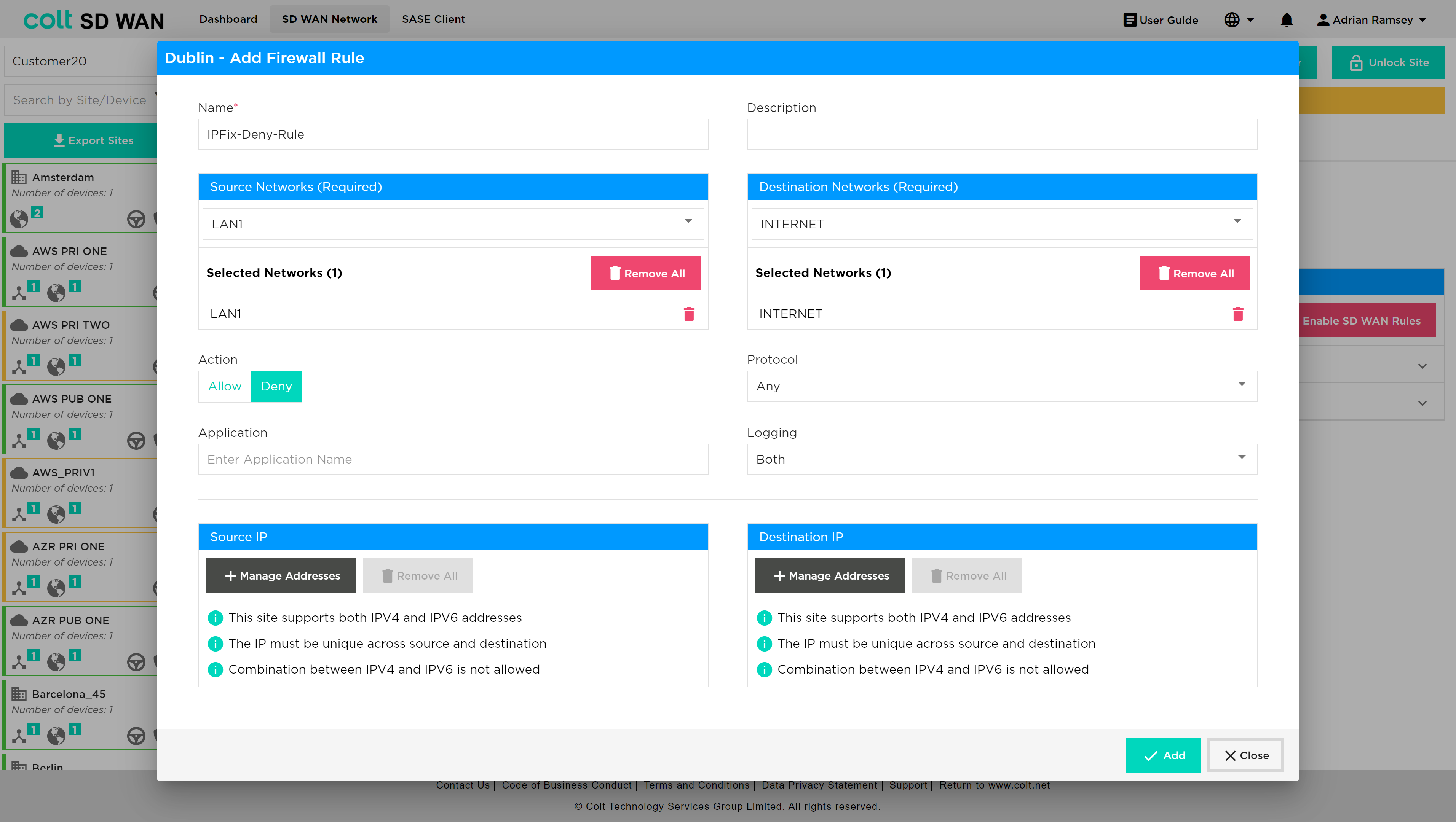
| For Netflow/IPFix we support collectors hosted in the Internet as well as within the customer´s network. If the customer site has local internet breakout enabled and the collector is not hosted in the Internet, to ensure logs are forwarded securely it is highly recommended to configure a deny firewall rule before any existing rules and also should match LAN-Zone(s) and the destination log collector IP. |
See the portal screenshots below:

The rule should be established as below:
There are two steps to provision a 3rd party log collector, the first is to configure the destination IP, port and protocol type per VPN or VLAN. This means multiple collectors can be provisioned. Note for IPFix the following collectors have been type approved by Versa:
-
Solarwinds
-
Cisco Stealthwatch
-
CA Technologies Netflow
|
Please note the following limitations:
|
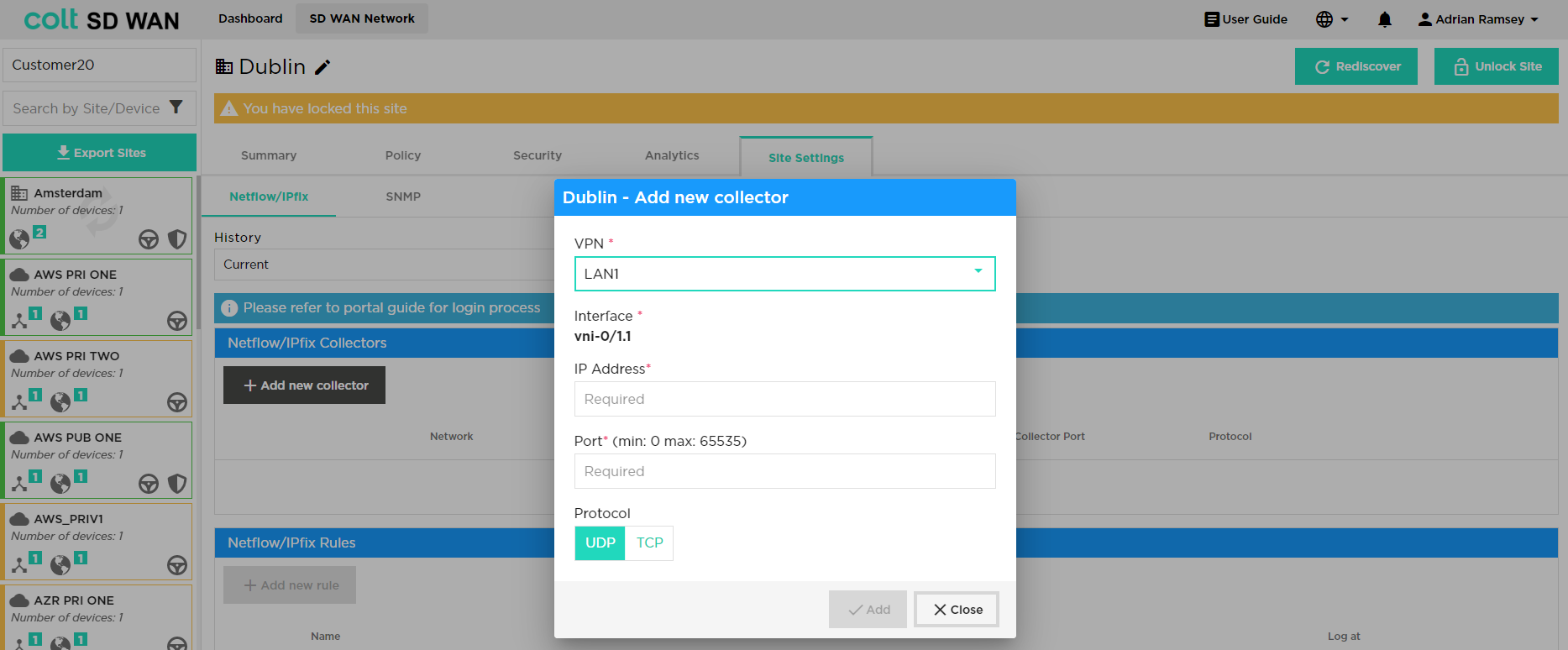
Note that when customer selects the relevant VPN, the related LAN interface is displayed on the portal – see above.
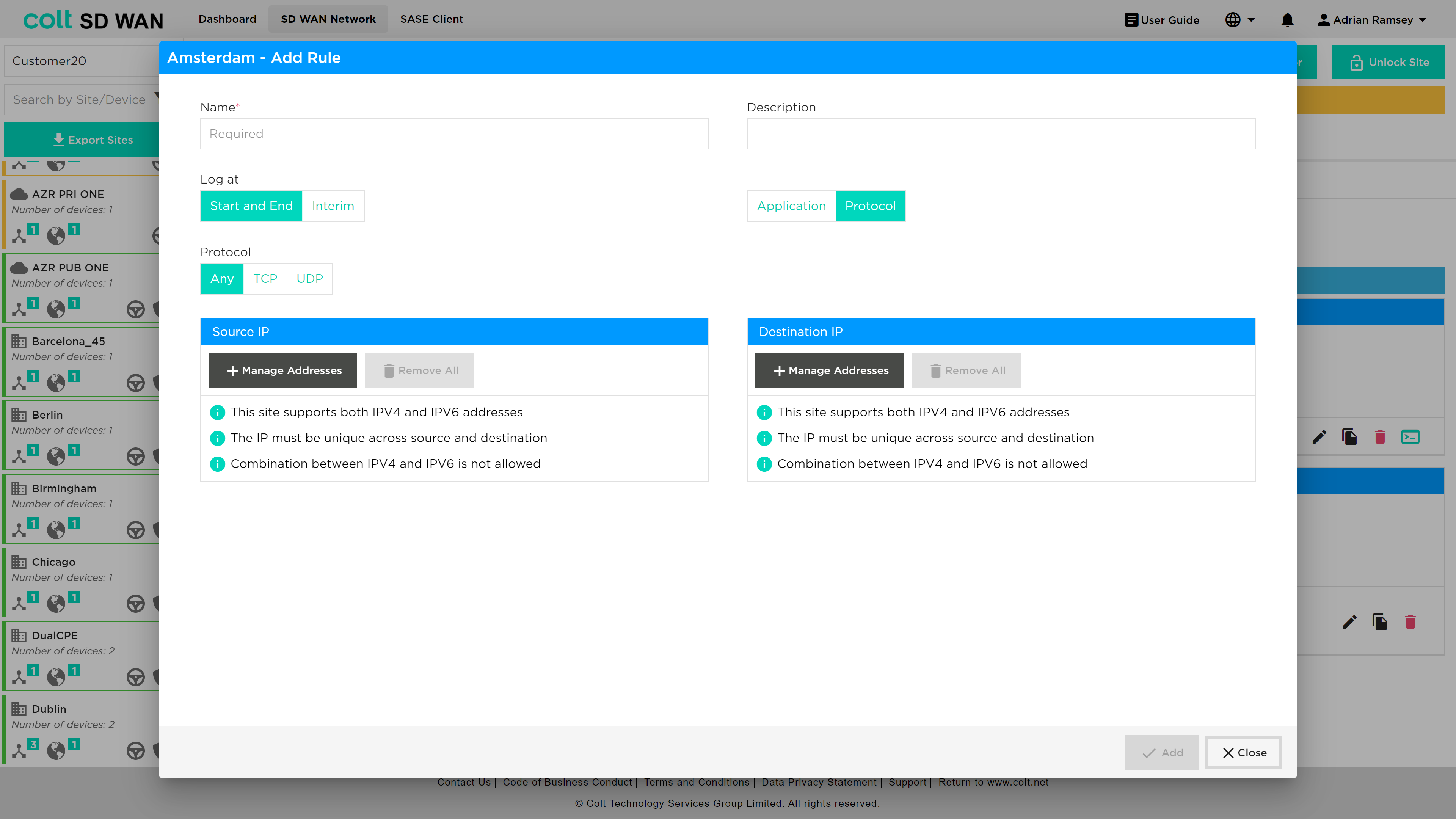
Forwarding of flow log files to a 3rd party collector can be filtered by creating rules with the following match criteria:
-
Log type (start and end or Interim)
-
Application or protocol
-
Source and/or Destination IP address
-
Source/destination Port or Port range
Log collector rules are applied to all Log collectors that have been created and the order of precedence can be set by the user I the same way as Policy or Firewall, by dragging the rule to the required position.
Bulk copy of Collector rules is also possible.
Start and end refers to logging at start and end of session. Interim means times when the flow is active for a long period of time there will be multiple log file. The default interim time is 1 minute - this time is not configurable.
SNMP Read Only
This feature allows access from a customer’s SNMP server allowing it to query specific MIBs on the SD WAN CPE device.
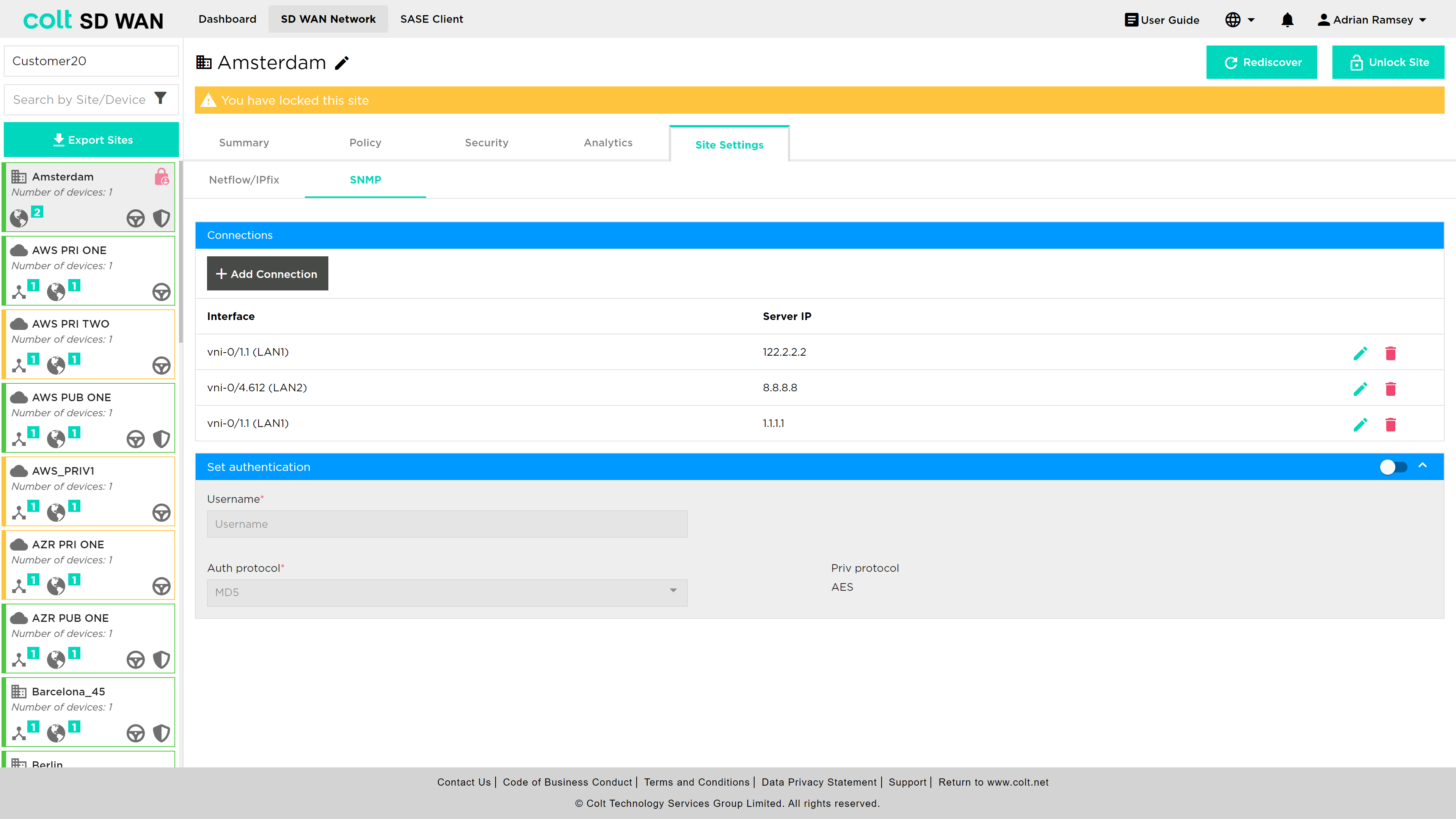
To add an SNMP server, the user should select Site Settings>SNMP, at which point the screenshot below will be visible. The user needs to input the device interface and the SNMP server IP. Below it, the user needs to set the SNMP authentication credentials – in this example a server with IP 1.1.1.1 is added to the LAN2 interface.
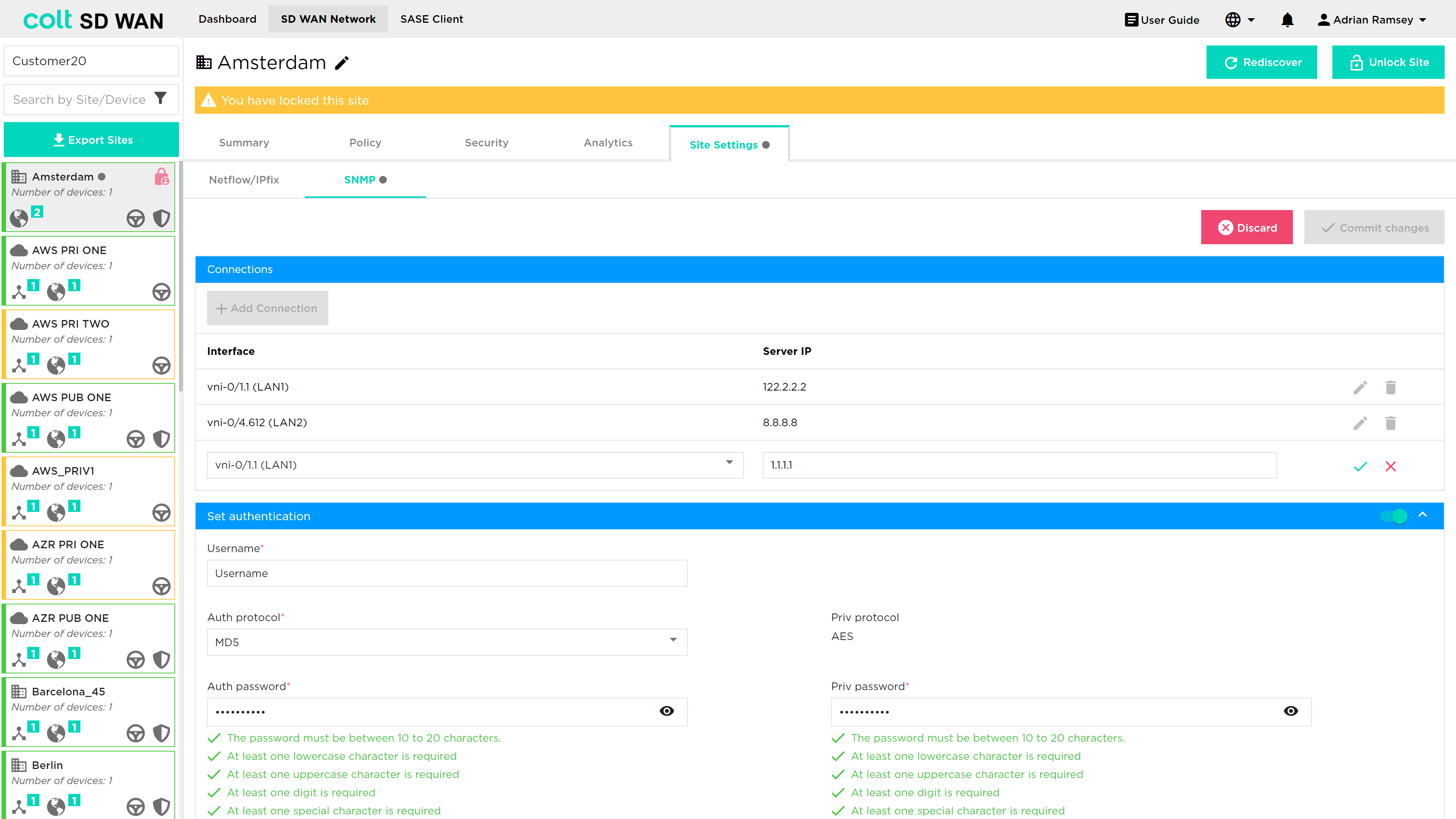
Once this has been actioned, the portal will display the following confirming that the server has been added correctly.