Objects
It simplifies policy management by allowing named address objects and groups to be used in place of individual IP addresses, making policies more readable and easier to manage. Customers can create address objects and group multiple addresses into a single address group, streamlining policy application and reducing complexity. It is also possible to create custom service objects based on protocol, port range, and source/destination ports that will provide enhanced control over the traffic allowed or denied by security policies.
Address objects and groups also improve network identification by enabling specific IPs or subnets to be identified with descriptive names, making the system more intuitive and manageable.
These objects can now be created at the site level and associated with multiple rules—a significant improvement over our previous way, where each rule required a separate object. This change allows customers to make updates at the object level, automatically reflecting changes across all associated rules, eliminating the need to manually update each rule individually. This feature leads to greater efficiency, as address objects and groups reduce the number of entries in policies, speeding up configuration and minimizing errors.
How to configure:
In the SD WAN Summary page, go to the Objects > User Defined
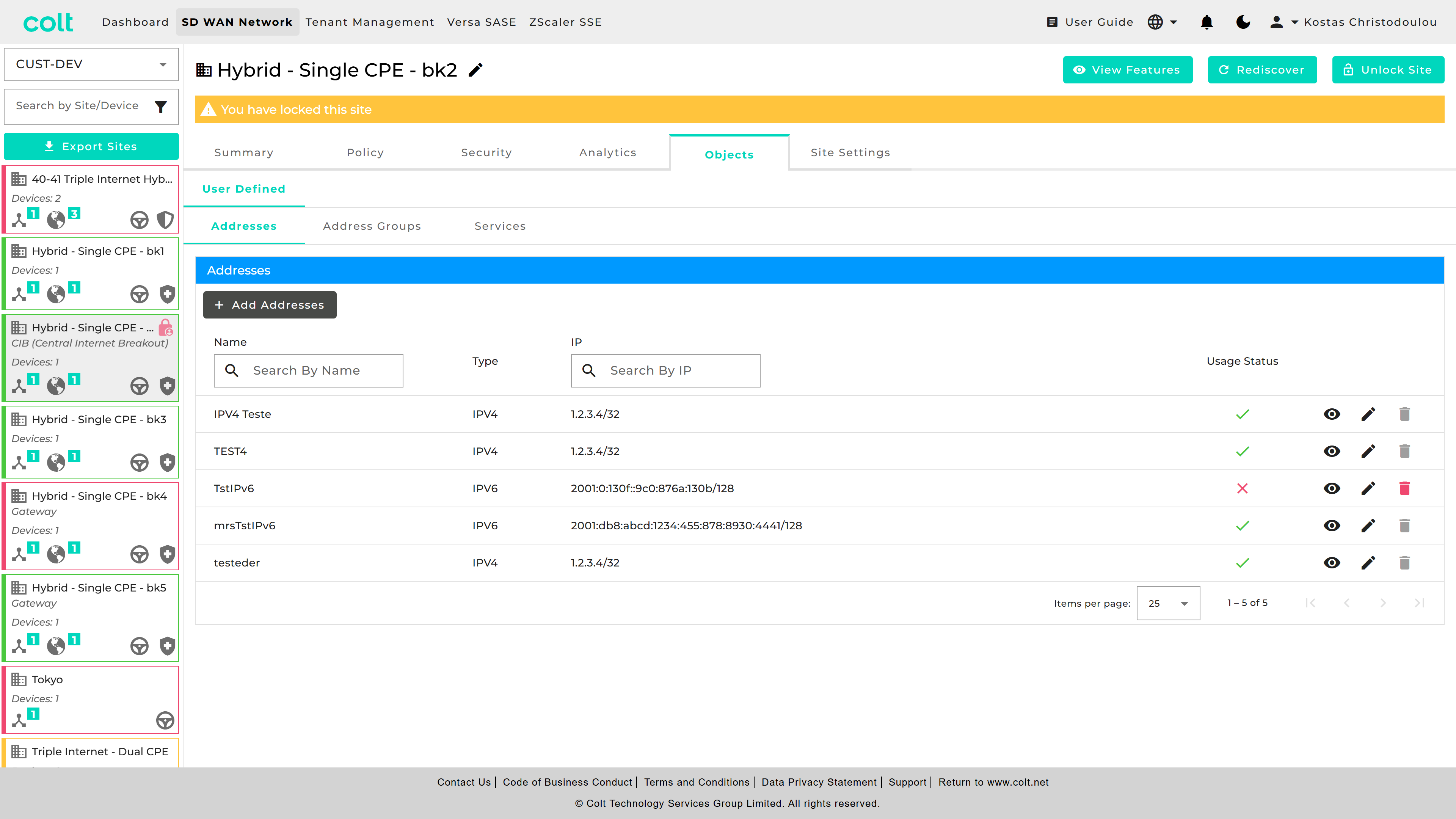
| You can check the "Usage Status" and eye icon, to understand if your object is currently being used in other objects/groups or for any Traffic/Firewall rules. |
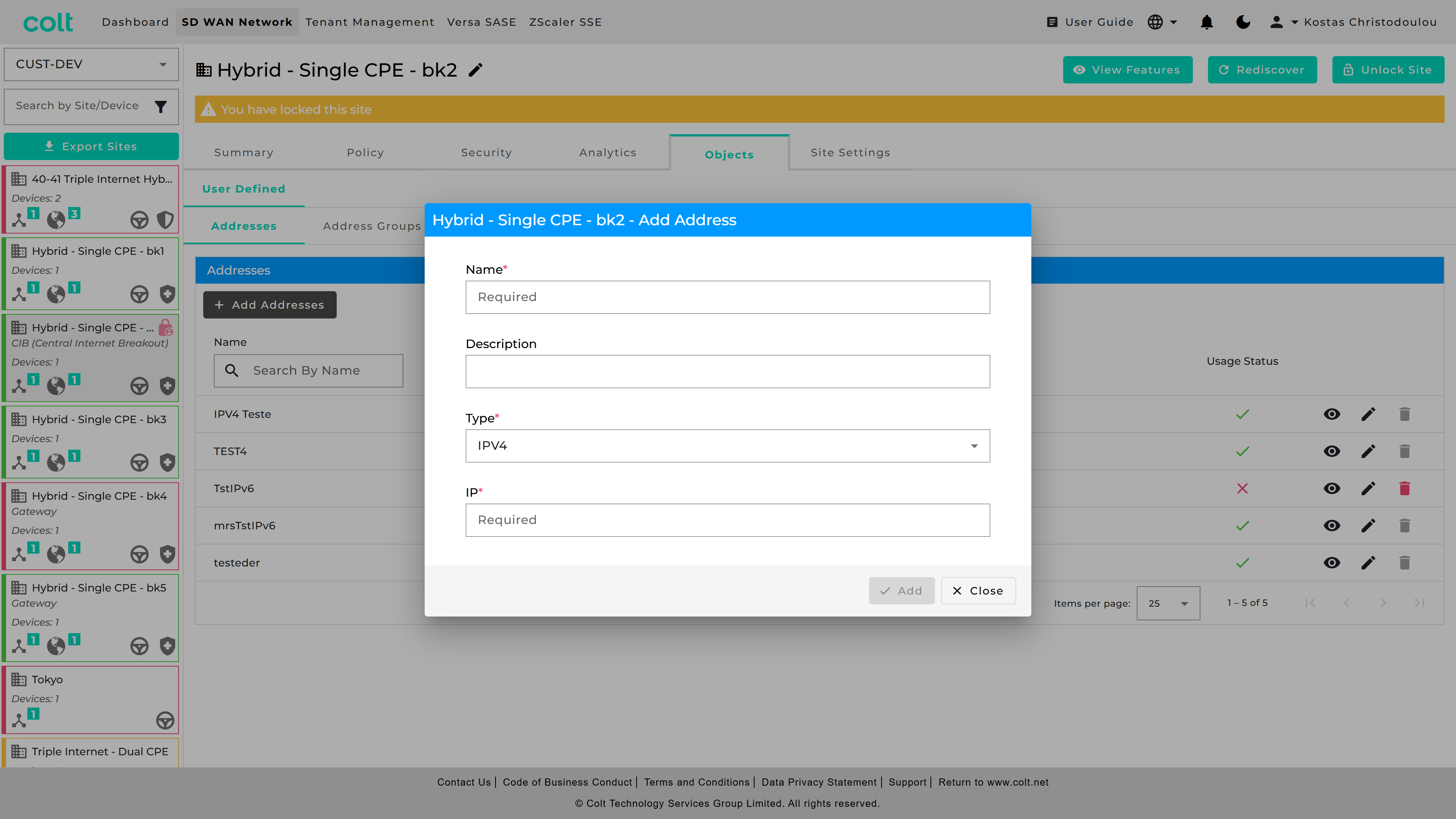
If you want to do a single Address Object, go to “Addresses” and press “+Add Addresses”. Then fill the necessary fields out.
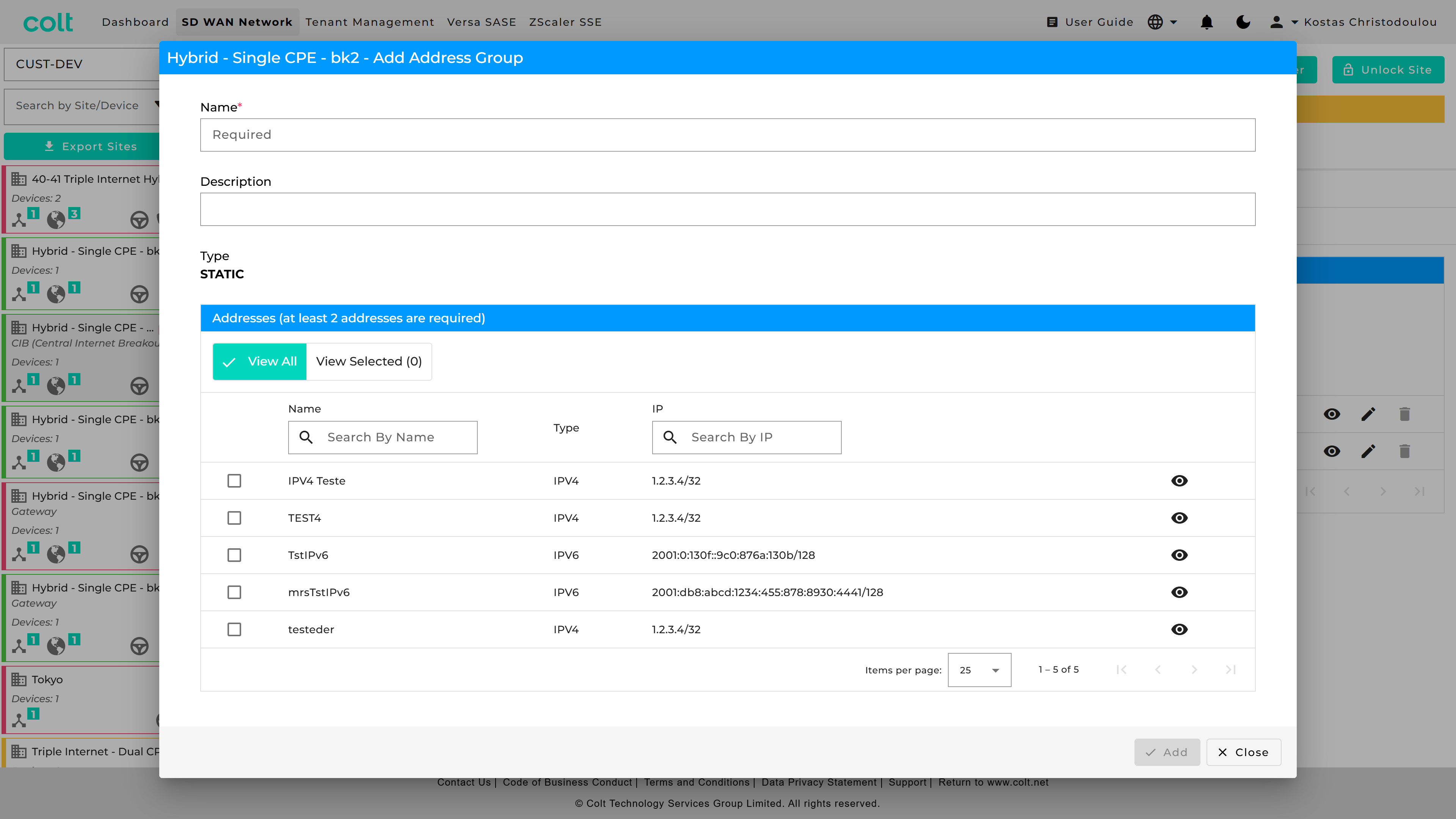
For Address Groups, got to respective tab and press “+Add Address Group” and fill out the fields.
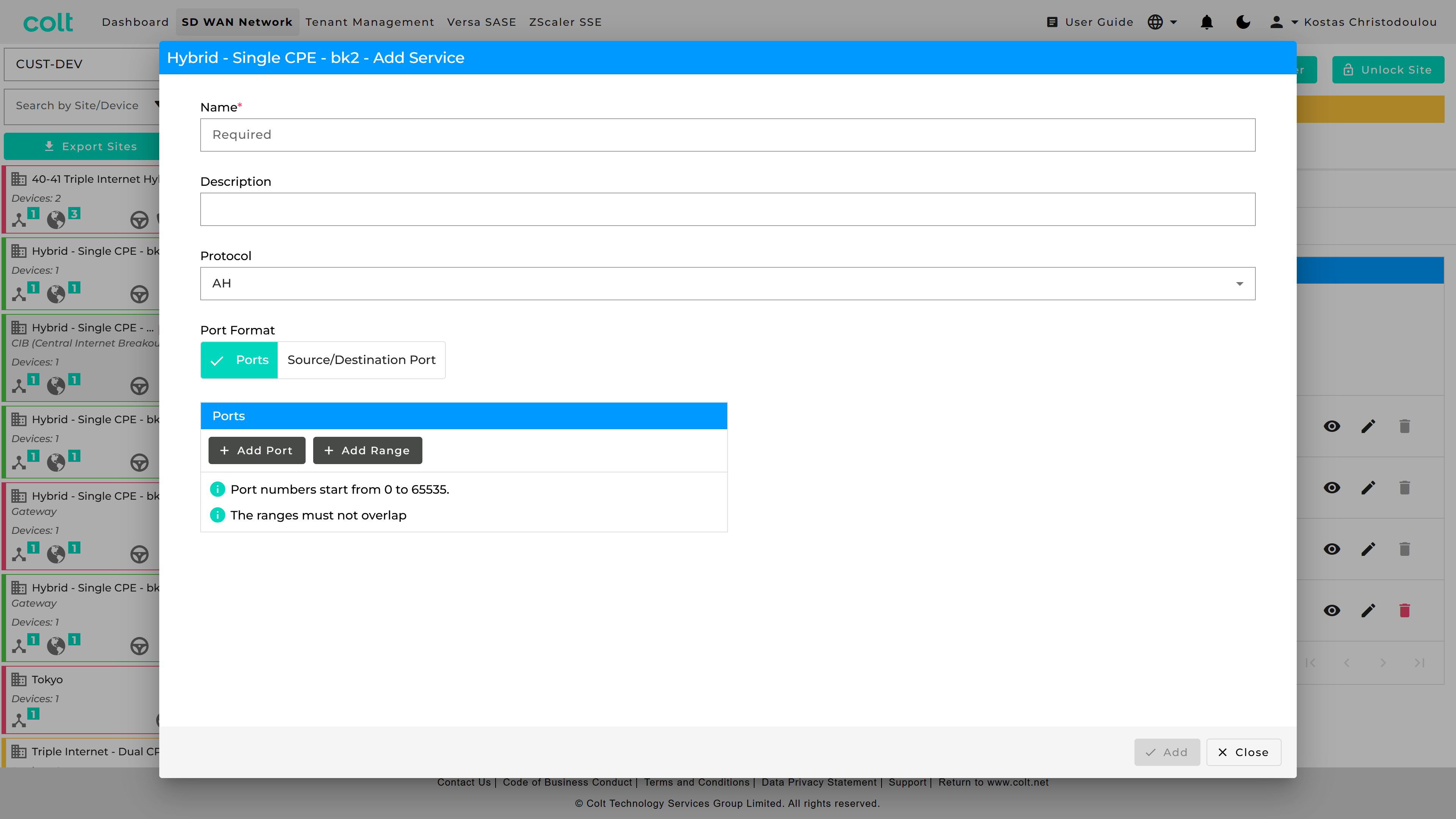
For port groups, got to “Services” and press “+Add Service”.
In order to put what you created in use, you can find them in Traffic Steering Rules, Firewall Rules, Decryption and DDoS. As an example see how it looks below in the “Firewall” tab.
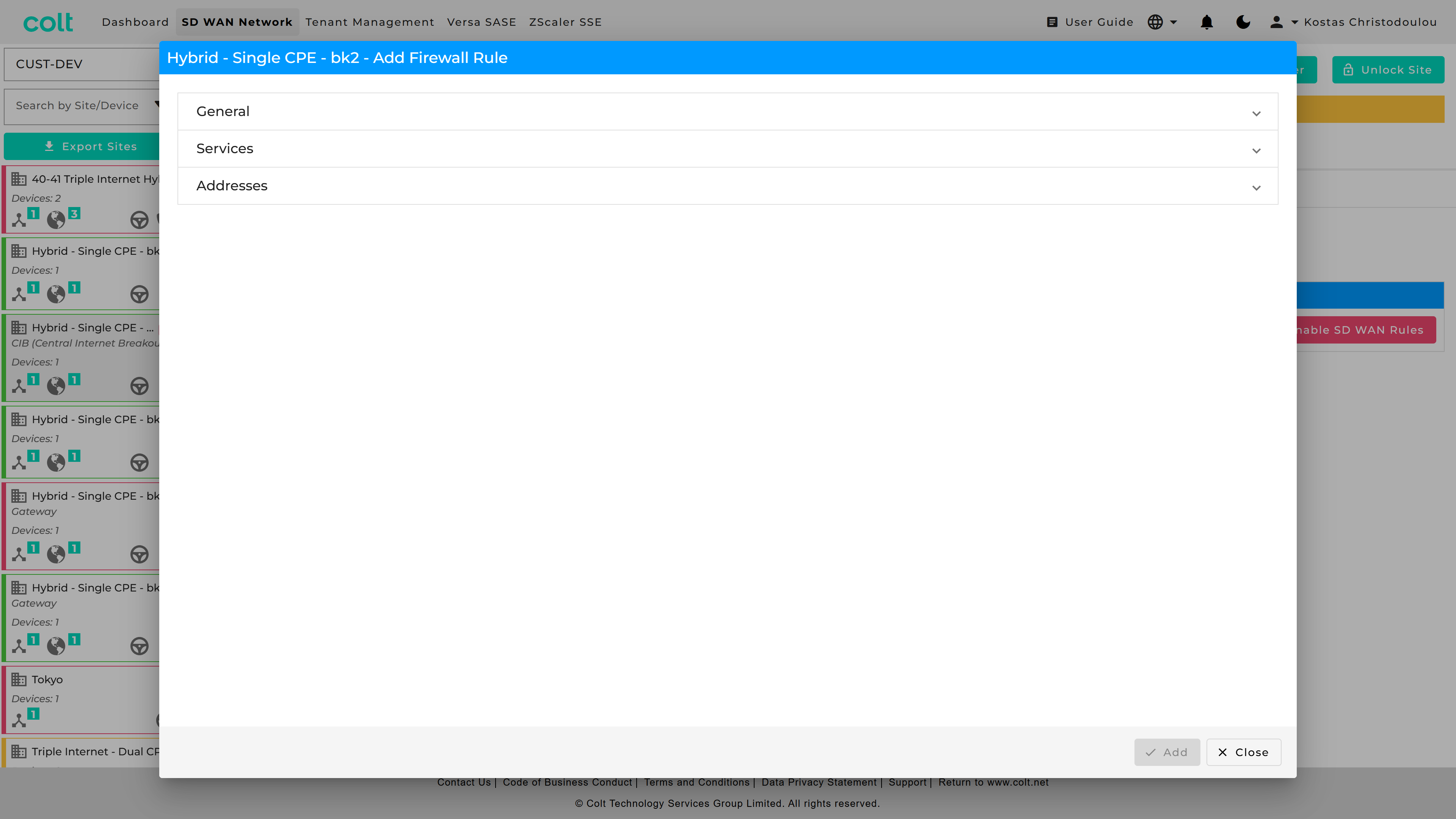
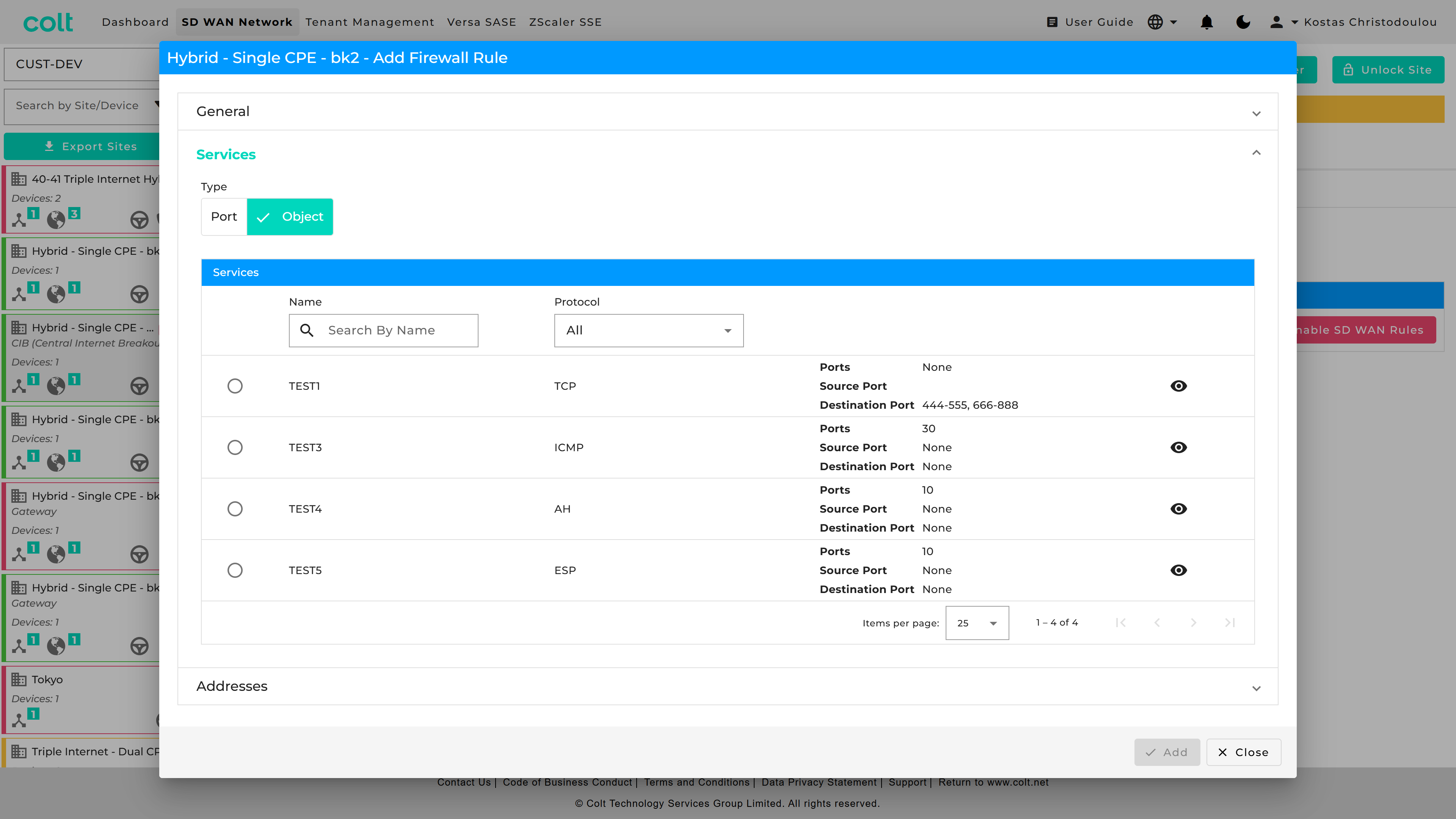
You can see the new “accordion” look. If you go in “Services” you can check “Port” to use the old way, or “Object” for the new way and get a list of the objects you have created.
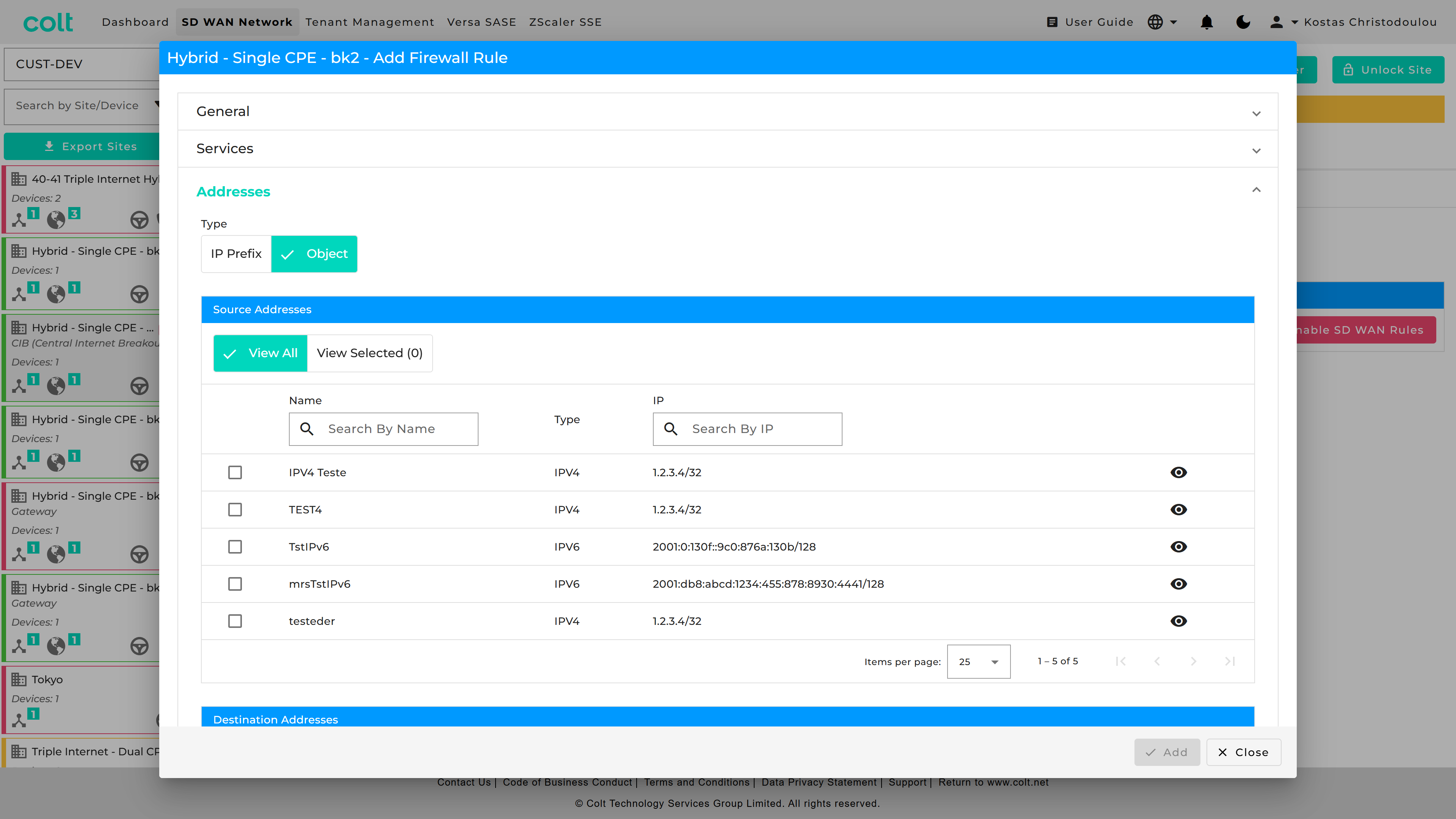
Similarly, you can do for Addresses.
User Defined Categories
The Portal allows users to create, manage custom URL Categories as Objects or view existing Predefined Categories. User Defined URL Categories can be associated with URL Filtering profiles, and have decryption bypass rules configured based on them.
Users can define custom URL Categories by specifying patterns or strings, assigning a Trustworthy reputation by default, and incorporating them into URL Filtering profiles. Users can also define decryption policy rules with No Decrypt action.
String is a specific URL and pattern is a template that can match multiple URLs with similar structures.
-
Example URL string: www.facebook.com.
-
Regex pattern examples:
-
".*facebook.*" (.*<string>.*)
-
"(\w*\.)twitter.com(\/.*)"
-
| The portal supports standard regex patterns. It is recommended to define strict pattern matches; otherwise, similar URLs may unintentionally match the defined patterns. To test your regex pattern, you can use public tools such as regexr.com or regextester.com to validate whether the URL string matches the intended regex pattern. |
Below you can see where to create and configure User Defined URL Categories,
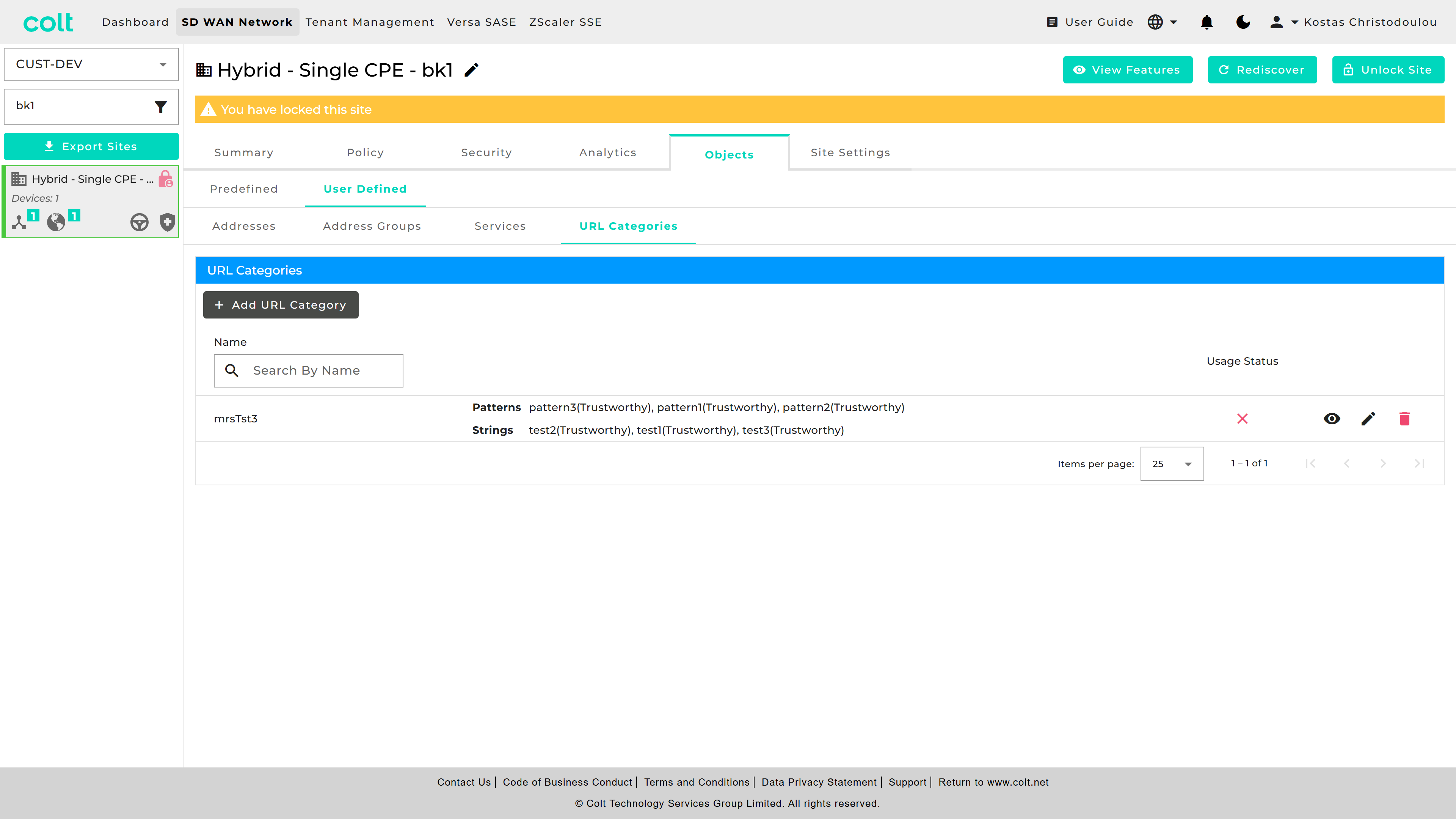
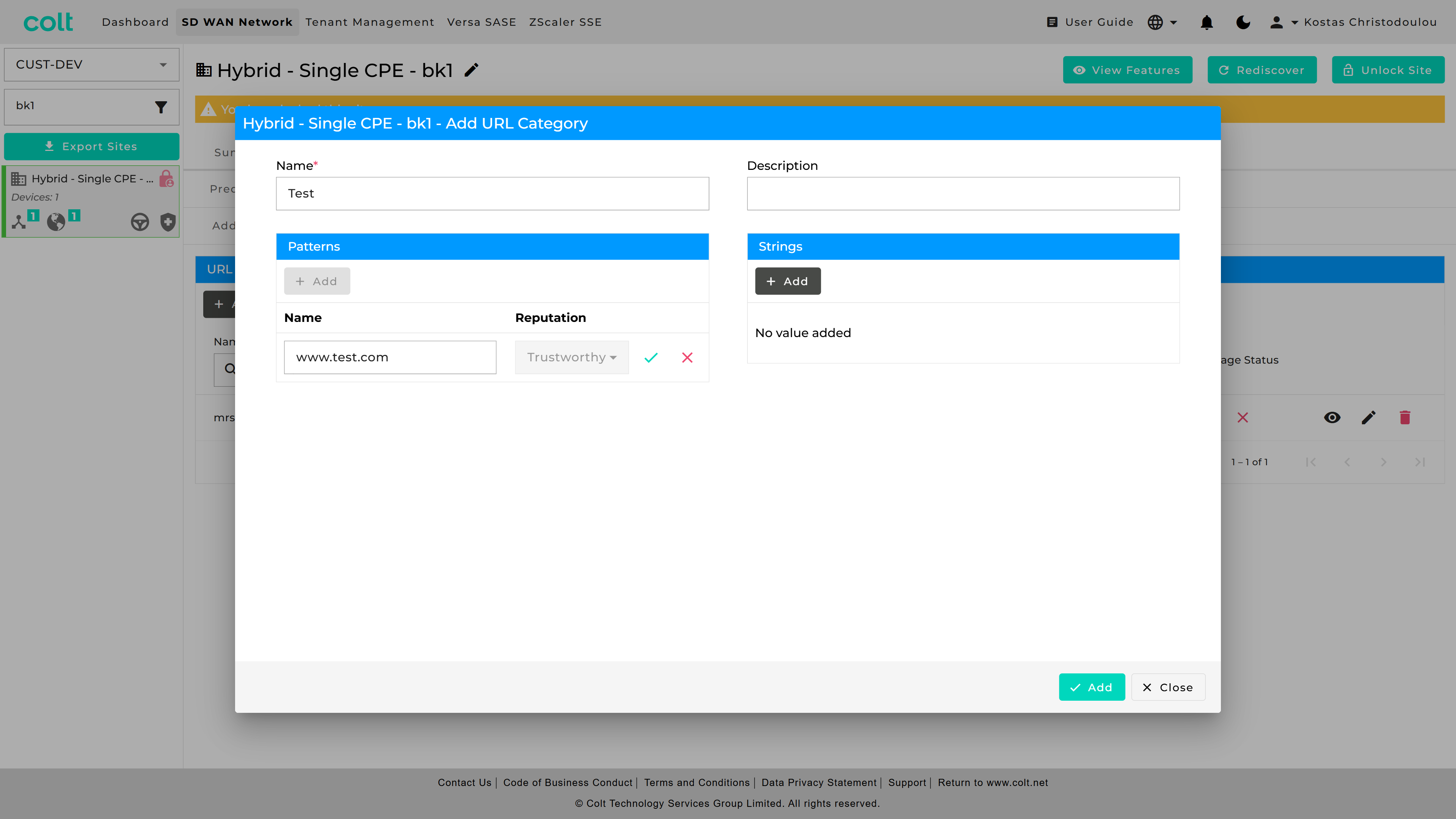
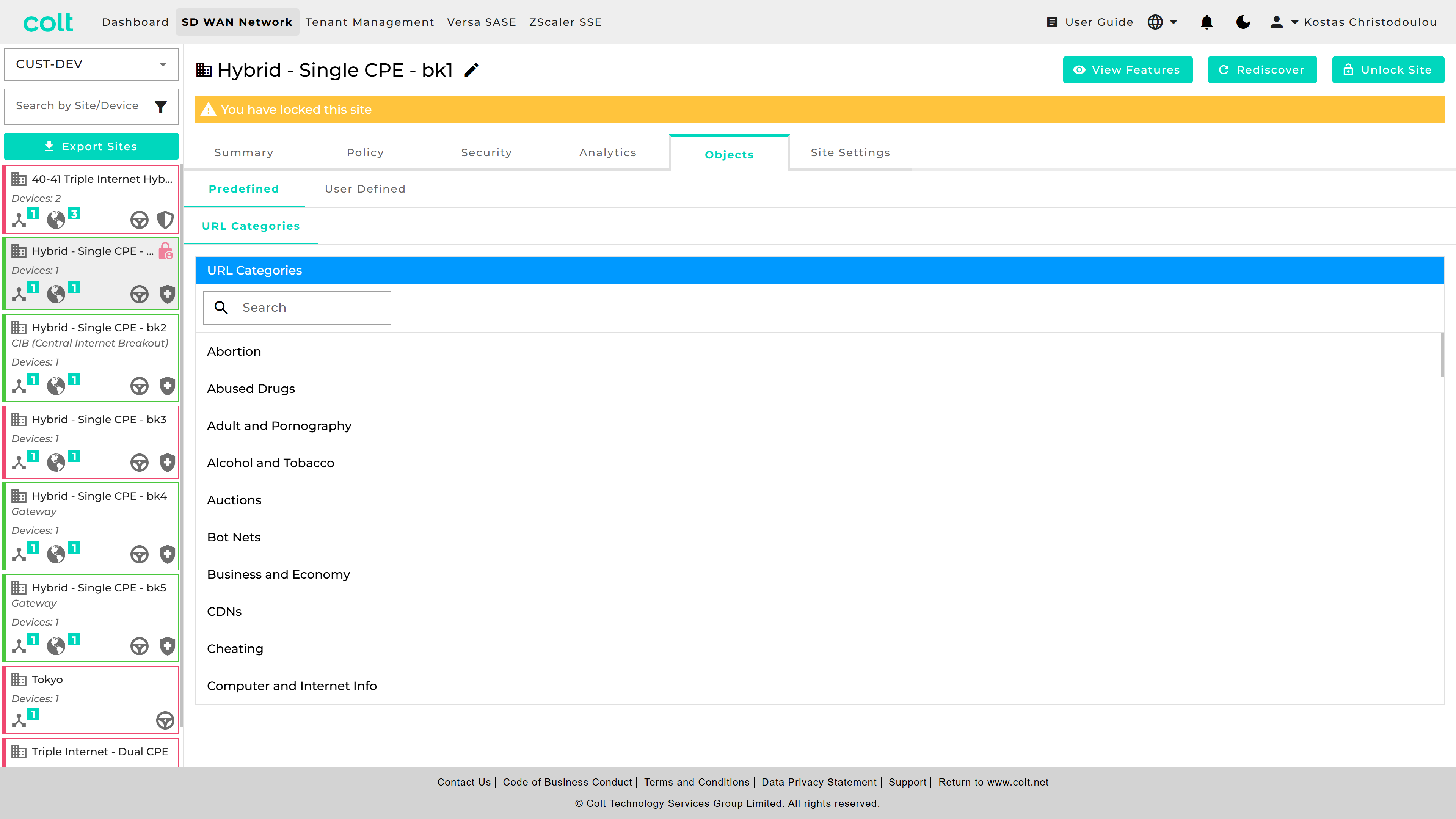
and where to check the list of available Predefined URL Categories.
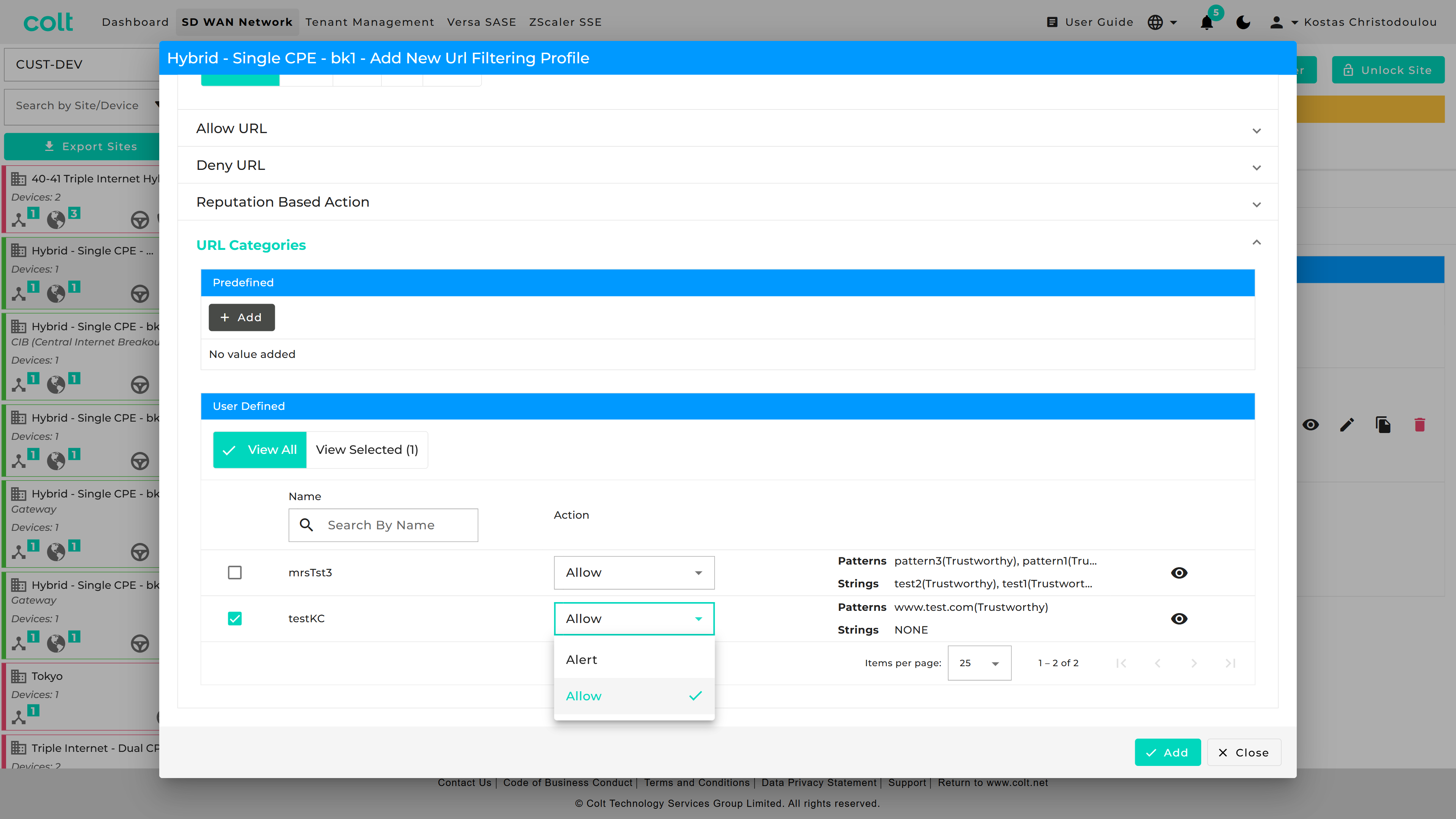
The created Custom URL Categories appear in the User Defined category list for URL filtering with possible actions of Allow and Alert.
Additionally, customers can configure decryption rules to exclude specific URL Categories from decryption, ensuring seamless traffic handling. These rules have to be always set to No-Decrypt and take precedence in rule order. This feature is available when the Network Destination is towards the Internet. The new functionality enhances flexibility while maintaining existing security and network policies.