General navigation
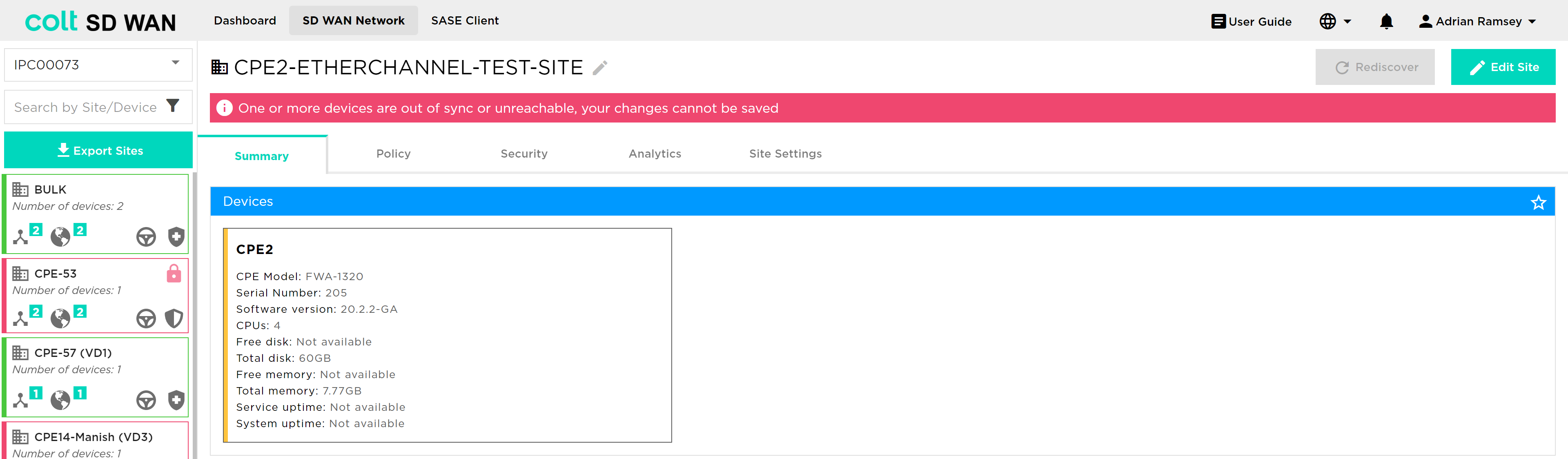
After logging in, the portal will display the main dashboard (see also above). The top level menu and icons are shown in the screen shot below.
The main dashboard area is customizable and personalized, providing a canvas where you can pin frequently consulted reporting graphs from specific sites for quick review. This will allow you to see an overall status of the health of your network upon login or specific sites and circuit usage can be displayed.
| Changes of both routing policies and Firewall rules if another user is already unlocked the sites for editing. In this case a banner with the name of the user will be shown at the top. |
The main (top of screen) menu items are as follows:
Each location listed on the left menu also includes a summary of the WAN uplinks available at each site, categorized by uplink type: MPLS, Internet or 3G/4G mobile.
The User menu on the top right of the screen allows you to change the portal language, toggle the locations map, view your user profile, log out of the SD WAN Portal and, if applicable, manage device installations.
The Main Menu (Top of screen) options are as follows:
-
Dashboard
-
SD WAN Network
-
Self-Install
-
Tenant Management (White Label customers only)
-
SASE Client
-
SSE Client
-
Globe icon/Language settings
-
Ringer/Bell
-
Dark/Light theme
-
User Icon
The Dashboard is an anchor menu to return to the main screen. The SD WAN Network reveals the site detail and enables control features for the SD WAN service.
Self-Install provides the details and status of individual self-install CPE including the ZTP URL.
The Globe icon is a map view of all CPE devices with icons for each CPE location and colour coded for status. Each icon can be clicked on and users are taken directly to the SD WAN network menu for that site.
The Ringer/Bell icon displays notifications such as policies or rules that have been created but not committed, site alerts and system events.
The Dark/Light theme button, allows for switching between dark and light colour versions of the portal. The Dark theme helps reduce eye strain, improve visibility in low-light environments, and a offers a refreshed visual experience.
The User Icon has three sub menus:
-
Profile
-
Help and Support
-
Logout
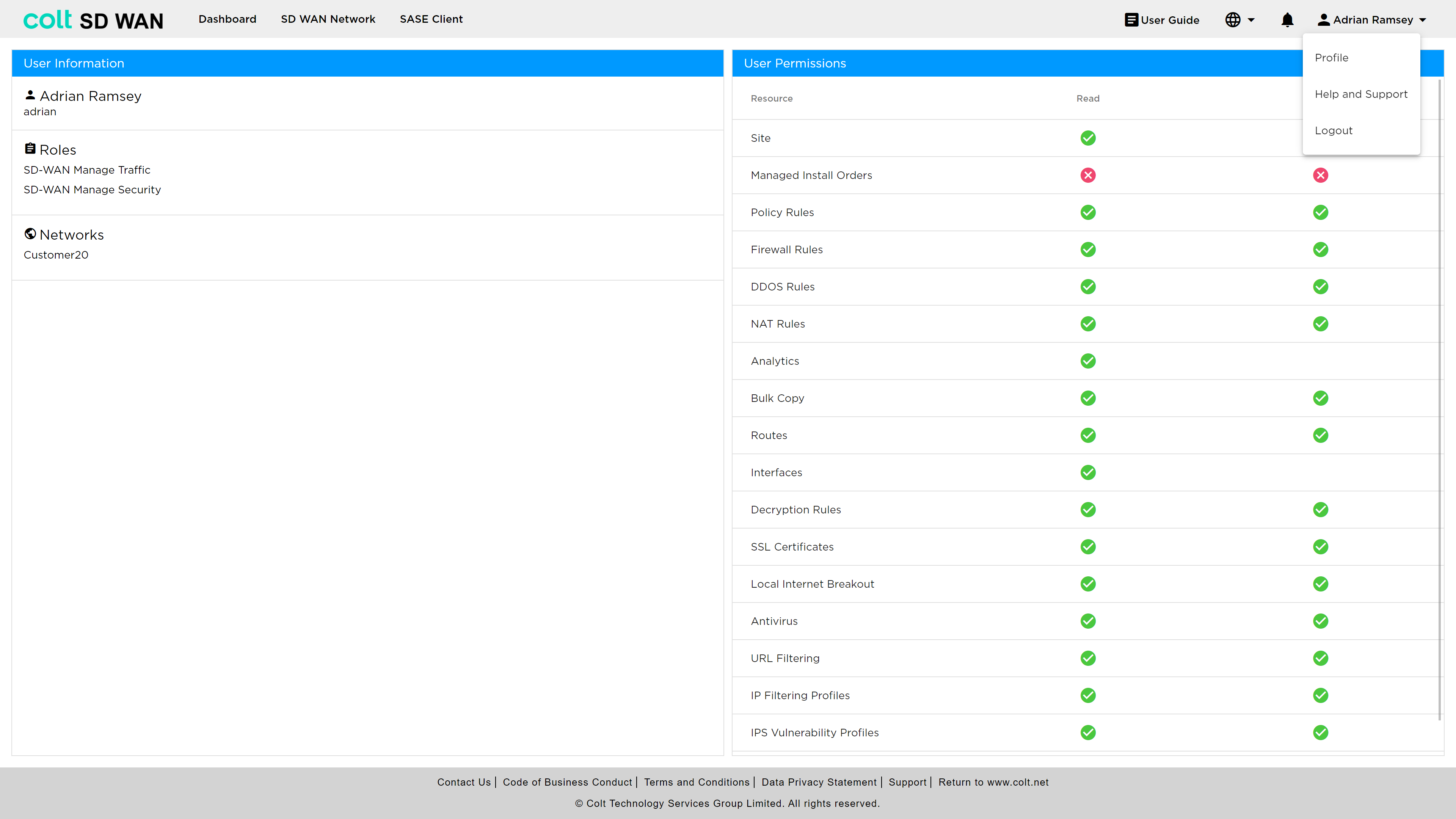
The last is self-explanatory, but Profile allows users to see their roles, list of IPC network that account has access to and the permissions as shown below.
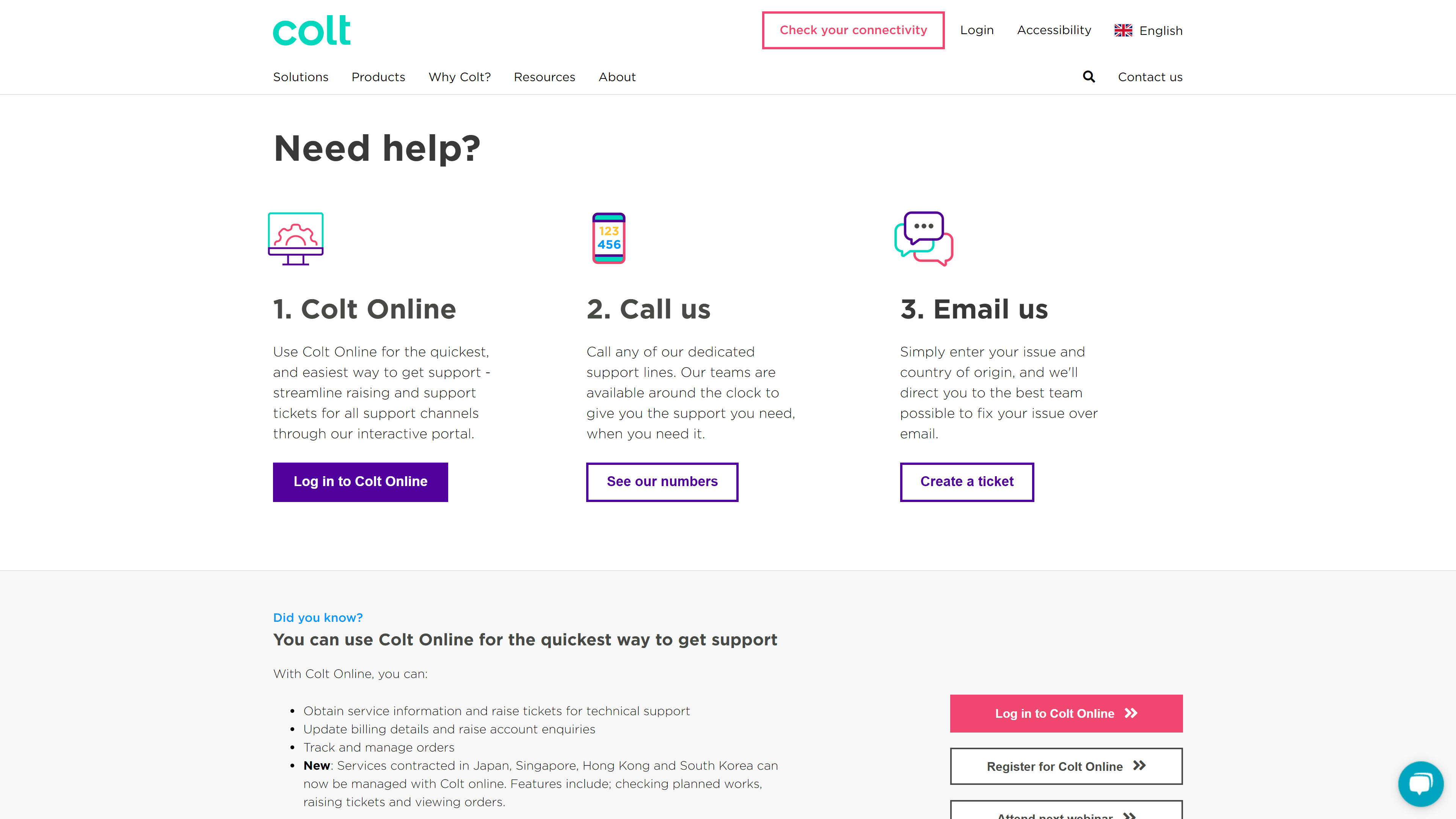
The Help and Support menu item takes users directly to the page below:
Error messages and descriptions are displayed in red at the top of the screen