SD WAN Network Navigation
The SD WAN Network is accessed via the main menu and renders a page view showing the list of IPC’s available and which can be selected to change the view of the list of the available devices in each IPC. Each IPC also has a list view of all the available CPE locations shown. The icon symbol for each location contains icons for:
-
MPLS WAN
-
Internet WAN
-
Steering rules
-
Firewall rules
-
Cloud or branch sites
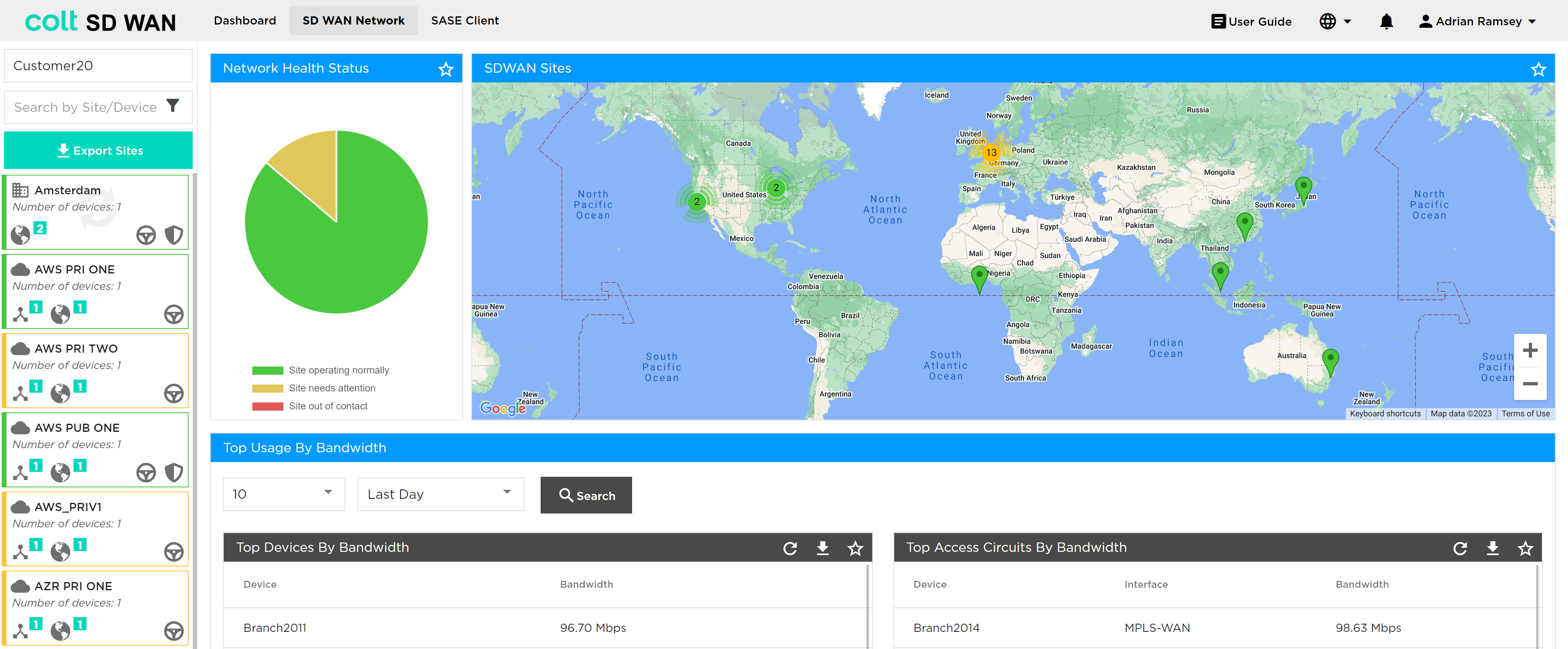
When sites are being updated a wheel is displayed in the site icon to show updating.
In addition, there is a network (IPC) health status window and graphical map view with icons showing location and colour coded for status. The map icons can be selected which then open a popup window showing the site name as a link and the WAN configuration.
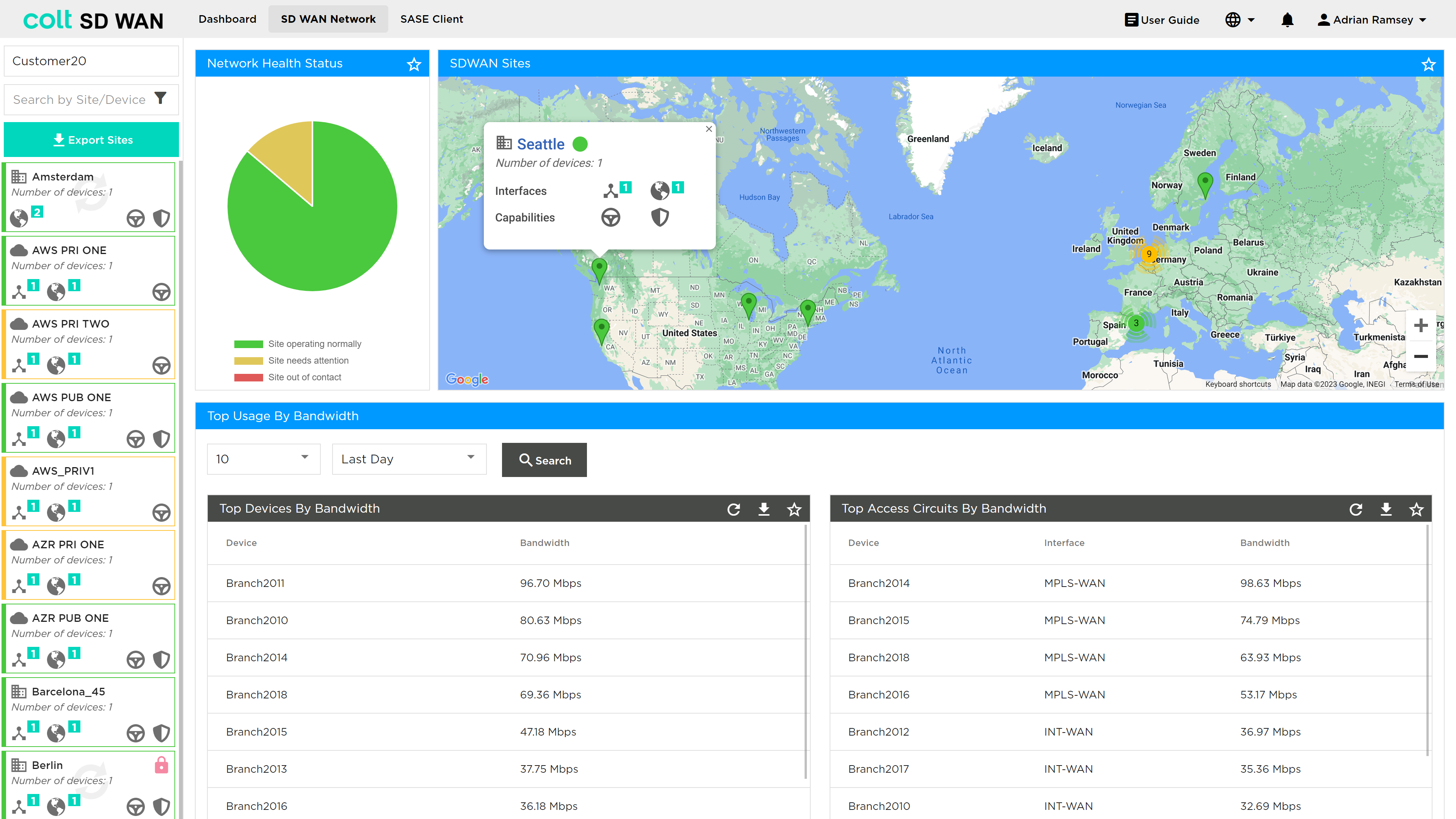
Portal Users can scroll through sites using the scroll bar and click to select each site or search by name. The initial views shows:
-
SD WAN Network Health status
-
Map View of SD WAN sites
The Network Health status is colour coded as follows:
-
Site Status Green if the following criteria are matched
-
If all the associated devices are in SYNC and Reachable and
-
If all the associated devices WAN & LAN uplinks are UP and running
-
If in Dual CPE scenarios one of the devices is not fully configured and a WAN link is admin-shut
-
-
Site Status Red if any of the following criteria is matched
-
If any of the associated devices are not reachable
-
If any of the associated device is not in SYNC and all corresponding LAN & WAN uplinks are down
-
-
Site Status Amber in all other cases like
-
If any of the associated devices WAN & LAN Uplink is down while all the associated devices are in SYNC and reachable
-
If in Dual CPE scenarios a WAN port is not admin-shut and is DOWN
-
| The Standby feature allows the secondary WAN interface (typically Blue Wireless) to remain completely inactive, while the primary internet link is operational. This ensures that the backup link only activates if the primary fails. In the SD WAN portal, sites using this configuration will appear green when the primary link is up, even though the secondary interface is down. This behaviour is expected and does not indicate a fault. |
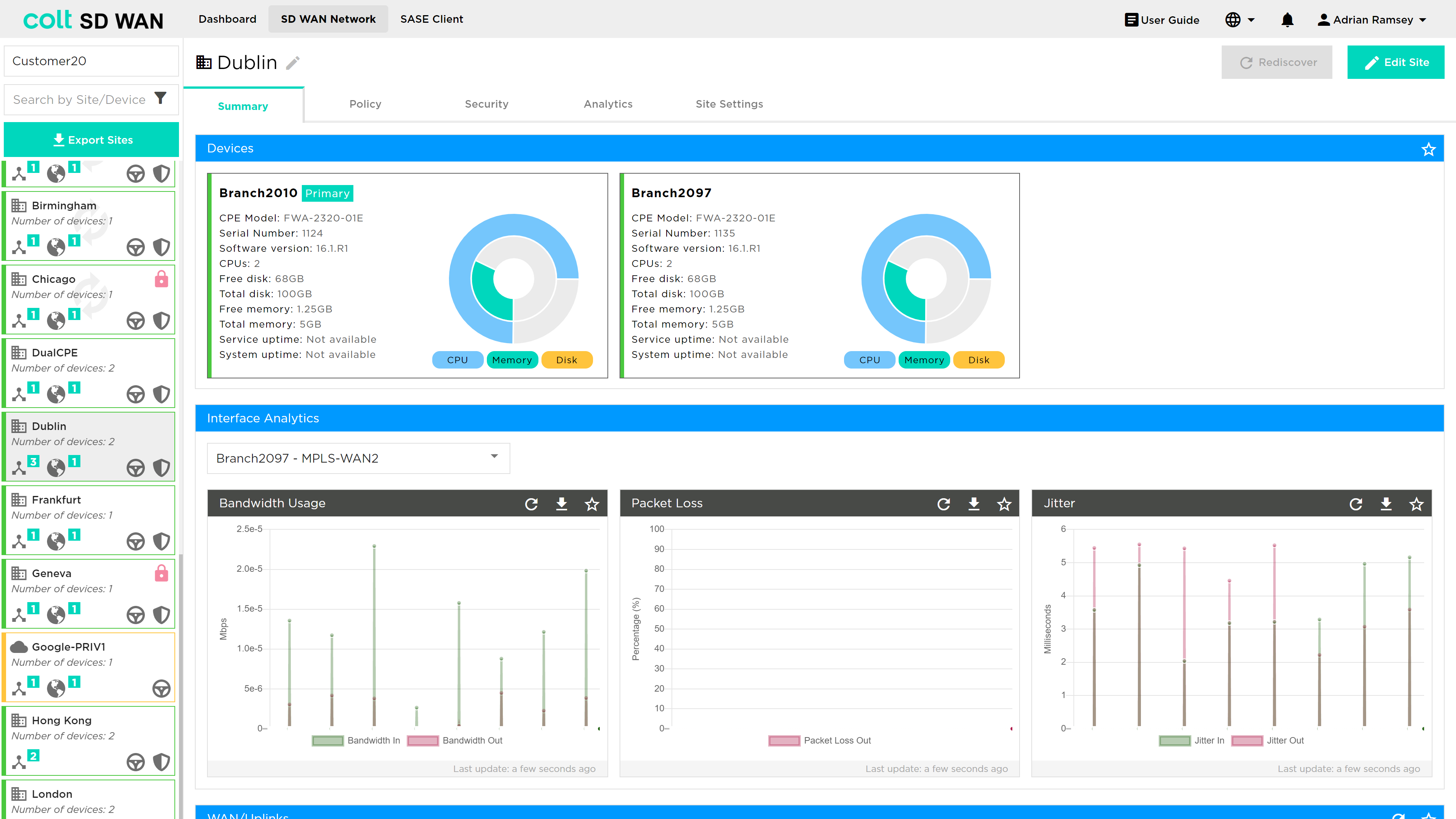
On clicking on a site, a new window appears in the Dashboard view showing all the features available at that site, such as:
-
Summary
-
Policy
-
Security
-
Analytics
-
Site Settings
| These menu options will vary depending on User roles and services that a customer subscribes to. The user roles are as follows: |
| Role | Description |
|---|---|
SD WAN Read Only |
Allows users read-only access to the SD WAN Portal including all sections of the portal, but not allowed to change any parameters. |
SD WAN Manage Traffic |
Allows users full read-write access to the traffic steering / WAN optimization sections of the SD WAN Portal. |
SD WAN Manage Security |
Allows users full read-write access to the security / Firewall sections of the SD WAN Portal. |
SD WAN Manage Self-Install |
Allows users to perform self-install actions of new devices in the SD WAN Portal. |