Analytics
The Analytics menu option provides a series of submenus that each provide analytics data for the following areas:
-
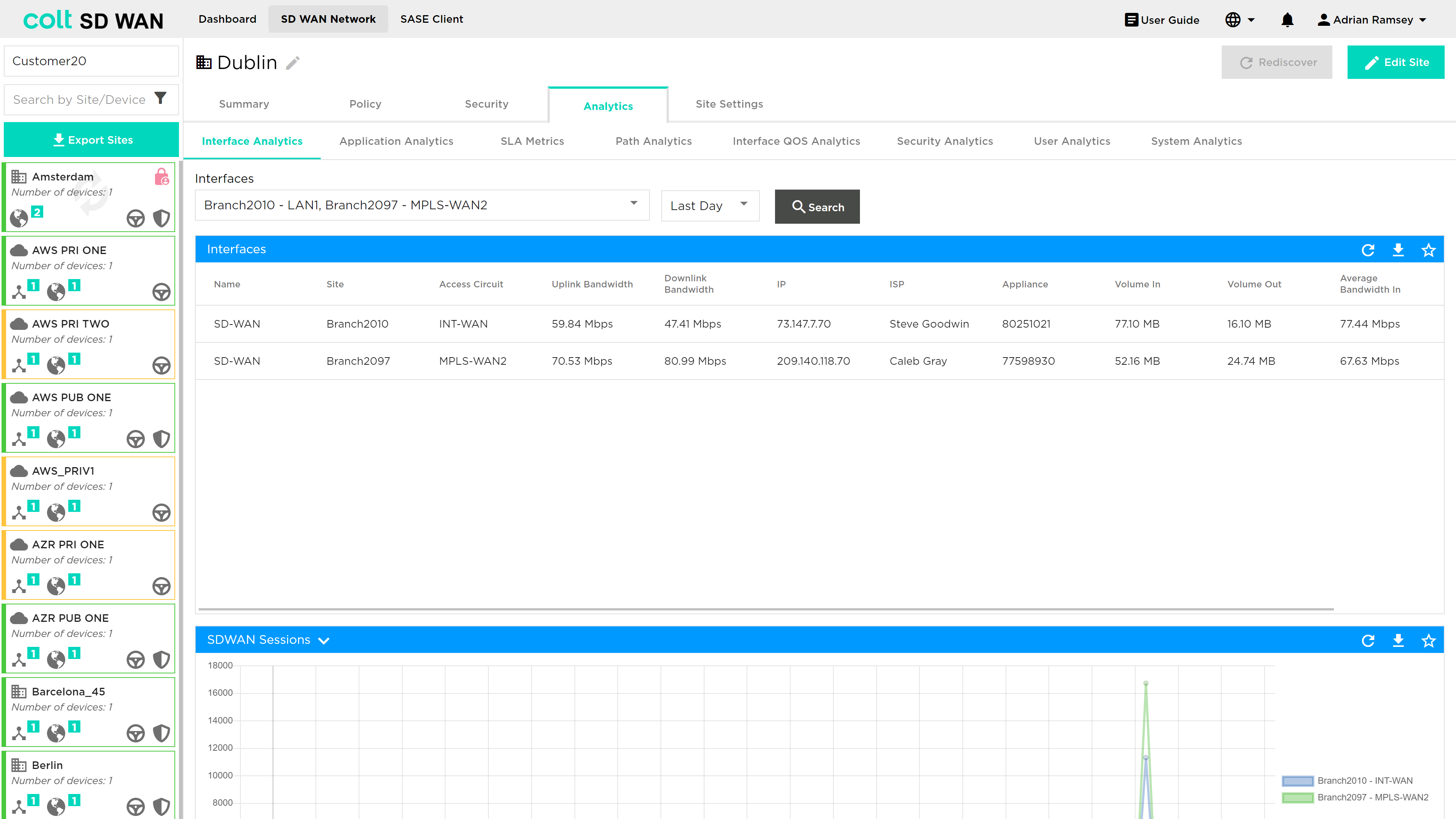
Interface Analytics (usage of interface, SD WAN and Internet (DIA))
-
Interface QoS Analytics (IP QoS queue usage)
-
Application Analytics (Top application usage or search by application)
-
SLA Metrics (SD WAN path specific SLA measurements)
-
Firewall Analytics (usage by firewall rule)
-
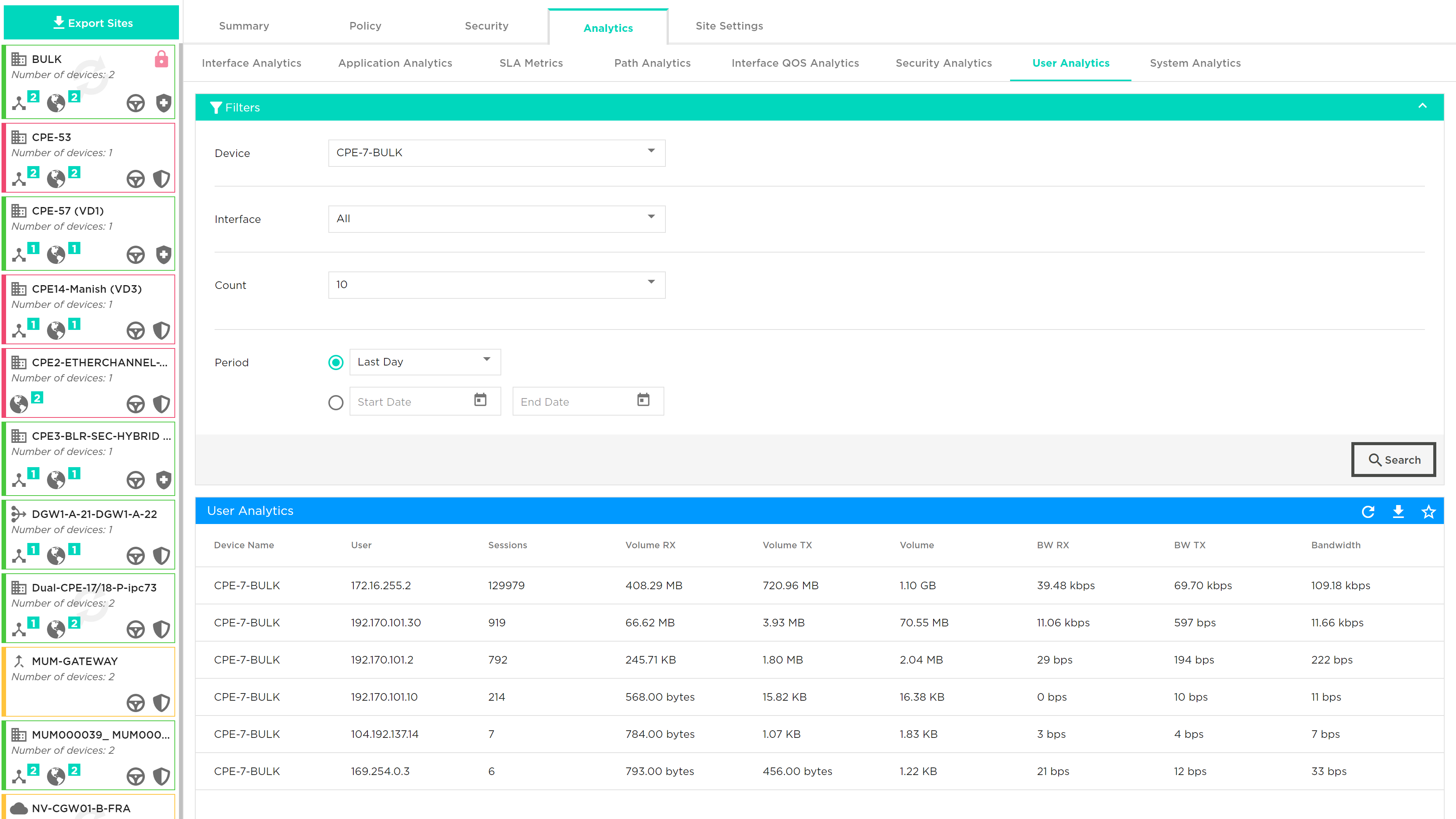
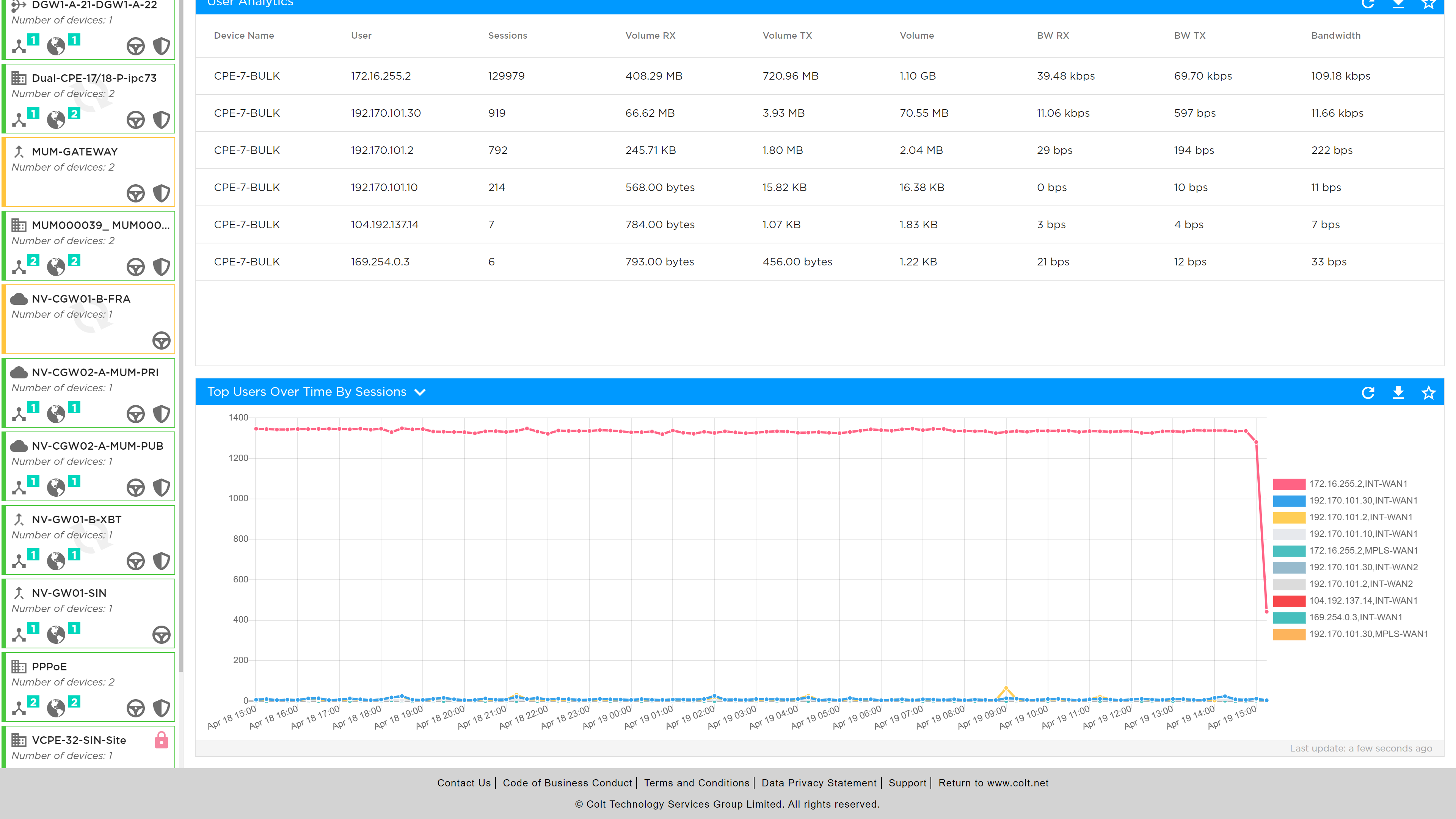
User Analytics (top talker by IP address)
-
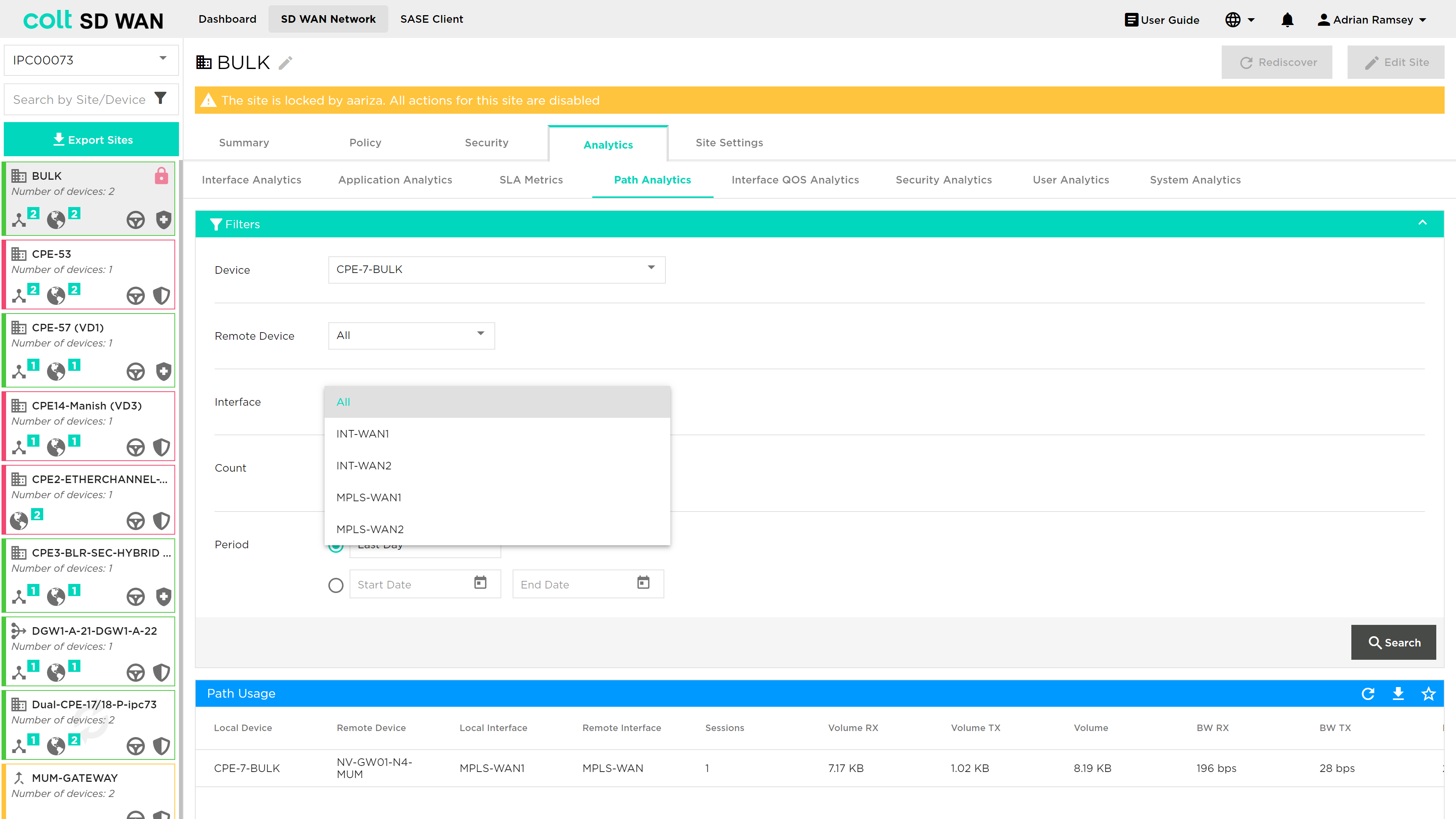
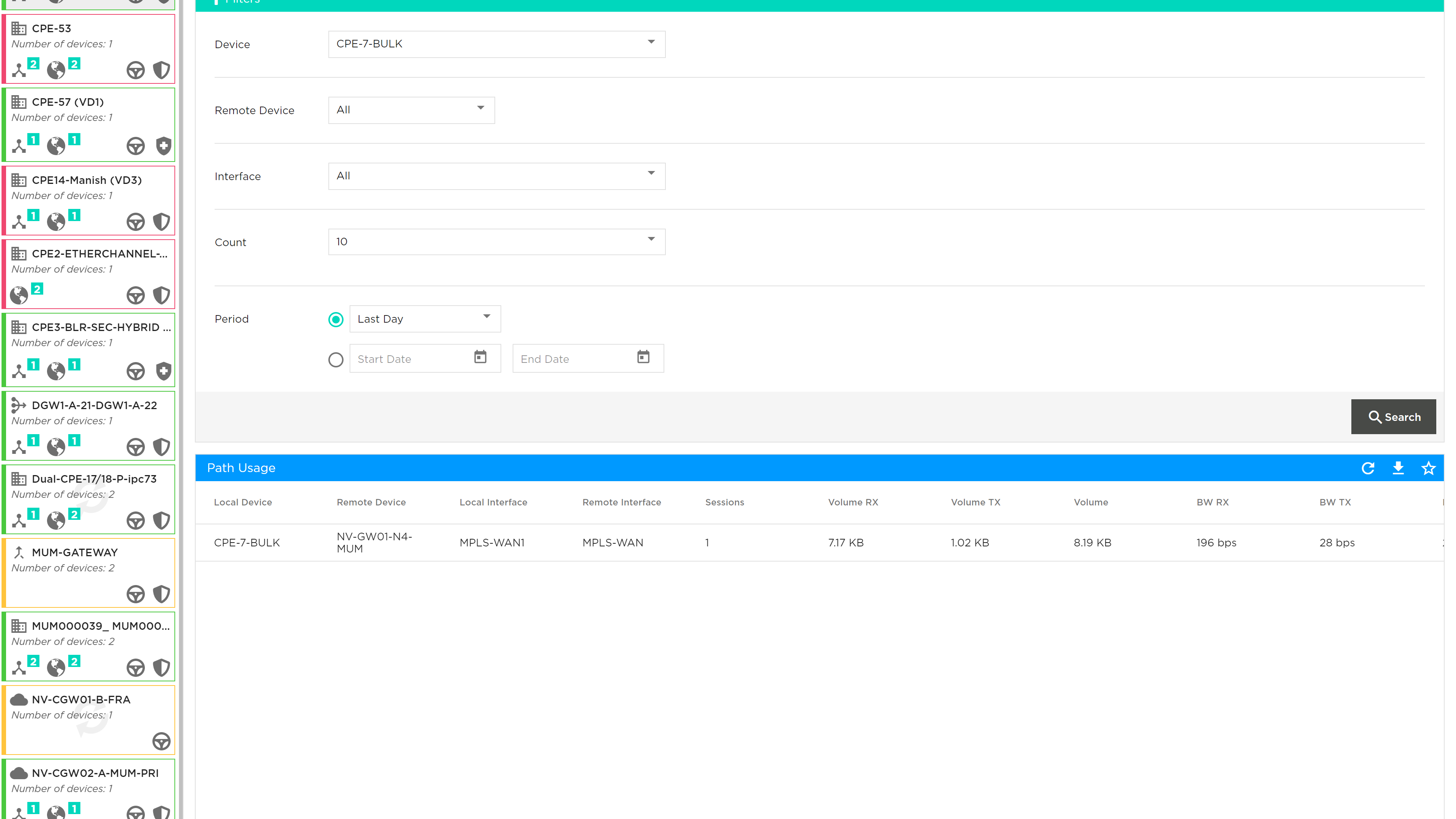
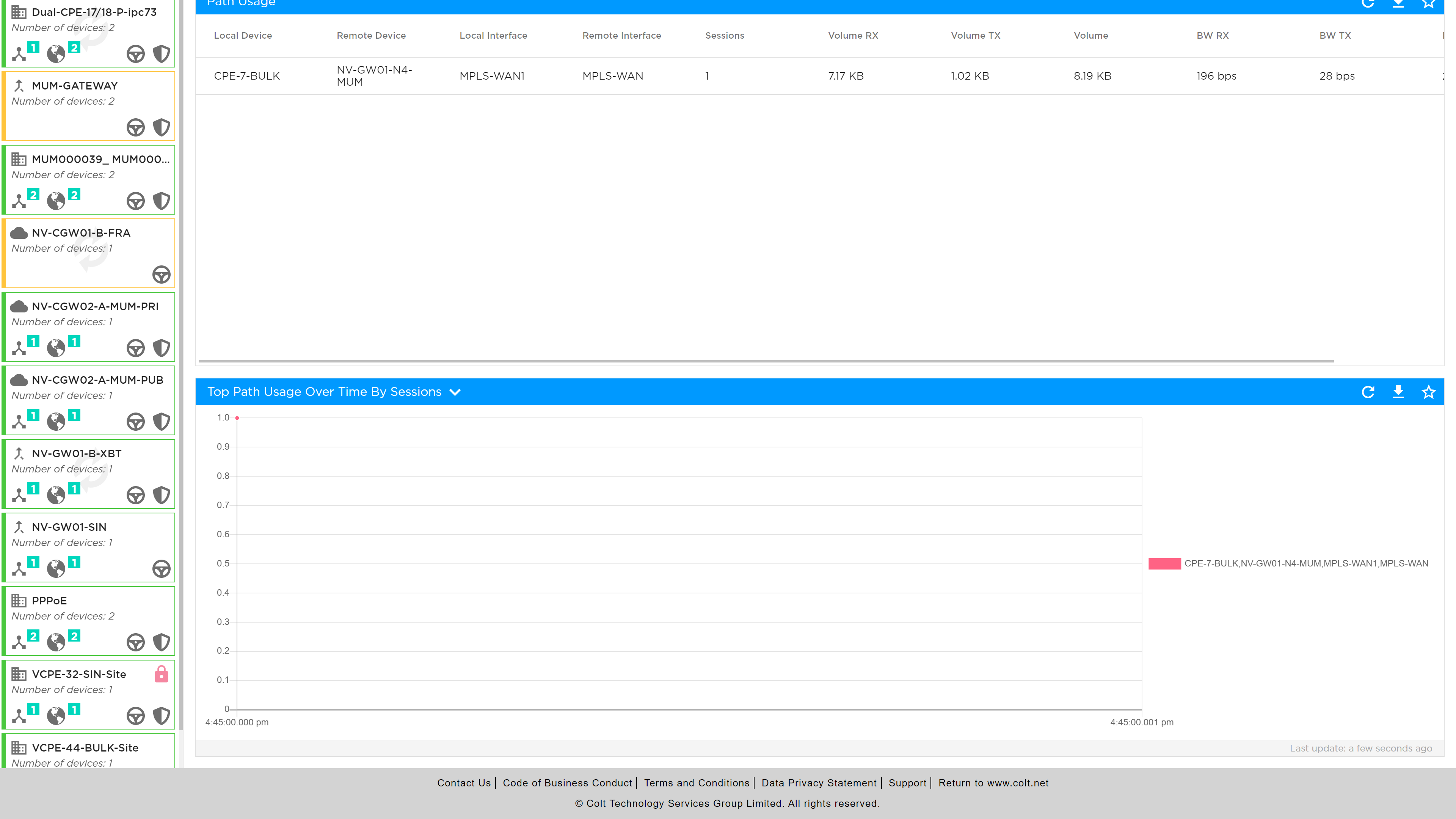
Path Analytics (bandwidth consumption per SD WAN path)
There are some common features for the Analytics section:
-
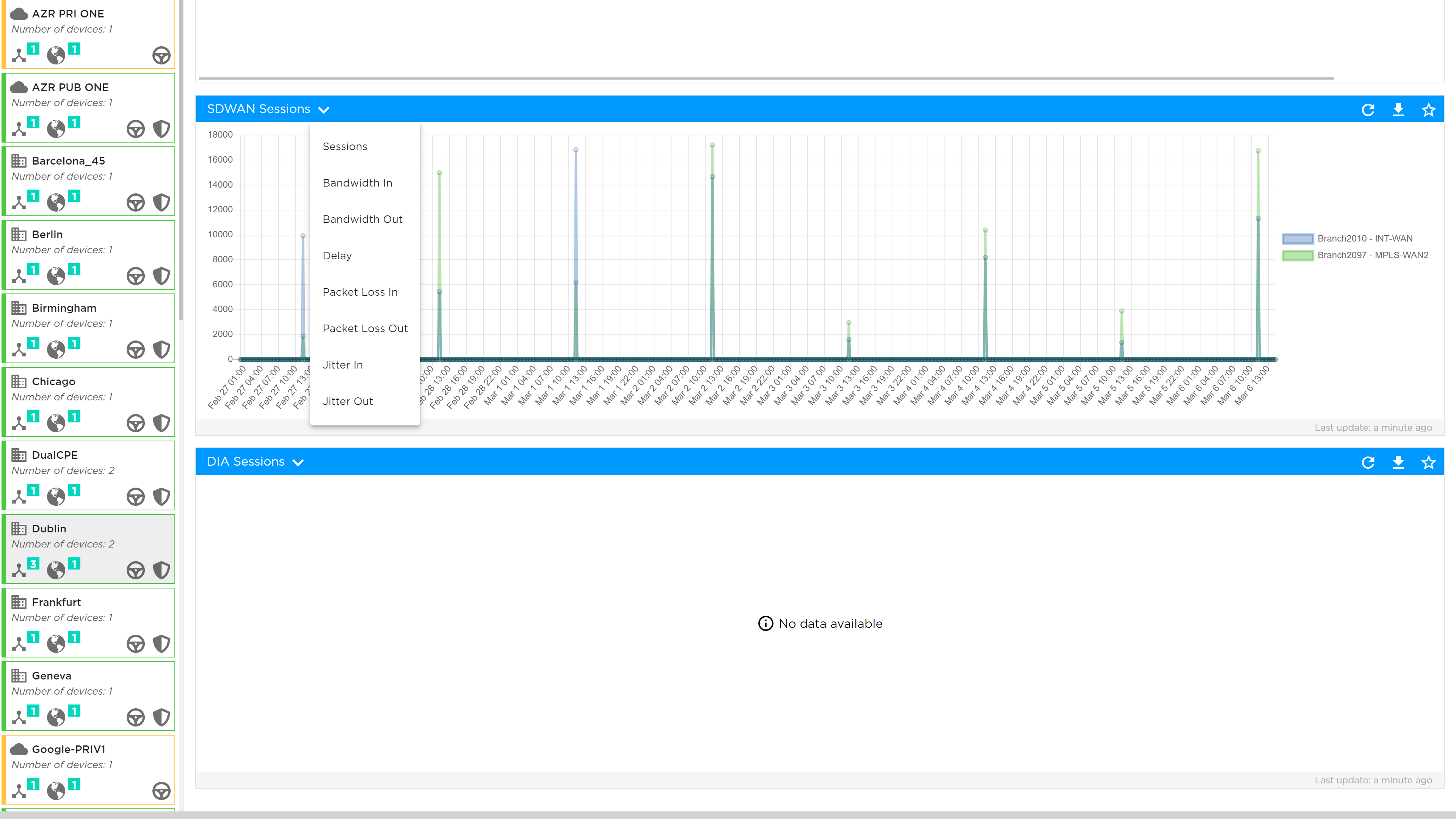
Different metrics can be viewed by selecting the down arrow in the top left corner of each graph
-
Tabular or graphical data can be pinned to the dashboard view using the star icon on the top left corner of chart or table views
-
Data can be downloaded in CSV format files.
| Analytics data and Log file storage is limited today. The data retention period is 3 months and logs are limited to 10000 per customer per day |
Interface Analytics
Provides a statistical view of the customer’s network via a measurement of networking metrics for SD WAN (aggregate of all SD WAN Paths from that site) traffic and DIA or Internet breakout traffic.
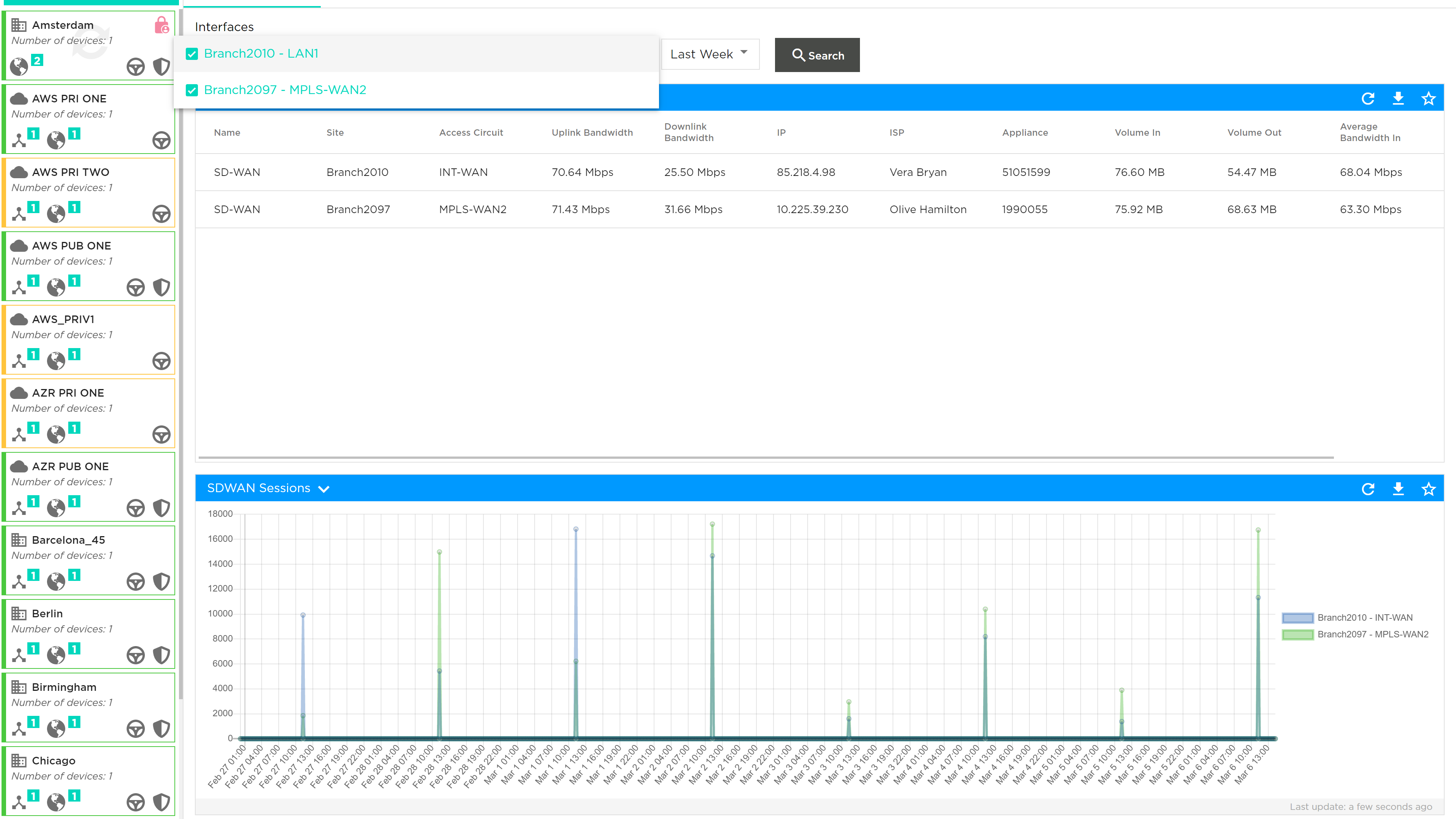
The analytics of each node in that network can be viewed by selecting the ranges in Days, Weeks and Months plus a custom date range. After selecting the date and time ranges, pressing the ‘Refresh’ option will show the section detailing graphs that show the network services for each node being measured against the metrics within the selected timeframes.
The metrics being measured in this section are:
-
Delay: The amount of time it takes for data to travel across the network from one node to another. It is measured in milliseconds.
-
Jitter in: Random small time interval measured in milliseconds, where messages are cached in the node before being forwarded to avoid traffic collisions while also reducing varying delays to the received packets.
-
Jitter out: The inverse of forward jitter, where the amount of varying delays increases due to messages being forwarded and colliding with existing network traffic
-
Packet loss in: The ratio of forward loss divided by forward transmit count measured in percentage
-
Packet loss out: The ratio of reverse loss divided by reverse transmit count measured in percentage
The metric to be viewed can be selected by clicking on the down arrow at the top left corner of each graph.
| The lowest level of granularity is a 5 minute average for reports up to 24 hours. The “averaged data period” displayed changes when the reporting period is longer. |
Hovering the mouse cursor over the graph lines shows the exact value of these metrics; while the user can zoom in and out of these charts to expand and reduce the date range to view the data trend of the analytics more clearly.
Application Analytics
In this section you can see the performance of your applications. Select the interface, the number of applications you want to be shown and the time period you are interested in. In addition you can search and report on specific applications:
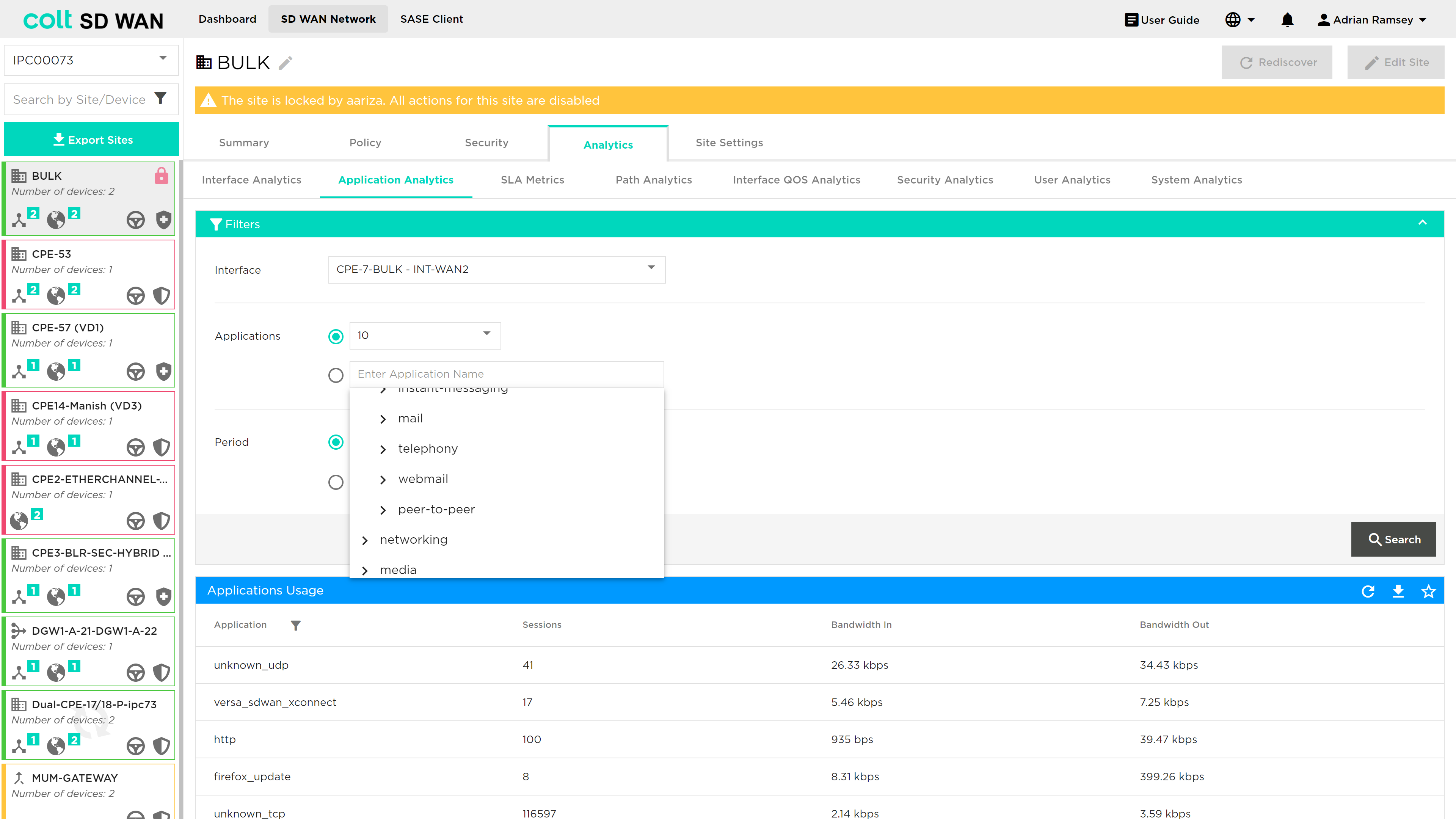
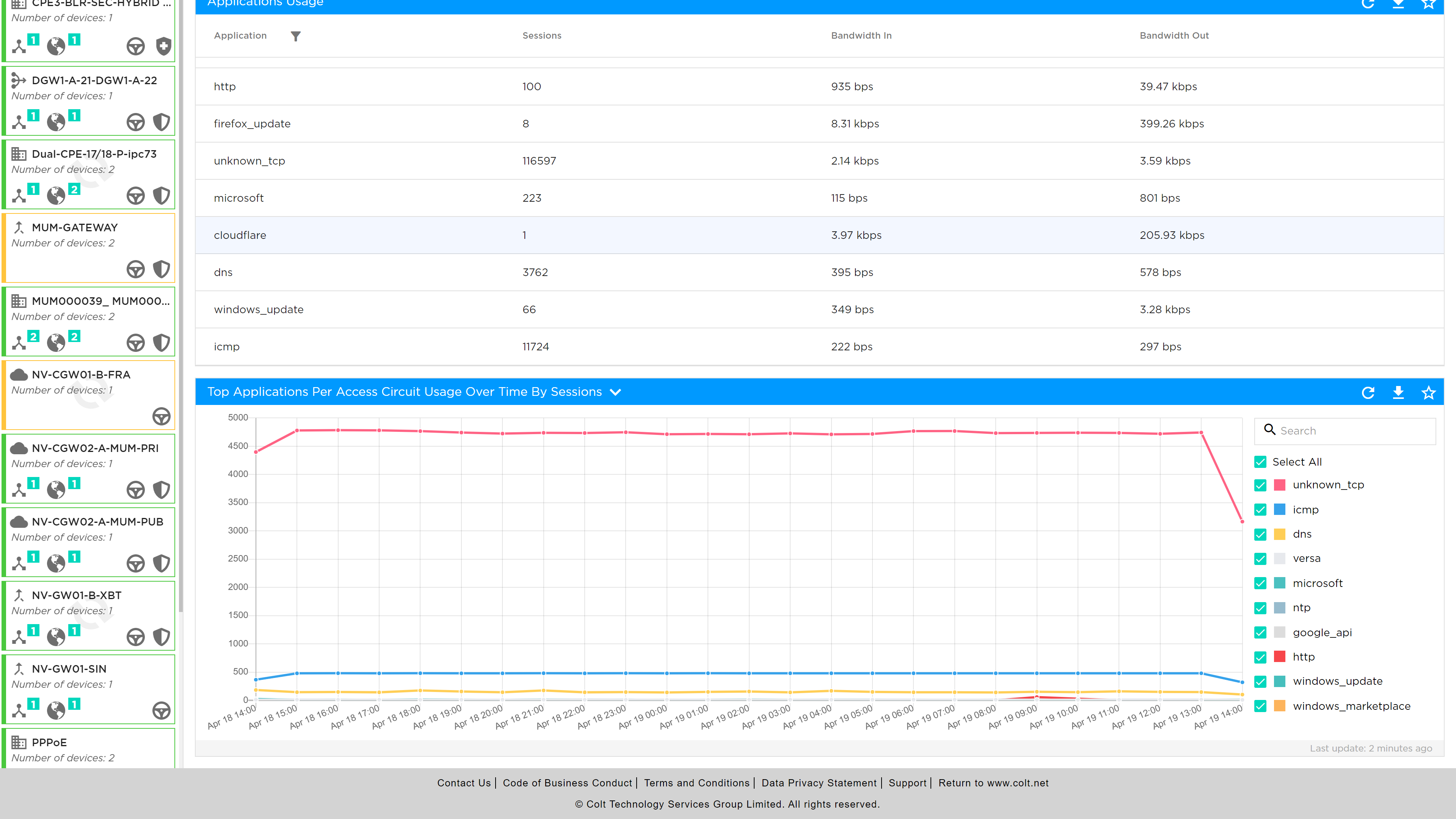
The data will be displayed in selected timeframe showing the following metrics which can be viewed graphically or in a tabular format:
-
Bandwidth In
-
Bandwidth Out
-
Sessions
-
Bandwidth
In addition reports can be downloaded in CSV format or pinned to the dashboard view.
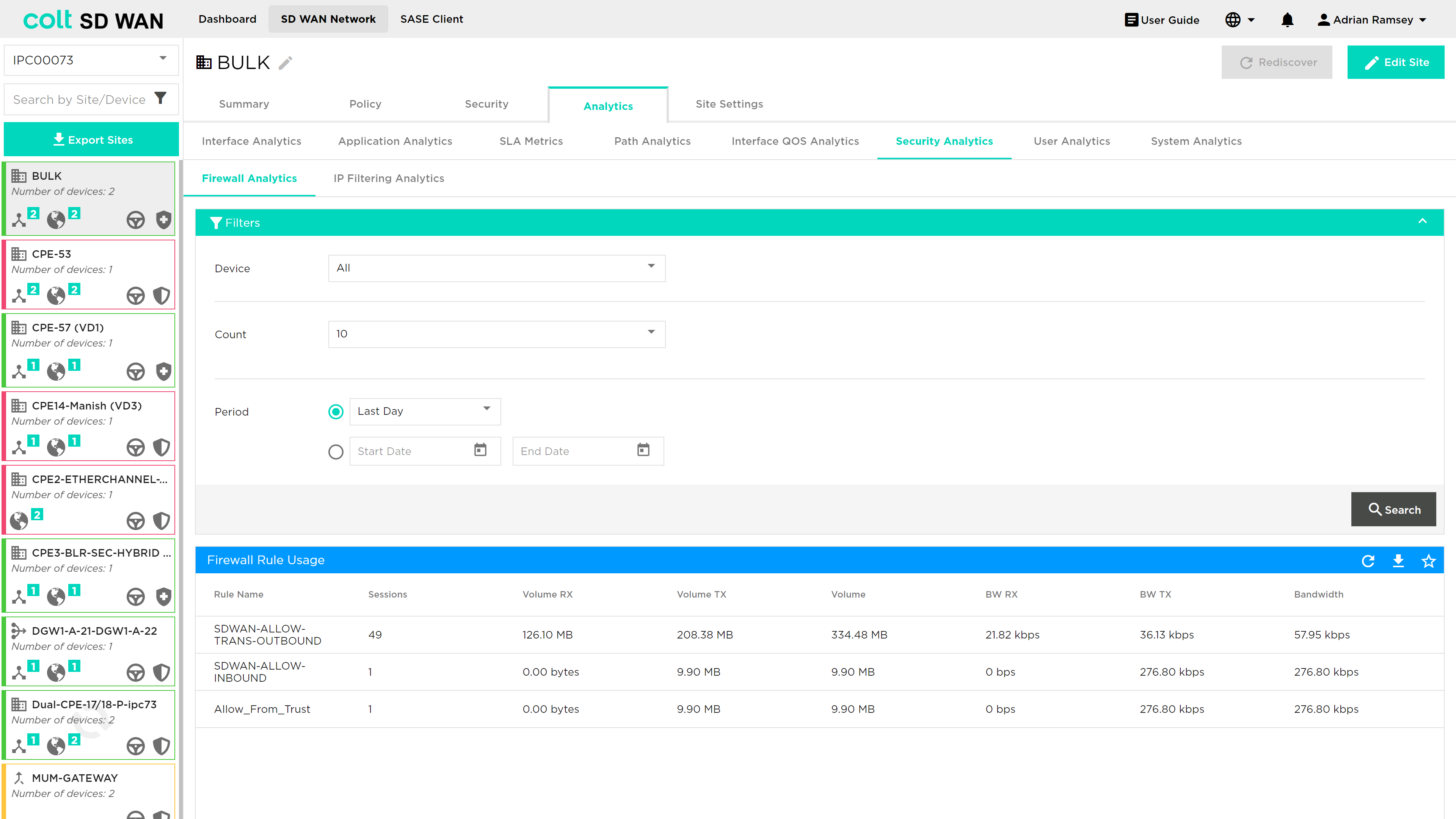
Firewall Analytics
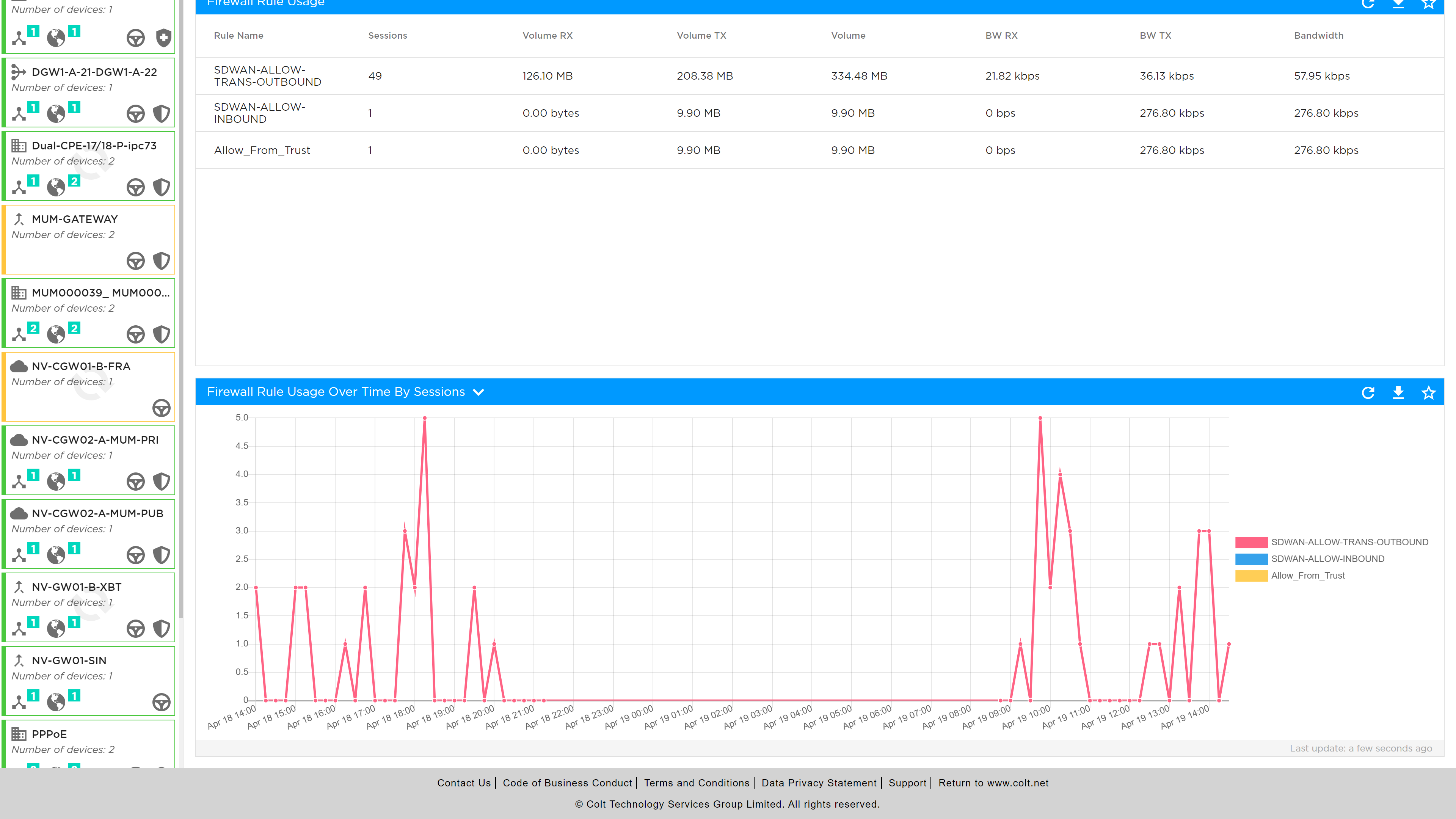
Portal users will be able to view usage metrics of most frequently hit firewall rules as shown below. The view can be changed by data and depth of most frequently used rules.
Graphical and tabular view of the data showing usage by: session, Bandwidth, Volume in both Transmit and Receive directions are available.
The Firewall Logfiles can be viewed and downloaded as a tabular format or downloaded as a CSV file.
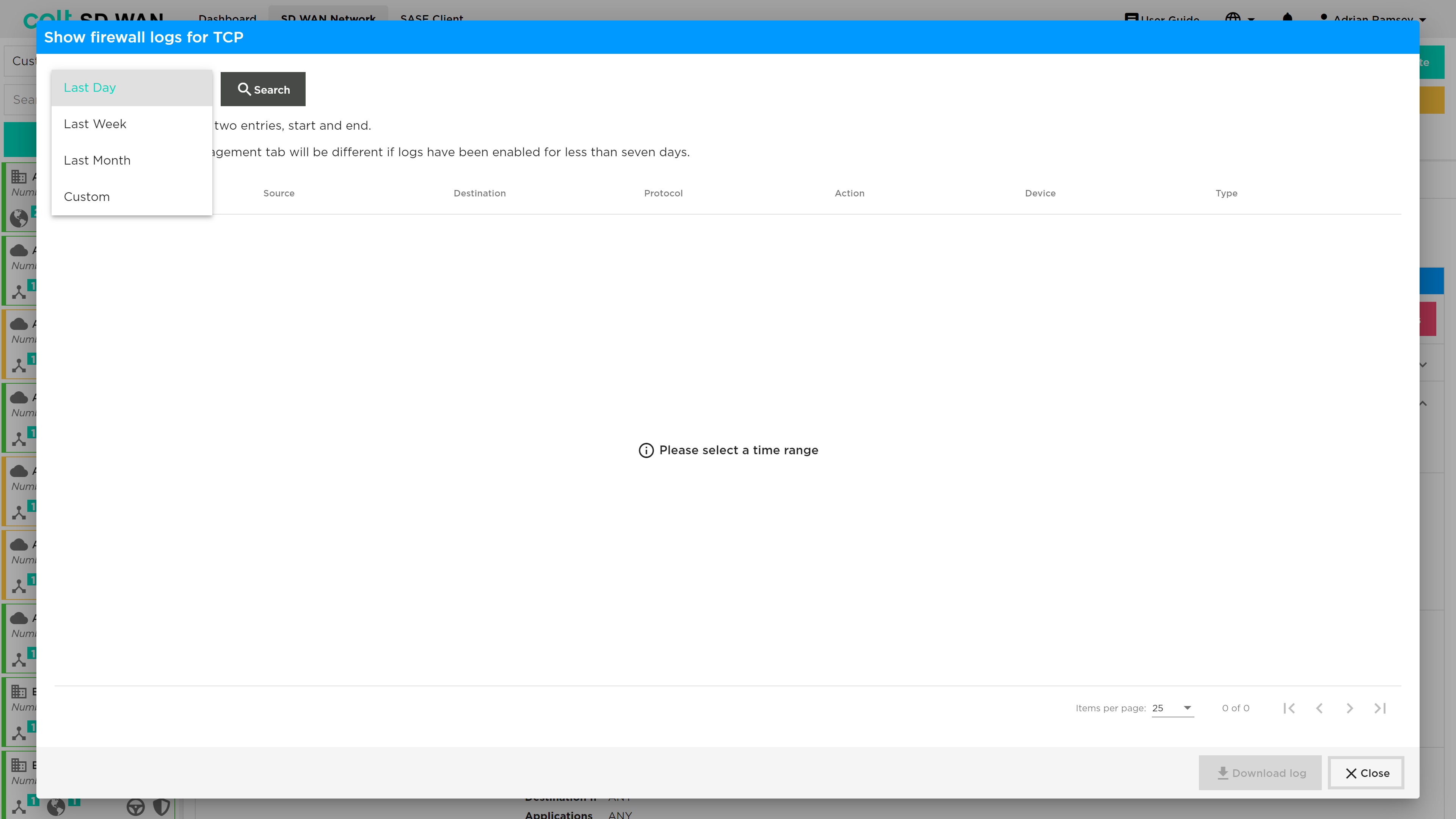
Log files include date/timestamp, IP address, protocol, action, device and type i.e. session start or end logging
Interface QoS Analytics
The interface QoS analytics shows usage by COS, please note that not all CoS or DSCP values are shown separately, but some are grouped as follows:
-
Best Effort: includes Best effort, Assured and Default CoS
-
Network Class of Service
-
Expedited Forwarding
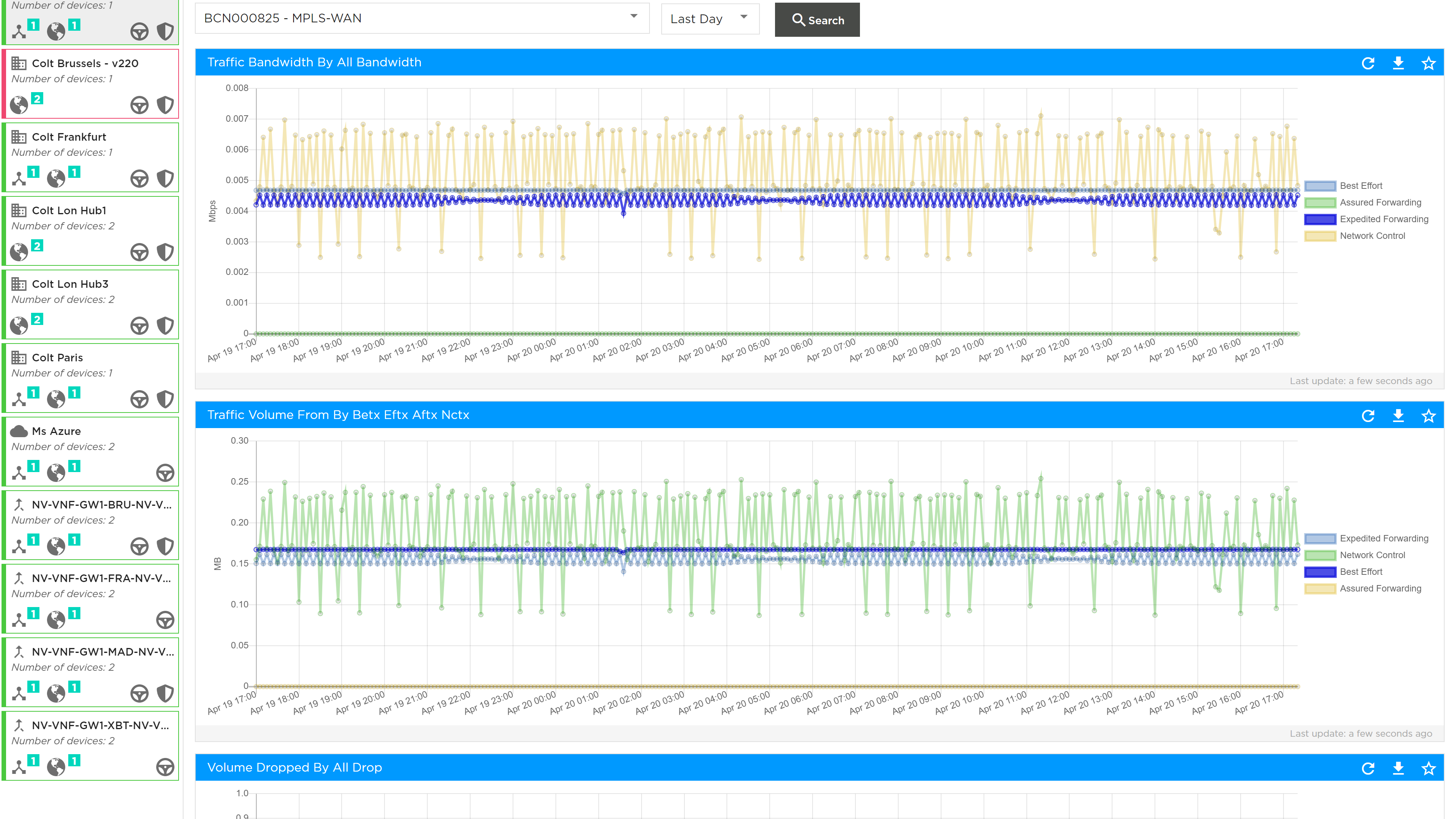
As with all other metrics this data can be viewed per interface, with standard and custom time ranges.
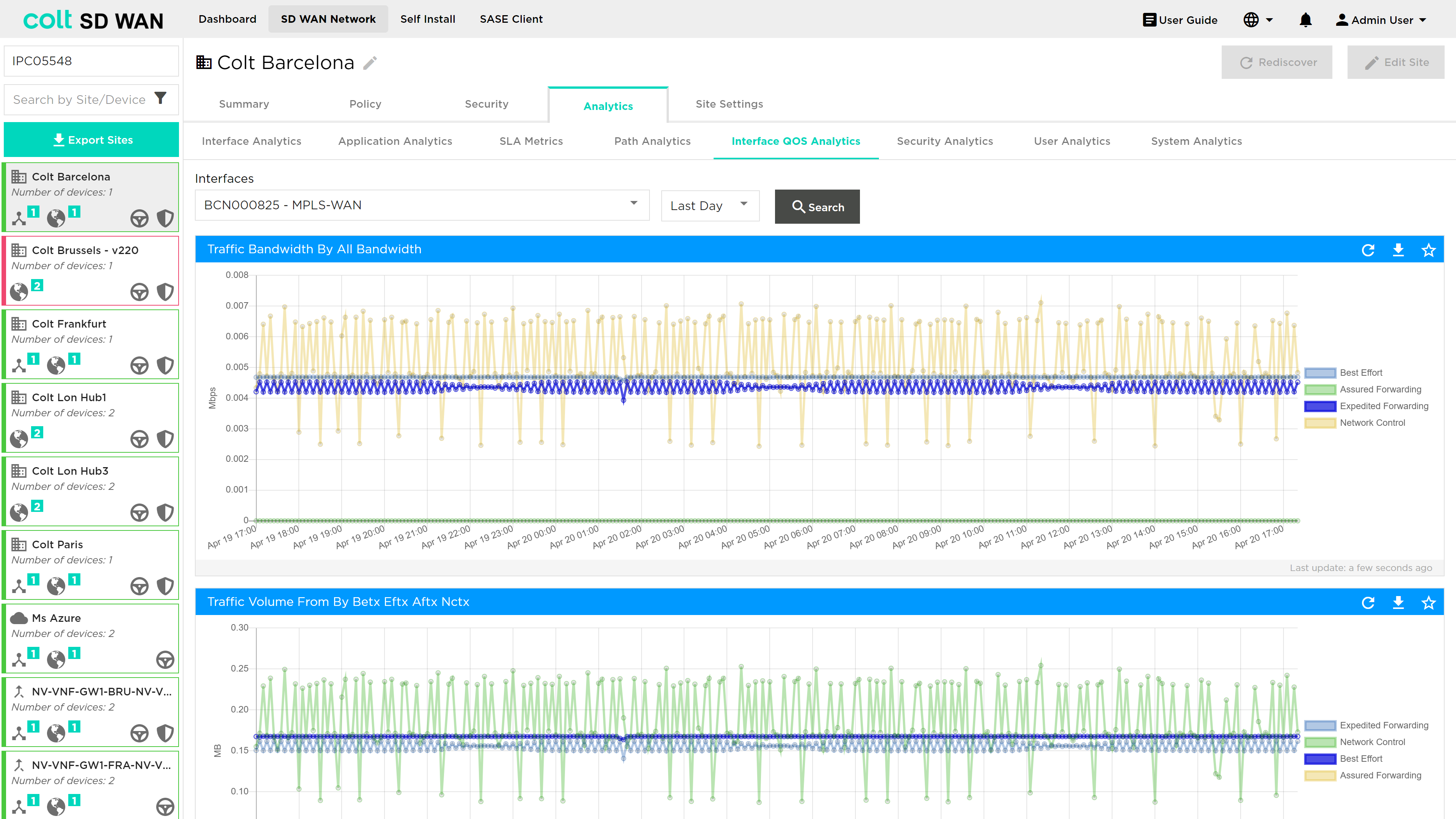
Usage data on the by these forwarding classes are shown in graphical form
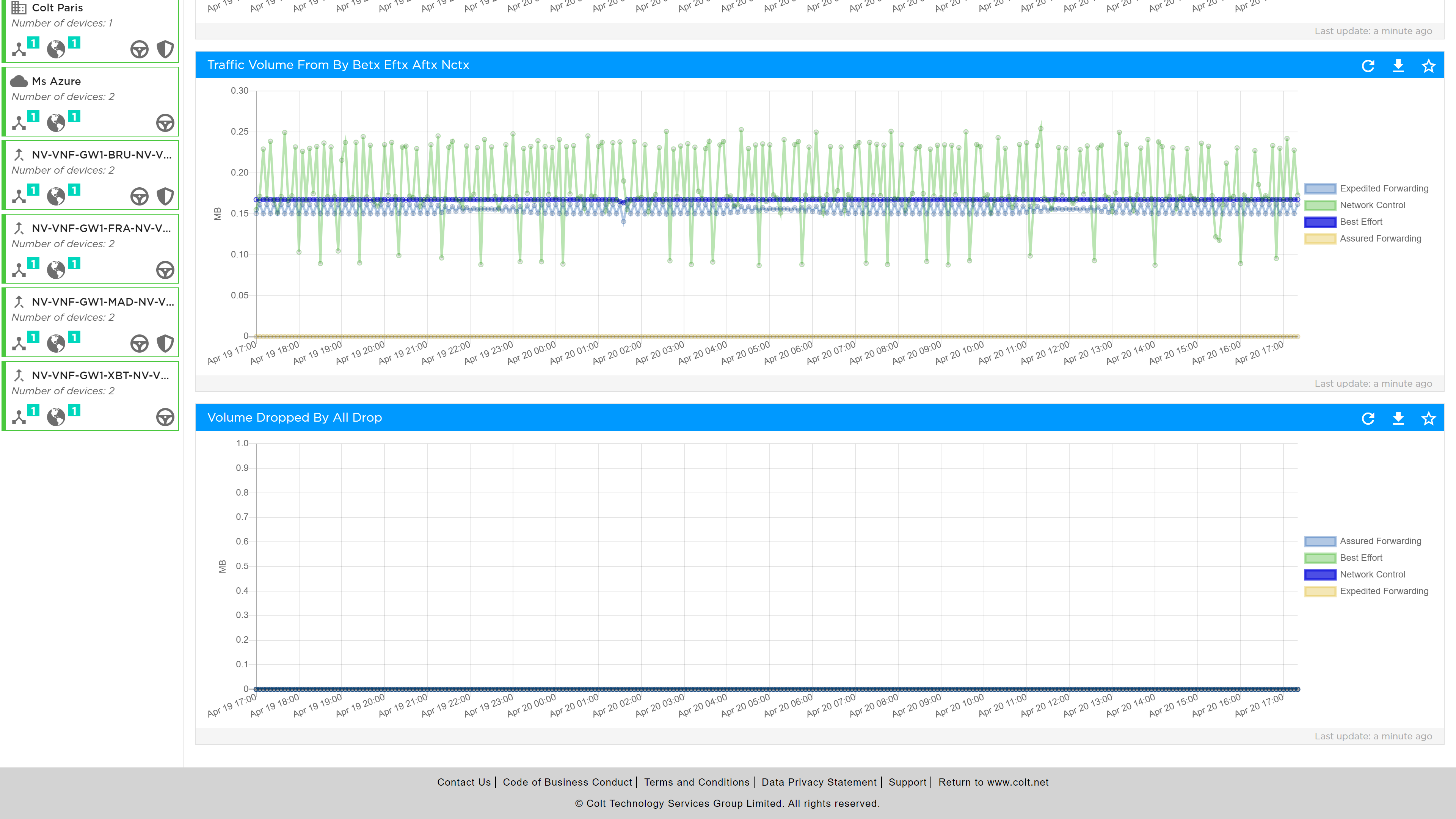
The packet drop per drop profile associated with forwarding class egress profile can be viewed as shown below.
SLA Metrics
The SLA Metrics analytics provide a view of the specific SLA values per path, where a path can be between the site and one or all the termination CPE. This is selectable as follows:
-
By remote device
-
By Interface
-
By Group of top used paths
-
Predefined periods: day, week or month
-
Custom date range
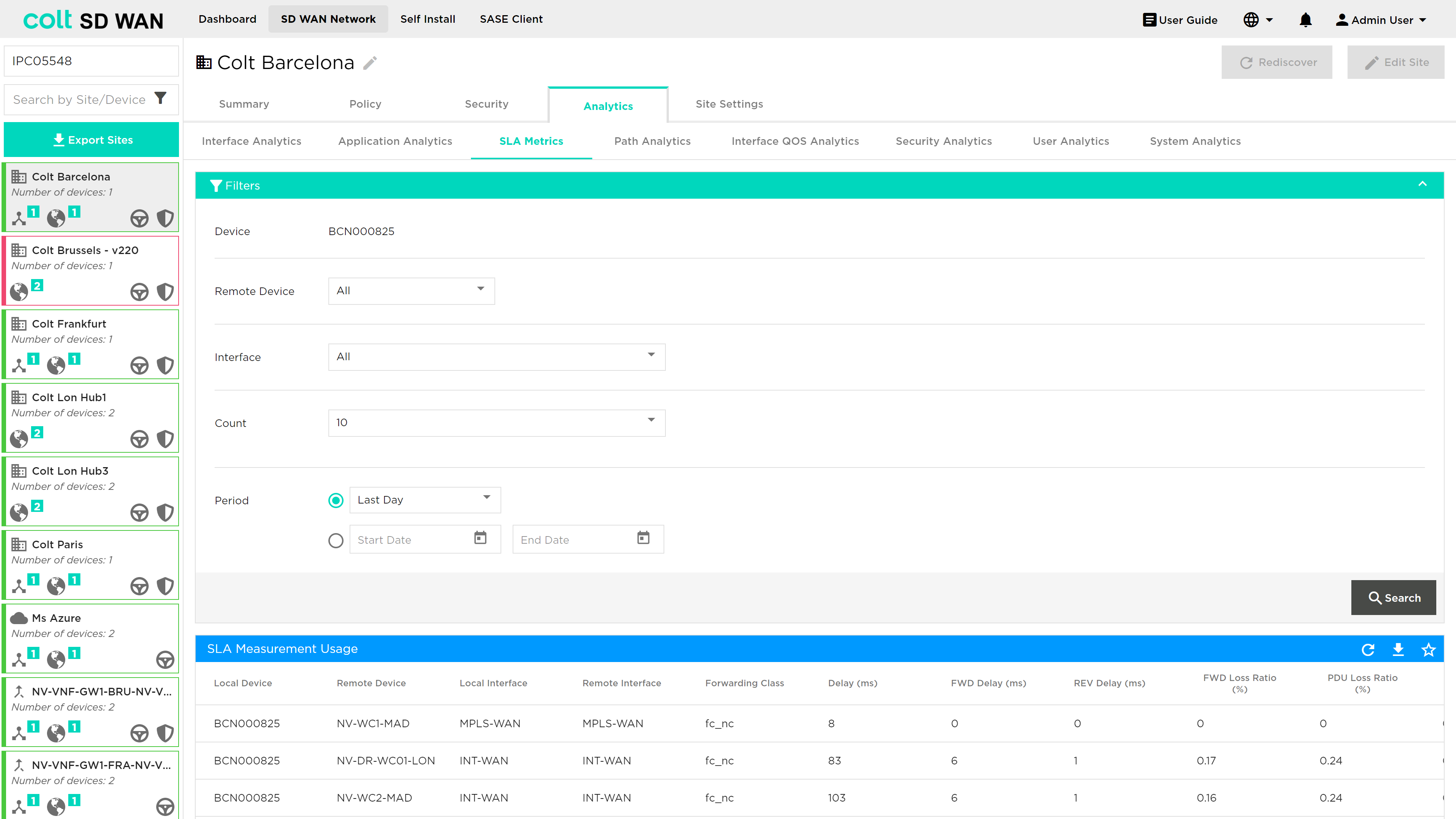
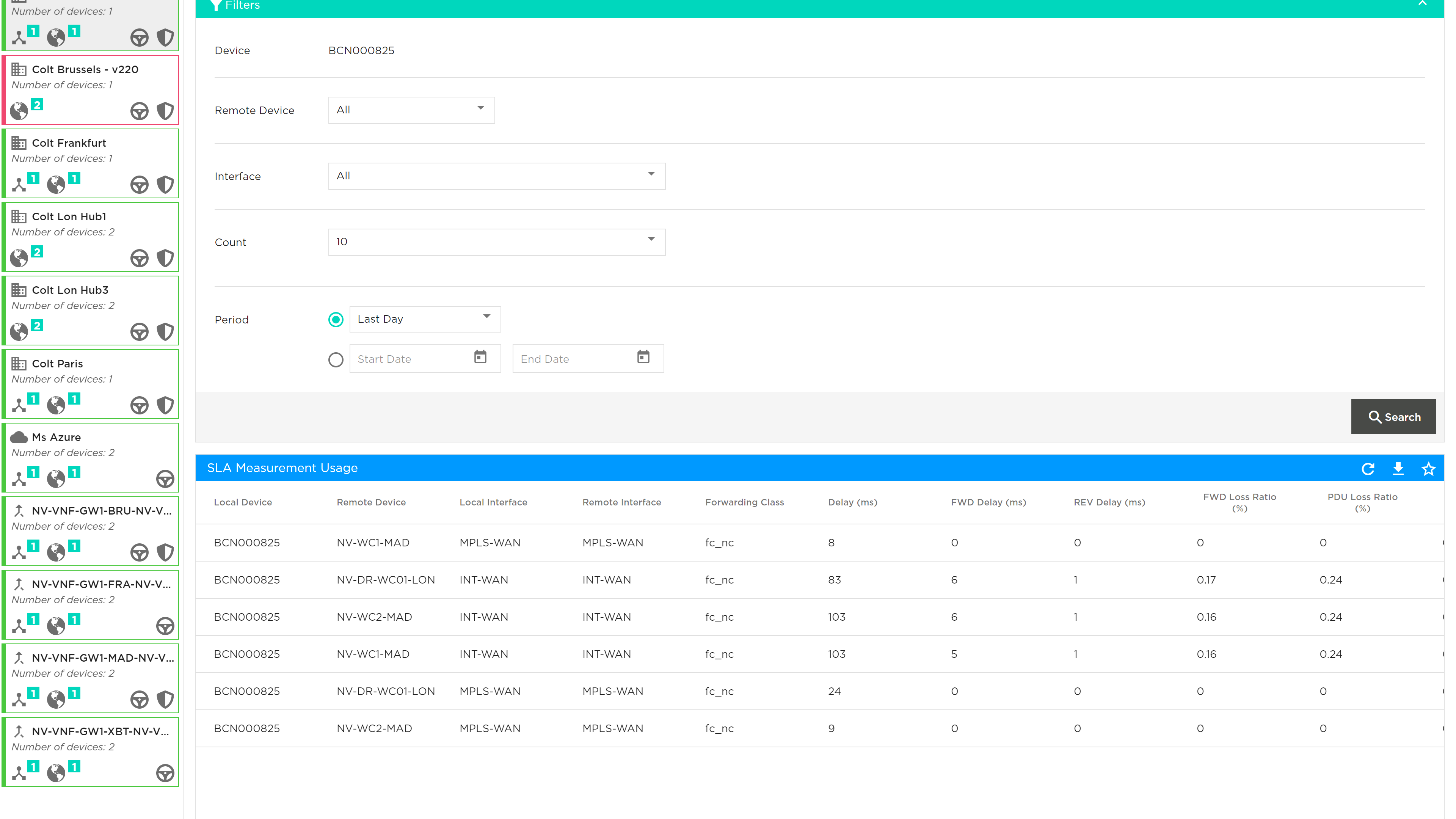
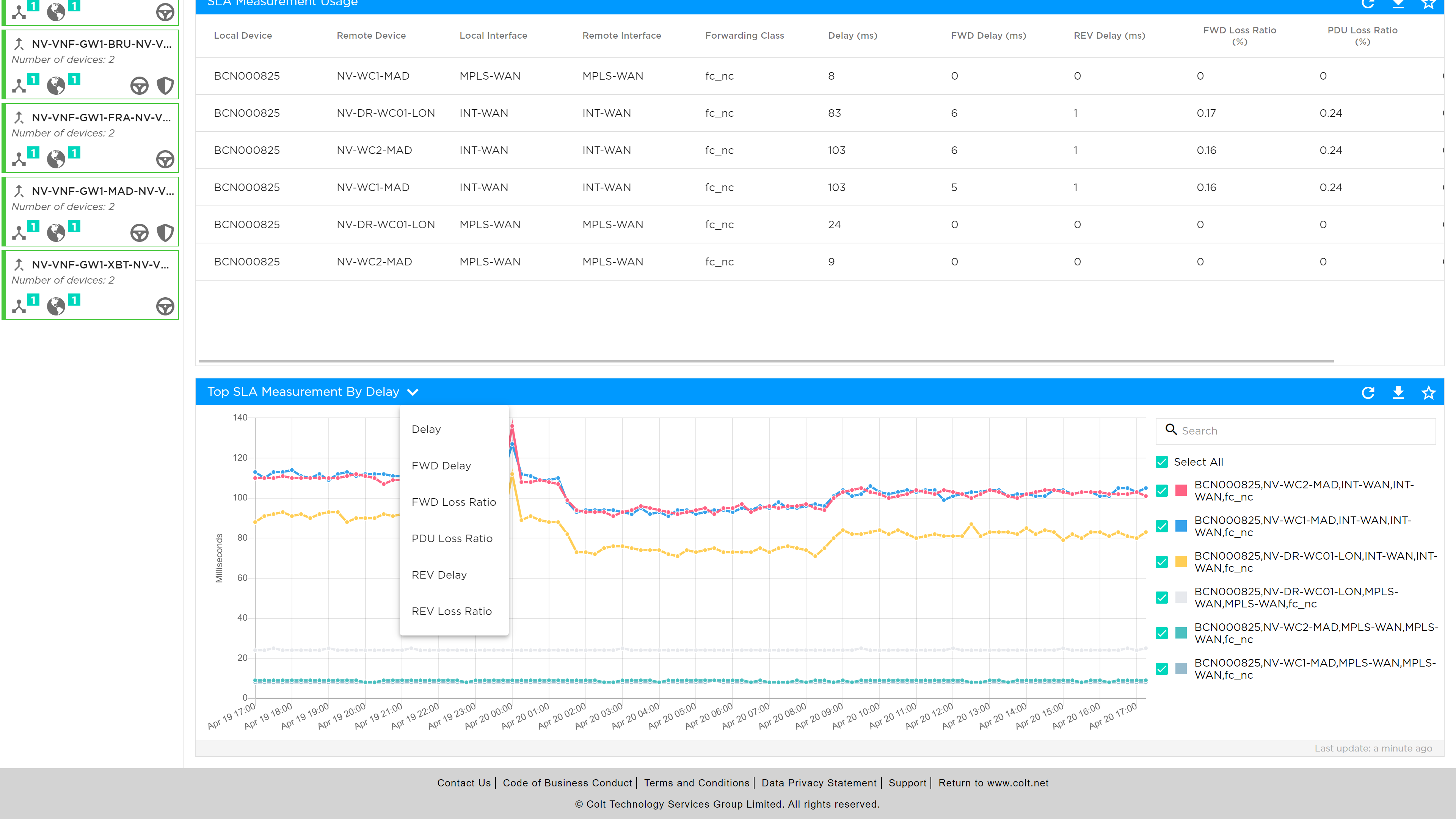
SLA metrics can be viewed are as follows:
-
Delay: Maximum link latency
-
Jitter: Forward and reverse delay variation
-
Packet loss percentage: Total percentage of forward and reverse packet loss in a flow
-
Forward loss: Packet loss in the forward direction
-
Reverse loss: Packet loss in the reverse direction
User Analytics
The user analytics provide usage date IP addresses on the LAN or DMZ which are consuming the WAN bandwidth. Reports can be generated by:
-
WAN Interface
-
Depth or number of top users
-
Predefined date
-
Custom date ranges
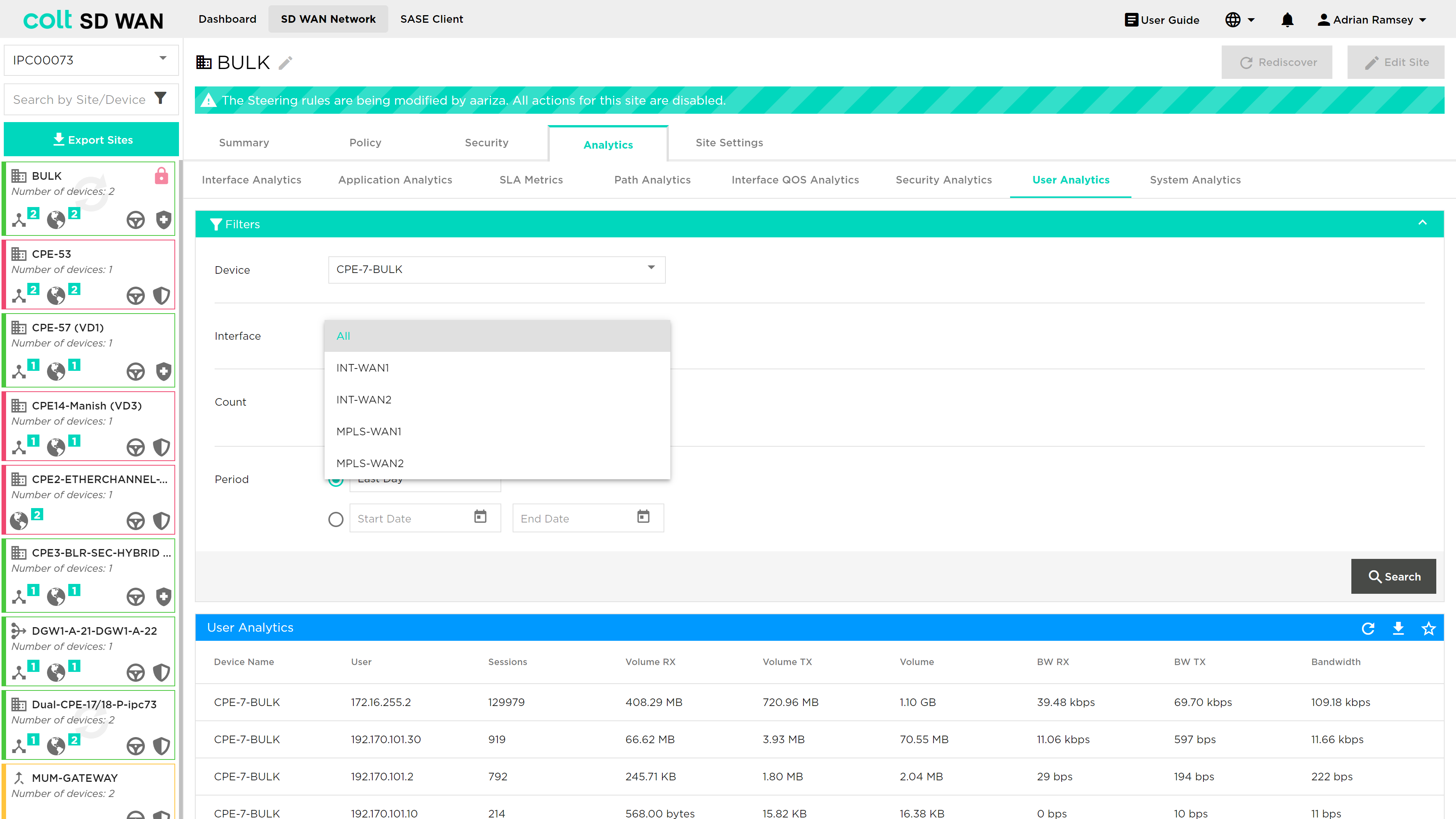
The reports can be shown as tabular or graphical views by source IP address in the following metrics: sessions, average session duration, data volume, Volume and Bandwidth by total or in the transmit/receive directions.